On iPhone, you can unsend and edit recent text messages, giving you the opportunity to fix a typo or pull back a message that you accidentally sent to the wrong person. You can undo a message for up to 2 minutes after sending it, and edit it up to five times within 15 minutes.
Note: You need iMessage on iOS 16, iPadOS 16.1, macOS 13, visionOS 1, or later to unsend or edit text messages, and also to see when others unsend or edit messages you receive. If the person you unsend a message to is using an earlier operating system, the original message stays in the conversation, and you get a notice that the recipient may still see it.
Edit a message to someone using an earlier operating system, and they get follow-up messages showing your new message in quotation marks, prefaced with “Edited to”. Editing and unsending don’t work for SMS, MMS, or RCS text messages. And in a group conversation, only iMessage users see your edits to a text message.
Unsend a message
You can undo a recently sent message for up to 2 minutes after sending it.
- Open the Messages app on your iPhone.
- Touch and hold the message bubble and tap Undo Send.
Both conversation transcripts, yours and your recipient’s, show a note confirming that you unsent the message.
Unsending removes the message from your recipient’s device.
Edit a sent message
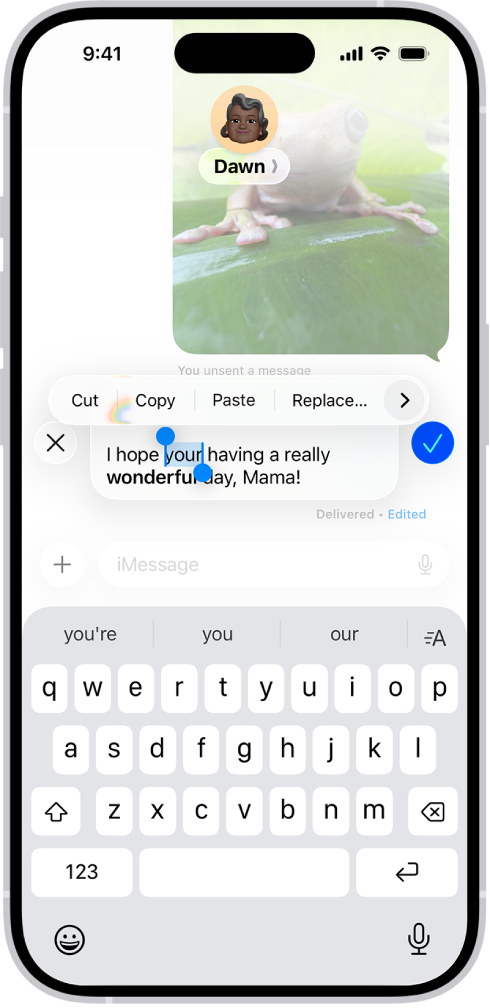
You can edit a recently sent message up to five times within 15 minutes of sending it.
- Open the Messages app on your iPhone.
- Select a conversation with the message you want to edit.
- Touch and hold the message bubble, then tap Edit.
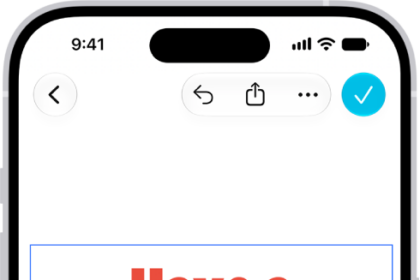
- Make any changes. Tap the Send Edit button to resend with edits or the Cancel Edit button to revert.
Note: The message is marked as Edited in the conversation transcript.
The message bubble updates to reflect your edits on both your iPhone and your recipient’s device, and both of you can tap Edited to see previous versions of your message.