On iPhone, you can use Camera or Control Center to scan Quick Response (QR) codes for websites, apps, coupons, tickets, and more. In Camera’s Photo mode, a link appears at the bottom of the screen once the QR code is inside the camera frame. With the Scan Code control in Control Center, you can even add more light with the flashlight.
Use Camera to scan a QR code
- Open Camera on your iPhone.
- In Photo mode, position iPhone so that the QR code appears inside the camera frame.
- Tap the link that appears at the bottom of the screen.
Use Control Center to scan a QR code
- Open Control Center on your iPhone.
- If you don’t see the Scan Code control, add it to Control Center.
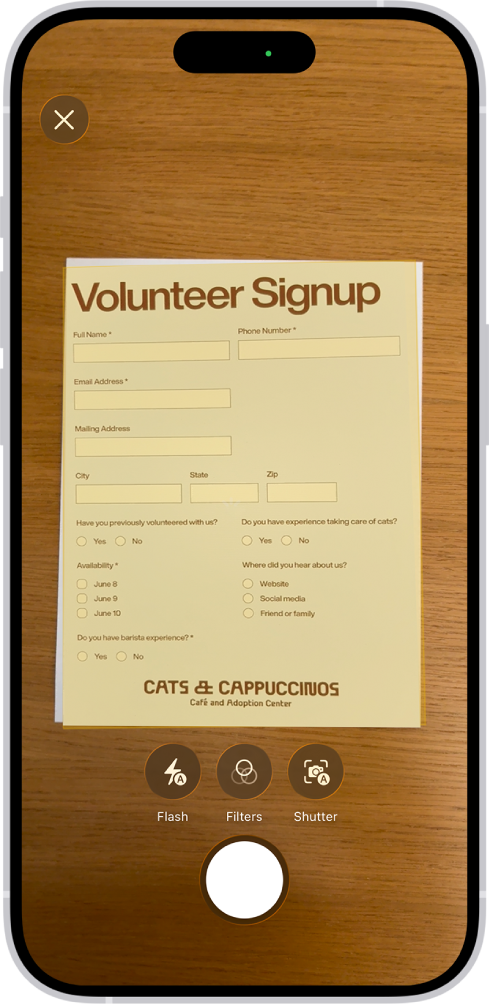
- Tap the Scan Code button and then position iPhone so that the code appears on the screen.
Quick tip: Tap the flashlight to add more light.
The Camera Control can also scan QR codes on supported models.