You’ll see a message on Apple TV 4K when a software update is available. You can also check for updates yourself, or set Apple TV 4K to update automatically. If an update is available when you check, a message appears, and you can download and install it right there.
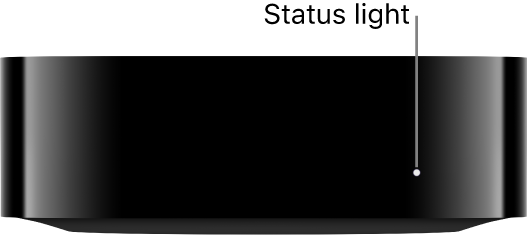
During the update process, the status light may flash slowly, and it’s important not to disconnect your Apple TV 4K until it’s done.
Here’s how to check for updates on your Apple TV 4K and set it to update automatically.
Check for updates
- Go to Settings on Apple TV 4K.
- Go to System > Software Updates and select Update Software.
If an update is available, a message appears.
- Select Download and Install to start downloading.
During the update process, don’t disconnect your Apple TV 4K. The status light may flash slowly during the update process.
Set automatic updates
- Go to Settings on Apple TV 4K.
- Go to System > Software Updates and select Automatically Update to turn it on.
Not all features and content are available in all countries or regions or on all Apple TV hardware models.
See also