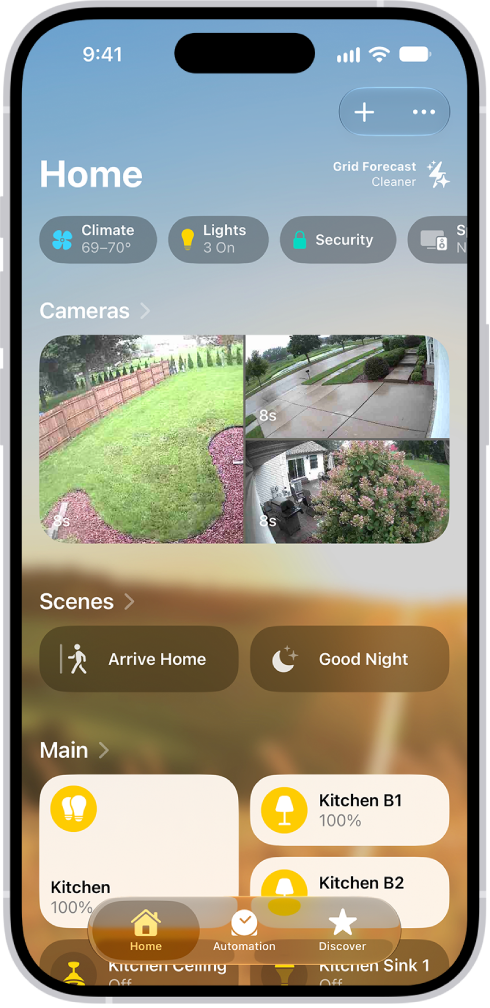
On iPhone, the electricity powering your home comes from different sources, which can include renewable energy, like solar and wind, or fossil fuels, like coal and natural gas. And those sources can change throughout the day.
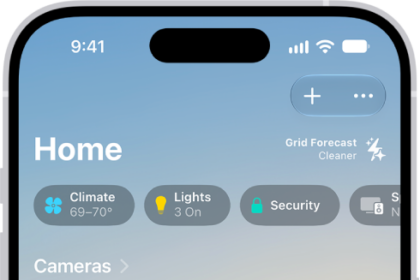
In the Home app on your iPhone, you can see a forecast for your area that highlights cleaner times, which can help reduce carbon emissions, and less clean times, to help you choose when to use electricity. You can even receive Grid Forecast notifications. To see it, you need an internet connection and Location Services on for the Home app.
To view the Grid Forecast, you must be connected to the internet, and Location Services must be turned on for the Home app.
Note: Grid Forecast is available only in the contiguous United States; it’s not available in Alaska or Hawaii.
Show Grid Forecast
- Open the Home app on your iPhone.
- Tap Home.
- Tap the Energy category at the top of the screen to show the Grid Forecast widget.
The widget’s green bars show when cleaner energy is available in your area, such as from 4 p.m. until 10 p.m. No bars? Then cleaner energy isn’t forecast for the near future.
When you’re traveling, Grid Forecast shows energy information for your home location and for wherever your iPhone is.
Note: The Grid Forecast widget appears when you open the Home app if you haven’t added accessories to your home yet.
Receive Grid Forecast notifications
To receive notifications when the electricity powering your home is being generated by cleaner or more renewable sources of energy, tap the Notifications button in the Grid Forecast widget in the Home app, then tap Notify Me.
Turn off Grid Forecast
- Open the Home app on your iPhone.
- On the Home tab, tap the More button and then tap Home Settings.
- Tap Energy, then turn off Show Grid Forecast.