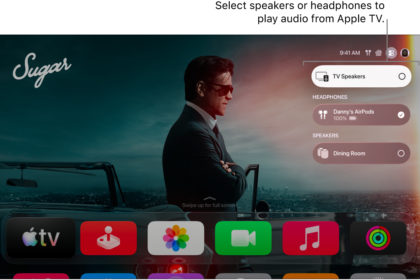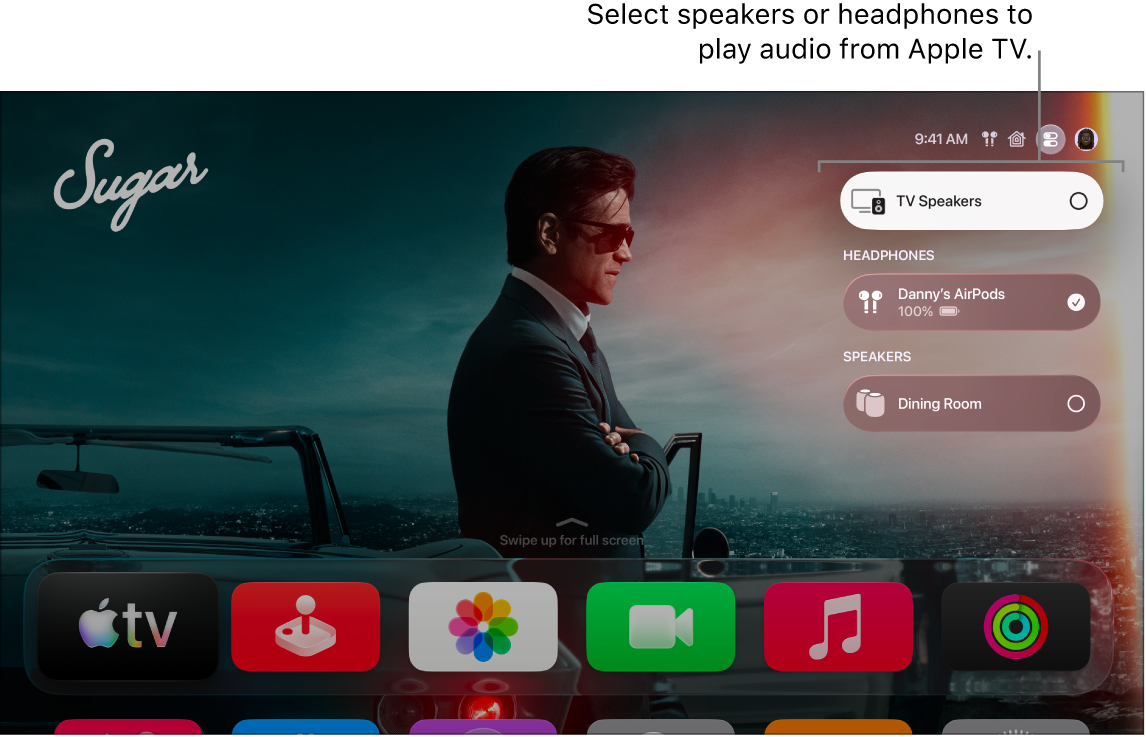
You can use one or more HomePod or AirPlay-enabled speakers to create room-filling sound on Apple TV 4K. If you have two HomePod speakers, you can use them as a stereo pair for true stereo separation, or for home theater surround sound if you have Apple TV 4K. Not sure? You can check which Apple TV model you have.
With eARC on Apple TV 4K (2nd generation or later), HomePod speakers can even play audio from a game console or DVD player connected to your TV.
Here’s how to set up your speakers on Apple TV 4K.
Set HomePod or AirPlay-enabled speakers as your default audio output
Your Apple TV 4K and your HomePod or AirPlay-enabled speakers need to be connected to the same network and assigned to the same room before you start.
- Go to Settings on Apple TV 4K.
- Go to Video and Audio > Audio Output and select the HomePod (or HomePod stereo pair) or AirPlay-enabled speaker as your Default Audio Output.
On HomePod, this routes all sound, including system and game audio, from Apple TV 4K to your HomePod speaker.
When you select AirPlay-enabled speakers other than HomePod speakers as your default audio output, Apple TV 4K plays audio through your AirPlay speakers except system alerts and game sounds, which play through your TV speakers.
Quick tip: HomePod can control Apple TV 4K with Siri commands, too. For the details, see our article, Use Siri on other devices to control Apple TV 4K.
Place HomePod speakers for optimal sound
Depending on how many HomePod speakers you have, do one of the following:
- If you’re using one HomePod speaker: Place the speaker within 10 inches (25 centimeters) of a wall and as close to the center of your TV as possible.
- If you’re using a HomePod stereo pair: Place the speakers on either side of your TV. For optimal surround sound, the HomePod speakers should be about 4 feet apart from each other.
Note: A HomePod stereo pair can play Dolby Atmos, Dolby Digital 7.1, and Dolby Digital 5.1 surround sound. HomePod mini doesn’t support Dolby surround formats, but it still gives you an elevated sound experience by rendering these formats in mono or stereo.
Set up HDMI enhanced audio return channel on Apple TV 4K (2nd generation or later)
Apple TV 4K (2nd generation or later) has eARC built in. It sends full-resolution audio to your Apple TV 4K from an eARC-supported TV, or from any HDMI device connected to that TV, including 3D surround sound formats such as Dolby Atmos.
With HomePod or HomePod mini speakers set up as the default audio output with Apple TV 4K, they can play audio from a DVD player or game console connected to your TV with an HDMI cable.
- Connect one end of an eARC-compatible HDMI cable (sold separately) to the HDMI port on your Apple TV 4K. Connect the other end to the HDMI port labelled eARC on your TV.
- Turn on your TV. Then make sure its HDMI-CEC setting is enabled.
- Set the HomePod (or HomePod stereo pair) as your default audio output for Apple TV 4K.
- In Settings on Apple TV 4K, go to Video and Audio > Audio Output > Audio Return Channel. Then select Play Television Audio to turn eARC on.
- On your TV, select the HDMI input for the device you want to route audio from (such as a game console or DVD player).
The audio for the selected device is routed through Apple TV 4K to your HomePod speakers.
Note: You may need to check with your TV manufacturer to see if additional settings are required to enable eARC for audio output.
Not all features and content are available in all countries or regions or on all Apple TV hardware models.