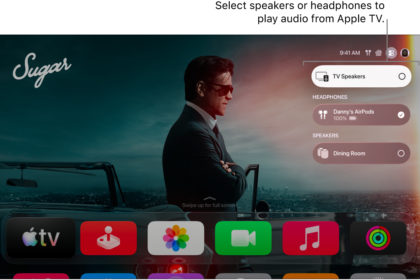
You can use Apple TV 4K to play audio throughout your home, sending it to one or more AirPlay-enabled devices (such as HomePod and other smart speakers and TVs) connected to the same network. It works the other way, too. You can send audio from AirPlay speakers like HomePod to Apple TV 4K.
Available speakers show up in Control Center, organized by room as assigned in the Home app. Before you start, make sure you’ve set up your devices in the Home app on an iPhone, iPad, or Mac (with macOS Catalina or later).
Here’s how to send audio between your Apple TV 4K and speakers around your home.
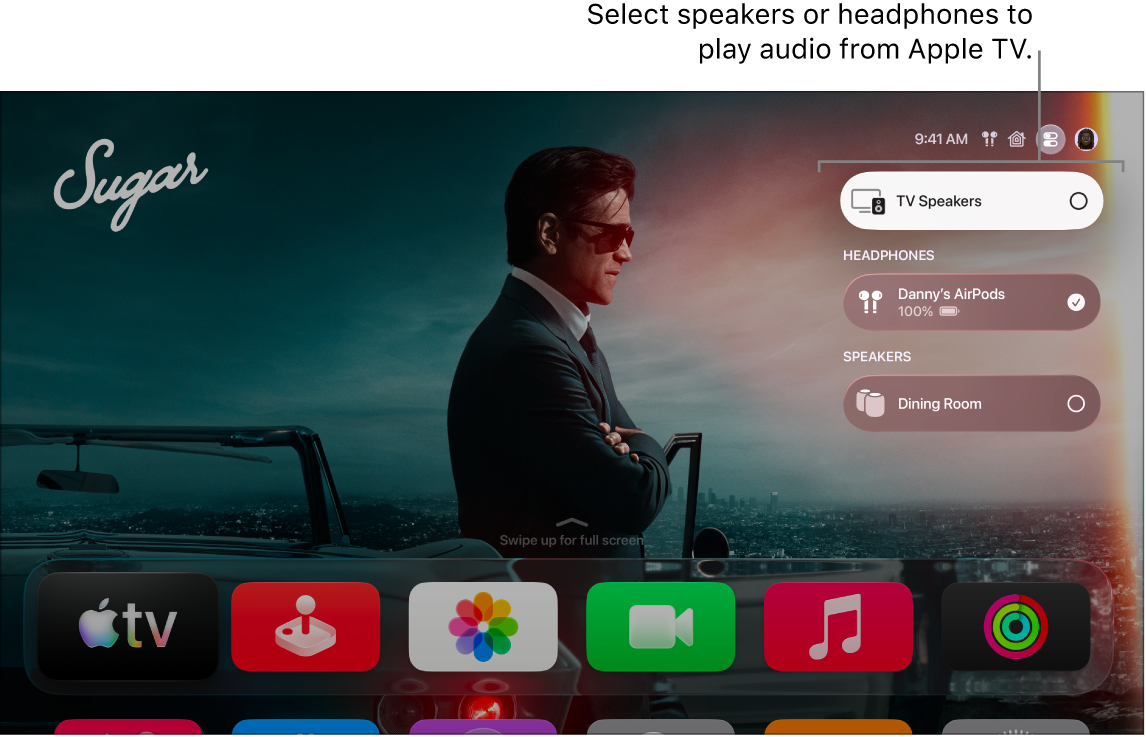
- On Apple TV 4K, do either of the following:
- Press and hold the TV button on your remote to open Control Center, then select Audio.
- If you see the Audio Controls button in an app, select it.
A list of available audio speaker devices appears, organized by room (as assigned in the Home app on your iPhone, iPad, or Mac).
- Do any of the following:
- Send audio from Apple TV 4K to a speaker in another room: Navigate down, then select a speaker or speakers. Select the speaker again to stop playing audio on it.
Tip: Some home theater receivers and smart TVs that also support AirPlay may appear twice in the list—as Receiver Speakers (connected via HDMI) and as AirPlay speakers. For the best audio quality, choose Receiver Speakers. If you hear an echo or delay in the audio, see Calibrate audio between your wired and wireless speakers.
- Adjust the volume of devices in another room: Highlight the volume control for the speaker. Then navigate left or right on the remote to adjust the slider, or press the Volume Up button or the Volume Down button.
- Send audio from a speaker in another room to Apple TV 4K: Open AirPlay controls on the device that’s controlling the speaker (such as an iPhone) and then select the Apple TV 4K. The song that was playing in the other room appears grouped with Apple TV 4K.
- Send audio from Apple TV 4K to a speaker in another room: Navigate down, then select a speaker or speakers. Select the speaker again to stop playing audio on it.
Not all features and content are available in all countries or regions or on all Apple TV hardware models.
See also