Facebook-f Twitter
GeeksChalk Logo GeeksChalk Logo
Notification
  • Home
  • iPhone
  • iPad
  • Mac
  • Apple Watch
  • Pages
    • About Us
    • Contact Us
    • Advertise With Us
  • 🤩 Trending:
  • 100 new iOS 26 features for iPhone
  • 10 Best iOS 26 Tips & Tricks
  • iPhone 16: Everything We Know
  • iPhone 16 Pro: Everything We Know

GeeksChalk is the leading source for all things iPhone, Mac, iPad, Apple Watch, Vision Pro, and more

GeeksChalkGeeksChalk
  • Home
  • iPhone
  • iPad
  • Mac
  • Apple Watch
Search

Popular Post

iPhone 15 Pro in black titanium, white titanium, blue titanium, and natural titanium finishes.
iPhone

Apple CarPlay GPS Not Working, Showing Wrong Location: Fix

iPhone 14 Pro and iPhone 14 Pro Max are shown in gold.
iPhone

How to Fix iPhone not sending text messages to Android

Connect an iPhone to car Bluetooth
Troubleshooting

How to fix Bluetooth not working on iPhone after iOS 26 update

iPhone outline with an Apple logo
iPhone

Need to restore an iPhone backup? Here’s how

Follow US
Copyright © 2026 www.GeeksChalk.com
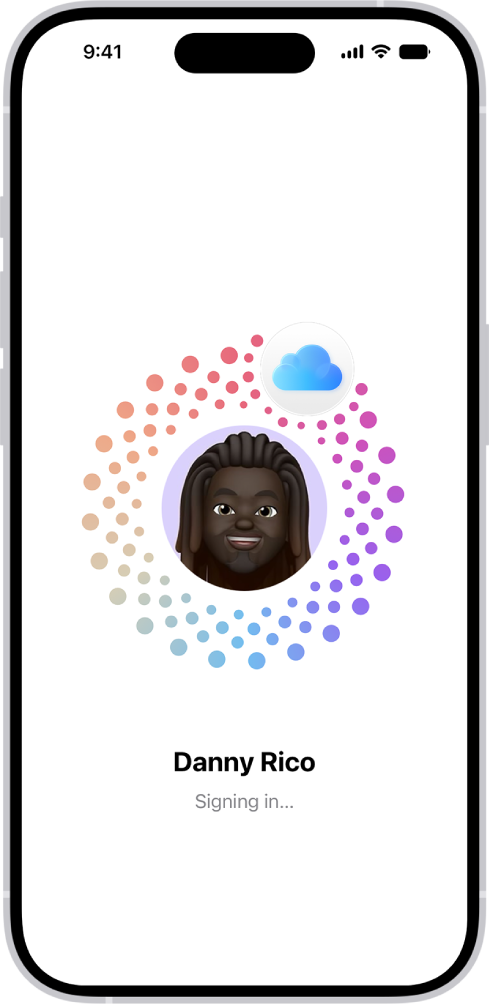
The Apple Account sign-in screen.
GeeksChalk > iPhone > How to use security keys to sign in to your Apple Account on iPhone

How to use security keys to sign in to your Apple Account on iPhone

You can use security keys to sign in to your Apple Account on iPhone, replacing verification codes for extra protection from targeted attacks.

Last updated: October 13, 2026 11:15 am
By Tom Griffin - Executive Editor
Share
2 Min Read

On iPhone, Security Keys for your Apple Account is an optional security feature designed for people, such as celebrities, journalists, and members of government, who want extra protection from targeted attacks on their account, including phishing and social engineering scams.

A security key is a small third-party hardware device that you can connect to your iPhone and use to verify your identity when signing in to your Apple Account. The physical key replaces the six-digit verification codes normally used in two-factor authentication, which keeps this information from being intercepted or requested by an attacker.

Set up security keys

You’ll need to set up at least two security keys so one can serve as a backup if the other is lost, damaged, or stolen. Your account can have up to six paired keys.

  1. Start the Settings app on your iPhone.
  2. Tap your name and tap Sign-In & Security.
  3. Tap Two-Factor Authentication, tap Security Keys, and then tap Add Security Keys and follow the onscreen instructions.

Sign in to a device, website, or app using a security key

  1. When prompted, insert your security key (if it’s an NFC key, hold or place it near the top of your iPhone).
  2. Follow the onscreen instructions.

Use a security key to reset your Apple Account password

If you forget your Apple Account password, you can reset it with a security key that’s paired with your account.

  1. Start the Settings app on your iPhone.
  2. Tap your name and tap Sign-In & Security. If you aren’t already signed in to your Apple Account on your iPhone, first use your paired security key to sign in.
  3. Tap Change Password, then follow the onscreen instructions.

Use a security key to unlock your Apple Account

If you fail to sign in to your Apple Account six times in a row, or your iPhone spots other signs of suspicious activity, you’ll get an onscreen notification that your Apple Account is locked. Your security key can unlock it.

  1. Start the Settings app on your iPhone.
  2. Tap your name and tap Sign-In & Security.
  3. Tap Unlock Account and then follow the onscreen instructions to unlock your Apple Account.
  4. If you think your account might have been locked because someone else knows your password, tap Change Password and enter a new one.
  5. Tap Done.

Remove security keys

Your Apple Account can have up to six security keys paired with it. Once you hit that limit, removing one or more of your paired keys makes room to pair additional keys. At any time, you can replace keys you’ve removed.

  1. Start the Settings app on your iPhone.
  2. Tap your name and tap Sign-In & Security.
  3. Tap Security Keys.
  4. To remove all keys, tap Remove All Keys, then tap Remove.

To remove individual keys, tap the ones you want to remove, then tap Remove Key. Note: If you remove all security keys from a device, the device reverts to using six-digit verification codes for two-factor authentication.
TAGGED:Apple Account
ByTom Griffin
Executive Editor
Follow:
Tom Griffin is the editor-in-chief at GeeksChalk where he oversees all of site’s evergreen content to ensure it’s up to date with the latest information. Hailing from London in the UK, he has over seven years of experience in the tech journalism space and holds a degree in English Literature. In his spare time, Tom can found checking out the latest video games, immersing himself in his favorite sporting pastime of football, and petting every dog he comes across in the outside world.
Leave a Comment Leave a Comment

Leave a Reply Cancel reply

Your email address will not be published. Required fields are marked *

Recent News Flash

AirPods Pro 3 in their charging case.

How to tell which AirPods you have: every model by year

A screen from the Find My app on iPhone. The location of AirPods Pro is shown on a map of Cupertino, along with an address listed and the options Play Sound, Directions, and Settings.

How to find your AirPods

The volume screen in Control Center showing the volume level for AirPods Pro. Below the volume indicator, the Spatial Audio options are showing. The options are Off, Fixed, and Head Tracked.

How to control Spatial Audio and head tracking on AirPods

Bluetooth settings on an iPhone showing options for AirPods Pro. The Find My Network option is on, which allows AirPods to be located individually on a map whenever they're lost.

How to rename your AirPods

Trending Now

The front of a burgundy iPhone 18 Pro is displayed next to a rear-facing burgundy iPhone 18 Pro Max.

iPhone 18 Pro is eSIM-Only in These Countries

The Health Details screen, which includes fields for name, birth date, blood type, and other information.

How to fill out your Health Details in Health on iPhone

The Find My screen open to the Devices list. There are two devices in the Devices list: Danny's iPhone and Danny's iPad. Their locations are shown on a map.

How to set separation alerts in case you leave a device behind in Find My on iPhone

Explore More

Recommended For You

A Messages conversation with a dynamic background.

How to add backgrounds in Messages on iPhone

A conversation in the Messages app translated from Spanish to English.

How to translate text in apps on iPhone

The Messages settings pane with iMessage turned on.

How to use Contact Key Verification on iPhone

The Wi-Fi options screen in Settings. Wi-Fi is turned on, and a network is selected.

How to share your internet connection from your iPhone

GeeksChalk Logo GeeksChalk Logo
  • Home
  • Contact Us
  • Advertise
  • Our Staff
  • Editorial Guidelines
  • Terms
  • Privacy
  • Accessibility
  • Copyright
  • About Us
  • Fact Checking Policy
  • Correction Policy
  • Ethics Policy
  • Ownership Policy
Copyright © 2026 www.GeeksChalk.com
Welcome Back!

Sign in to your account

Username or Email Address
Password

Lost your password?