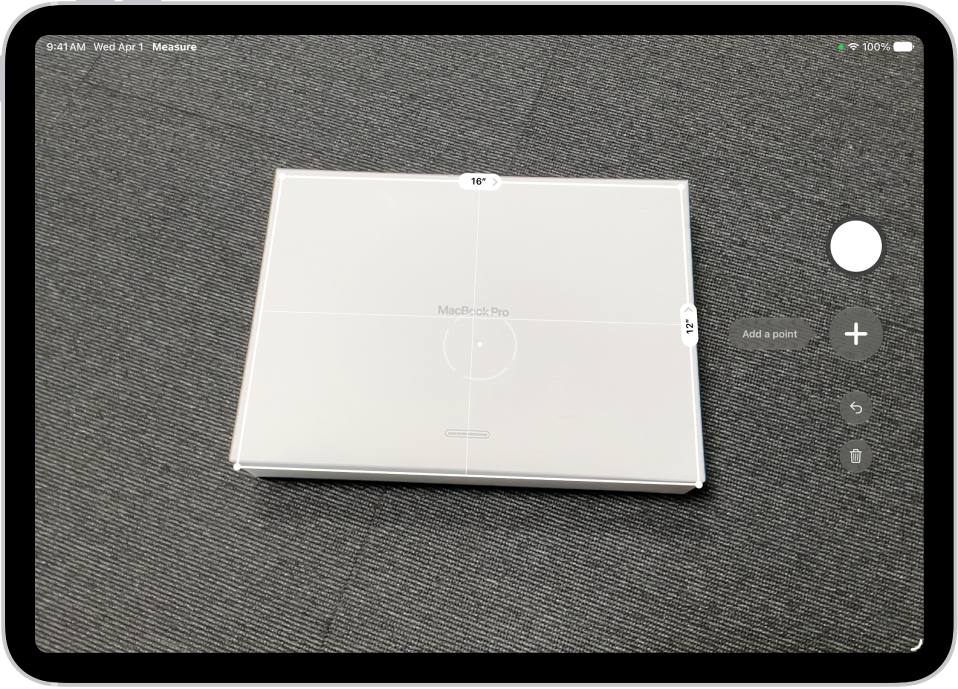
On supported iPad models, you can save a list of all the measurements you take in a single session, complete with screenshots, so you can easily share and access them whenever you need them. You can copy them into another app, like Notes, though people’s height measurements aren’t included in the list.
- Go to the Measure app (in the Utilities folder) on your iPad.
- Tap the History button to see a list of your recent measurements.
Swipe up from the top of the list to see more measurements.
- To save the measurements, tap Copy, open another app (for example, Notes), tap in a document, and then tap Paste.
Note: People’s height measurements aren’t included in this list. To save a person’s height measurement, see Measure a person’s height.
See also