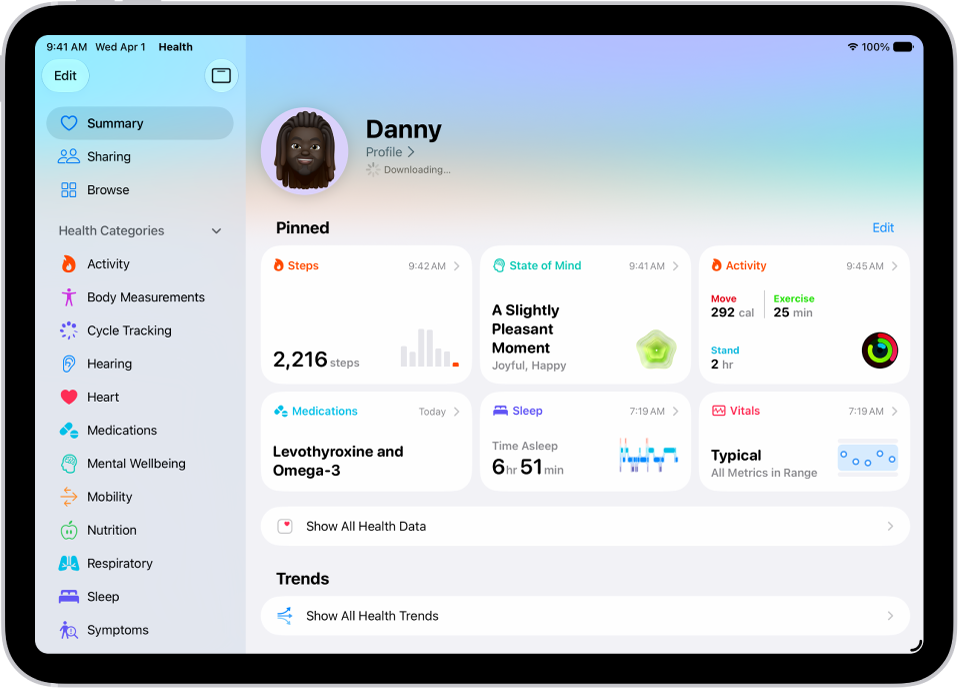
After you set up health record downloads from a healthcare provider, your records are securely and automatically downloaded to iPad, where they’re available for viewing in the Health app.
You can search for a health record category or a type of data, like blood pressure, and pin important lab results so they appear at the top for quick access. Third-party apps can request access to your health records, too, and you can delete an organization and its records from iPad.
View your health records
- Start the Health app on your iPad.
- Tap the Browse button to display the Health Categories list and then do one of the following:
- Tap the search field, then enter the name of a health record category (such as clinical vitals) or a type of data (such as blood pressure).
- Scroll down, then tap a category (such as Allergies or Clinical Vitals) below Health Records.
- Scroll down, then tap the name of a specific organization.
To see more details, tap any section where you see the Details button.
Note: If you don’t see health records that you expect from a healthcare provider, make sure that you’re signed in to your account with the provider. Tap the Browse button, scroll to your list of accounts, tap the name of your provider, then sign in if asked.
Pin important lab results
You can pin results to the top of the Lab Results screen for quick access.
- Start the Health app on your iPad.
- Tap the Browse button, then tap Lab Results.
- Tap the More button, then tap Edit.
- Tap the Pin button next to a result.
You can also touch and hold a result, then tap Pin this Lab.
- When you’re finished, tap the More button and tap Done.
Share your health records with other apps
Before you grant a third-party app’s request for access to your health records, be sure that you trust the app with your records.
- To grant access, choose which categories to share—such as allergies, medications, or immunizations—when asked.
- Choose whether to grant access to your current and future health records or to only your current records.
If you choose to share only your current records, you’re asked to grant access whenever new records are downloaded to your iPad.
To stop the app from getting your health records, turn off its permission to read data from Health.
Delete an organization and its records from iPad
- Start the Health app on your iPad.
- Tap Summary in the sidebar and tap Profile next to your picture or initials at the top left.
- Tap Health Records, tap the name of an organization, and then tap Remove Account.
See also