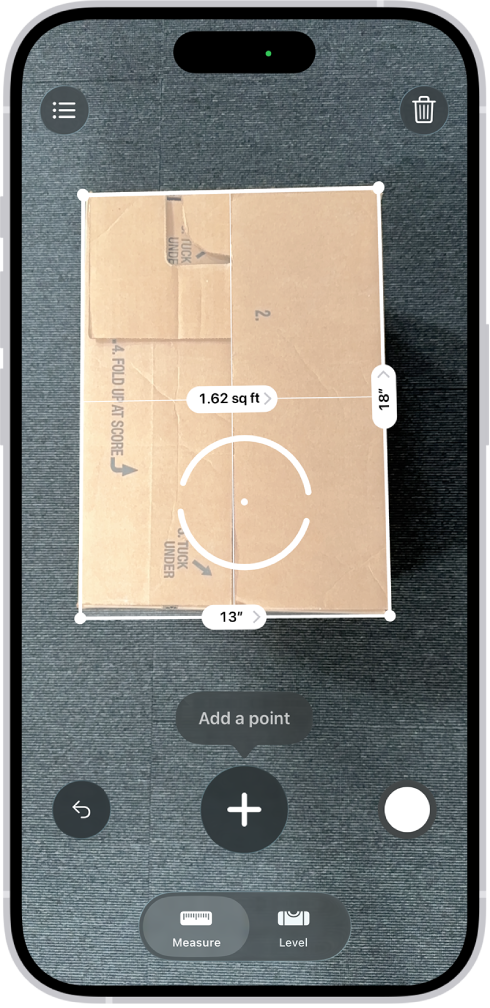
On supported iPhone models, you can save a list of all the measurements you take in a single session, complete with screenshots, so you can easily share and access them whenever you need them. They’re behind the History button in the Measure app.
- Open the Measure app (in the Utilities folder) on your iPhone.
- Tap the History button to see a list of your recent measurements.
Swipe up from the top of the list to see more measurements.
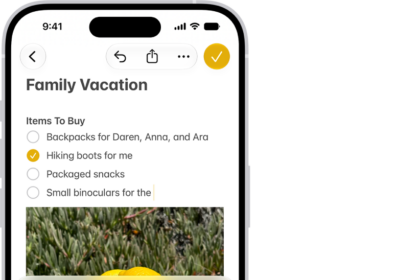
- To save the measurements, tap Copy, open another app (for example, Notes), tap in a document, and then tap Paste.
Note: Height measurements aren’t included in this list.