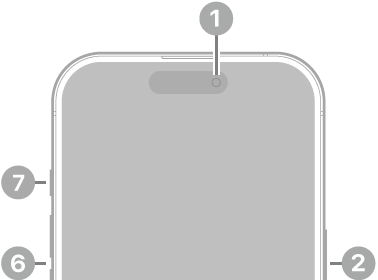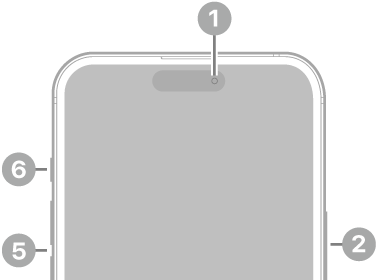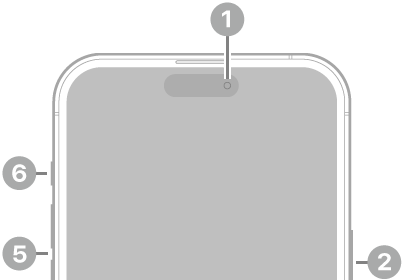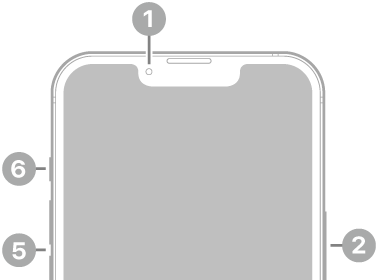
iPhone turns off the display to save power, locks for security, and goes to sleep when you’re not using it. You can quickly wake and unlock iPhone when you want to use it again.
Lock iPhone
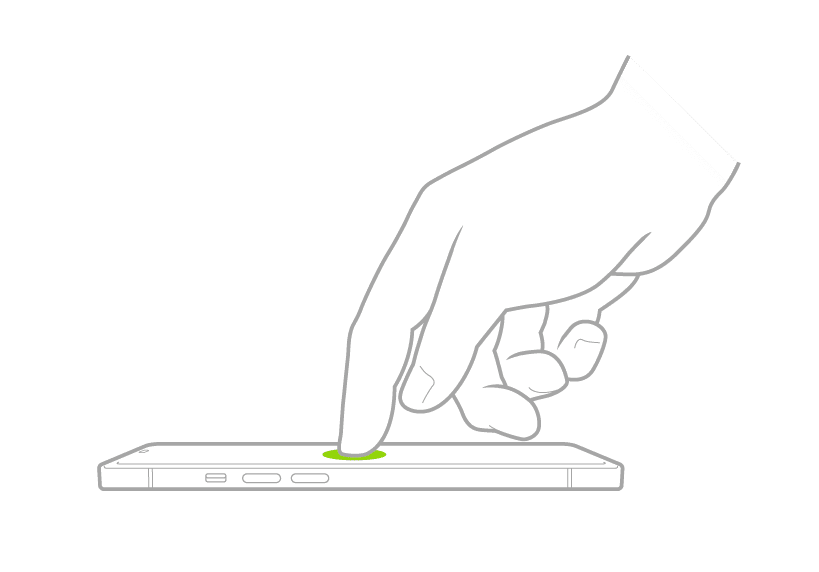
When you’re not using your iPhone, lock it and put it to sleep by pressing the side button once. Locking the iPhone like this turns the screen off, saving battery power, and prevents anyone else from using the iPhone without unlocking it. Locking the iPhone before you put it in your pocket or purse also helps ensure that the touchscreen doesn’t register any bumps or touches that might change or delete something or even place an unwanted phone call.
Your iPhone automatically locks itself after a short period of inactivity, such as 30 seconds or a minute. To change when iPhone automatically locks, head to Settings ⇒ Display & Brightness; tap the Auto-Lock button; and then tap the length of time, such as 30 Seconds, 1 Minute, or 5 Minutes.
Wake iPhone
You can wake your iPhone using one of these methods:
- Press the side button.
- Raise iPhone. Note: To enable Raise to Wake, head to Settings ⇒ Display & Brightness, and then set the Raise to Wake switch on (green).
- Tap the screen (not available on iPhone SE).

Unlock iPhone with Face ID
Press the side button, tap the screen or raise iPhone to wake it. Point the iPhone at your face and swipe up from the bottom of the screen. Face ID recognizes your face and unlocks the iPhone.
Note: To lock iPhone again, press the side button. iPhone locks automatically if you don’t touch the screen for a minute or so. However, if Attention Aware Features is turned on in Settings ⇒ Face ID & Passcode, iPhone won’t dim or lock as long as it detects attention.
Unlock iPhone with Touch ID
Press the Home button using the finger or thumb you registered with Touch ID. The iPhone wakes, and Touch ID recognizes your fingerprint and unlocks the iPhone.
Unlock iPhone with a passcode
- Swipe up from the bottom of the Lock Screen (on an iPhone with Face ID) or press the Home button (on other iPhone models).
- Enter your passcode.