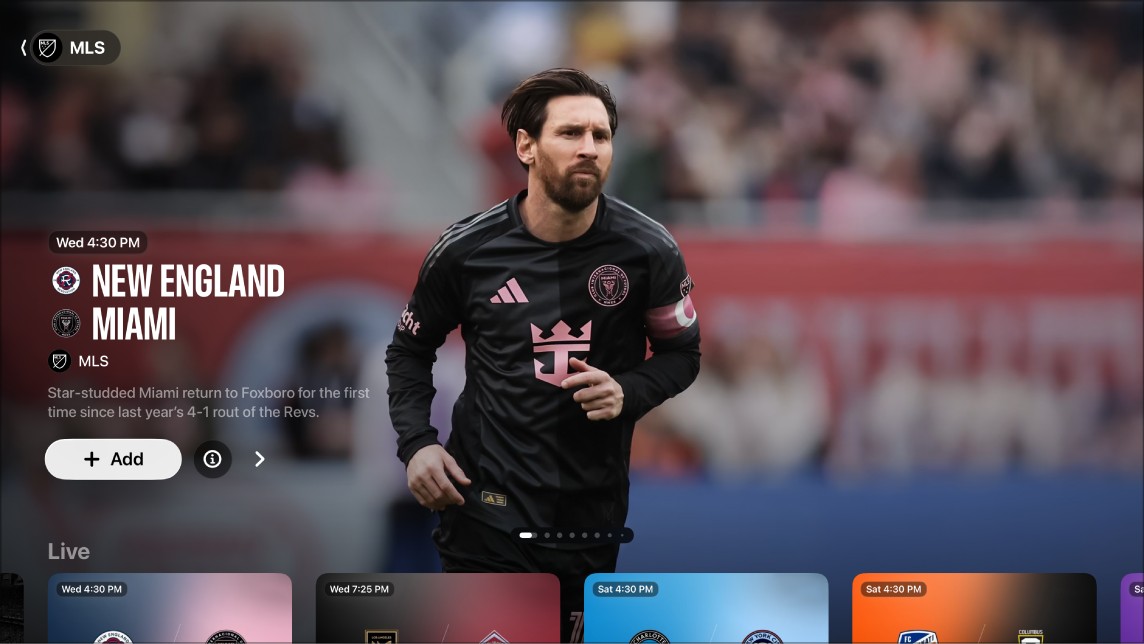
The MLS screen in the Apple TV app gives you access to Major League Soccer events when you subscribe to Apple TV. You can see matches in progress with up-to-the-minute scores, browse upcoming matches, watch multiple matches at the same time, and watch replays of previous matches.
There’s more than matches, too. You can access pregame and postgame shows and a whip-around show featuring live look-ins, analysis, and discussion. If you join a match late, Key Plays lets you catch up on the action you missed.
Here’s what you need to know about watching MLS on your Apple TV 4K.
Note: Some MLS games may be available to watch on a promotional basis, but full access to all games, shows, and features requires a subscription to Apple TV.
Watch Major League Soccer
- Go to the Apple TV app on Apple TV 4K.
- Open the sidebar and then select MLS.
- Do any of the following:
- Explore featured matches: View featured matches at the top of the MLS screen by selecting the Next button to progress through items. Swipe left on the clickpad or touch surface to go back.
Select the Info button to get more information about a match or select the Add button to add it to your watchlist.
- Browse available matches, league standings, and more: Navigate down to a category row. Then navigate left or right to view available options.
Tip: When browsing a row, you can scroll up to highlight the row title, then select it to view all items in that category or view more information about the collection.
- Watch replays of past matches: Navigate down to Past Matches. Choose a replay option.
- Follow your favorite clubs using My Sports: Navigate down to the All Clubs row, navigate left or right to a club, and press and hold the clickpad or touch surface on your remote. Then choose Follow Team. For more information, see Follow your favorite teams with My Sports.
- Browse a club’s matches, profiles, player profiles, and more: Navigate down to the All Clubs row, navigate left or right to a club, select the club, and then browse the available category rows.
- Explore featured matches: View featured matches at the top of the MLS screen by selecting the Next button to progress through items. Swipe left on the clickpad or touch surface to go back.
- To start watching, select an event or match; or, if you haven’t subscribed to Apple TV, follow the onscreen instructions to subscribe.
If a match is in progress, it plays automatically as a preview on the MLS screen. Press and hold the clickpad or touch surface, then choose options to Watch Live, Start Over, or listen to a different broadcast language.
For past matches, you can select Full Replay immediately after the match concludes, or Recap to watch a condensed version when it becomes available (usually within hours after the match is finished).
Note: Sports events added to your watchlist appear in the Continue Watching row when they are live.
Note: If you’d like to turn off live scores, check out our article, Adjust Apple TV app settings on Apple TV 4K.
Catch up with Key Plays
Start watching a live match in progress, and you’re able to catch up on the action by watching every key play you missed. And at any time during the match, you can browse and watch key plays.
- Go to the Apple TV app on Apple TV 4K.
- Open the sidebar and then select MLS.
- Do either of the following:
- Catch up to a match in progress: Select a match, then choose Catch Up from the menu.
- Go to key plays during a match: While watching a match, show playback controls and select Key Plays. Then select a key play from the Key Plays tab.
Key plays start playing in order from the beginning of the match if you’re catching up, or from the key play you select from the Key Plays tab.
- While watching key plays, you can do either of the following:
- Browse the collection: Navigate left or right.
- Return to the match: Select Jump to Live in the lower-left corner of the screen, or to resume playback from the last spot you were watching, press the Back button or the Menu button on your remote.
Watch multiple MLS streams at the same time
You can play up to four live MLS streams at once with Multiview. For how it works, see our article, Use Multiview to watch multiple live sports streams.
Listen to live local radio (if available) during MLS matches
- While you’re watching a match, show playback controls.
- Swipe up on the clickpad or touch surface. Then select the Audio Options button.
- Choose an audio track option from the pop-up menu:
- TV: Play the audio commentary from the TV broadcast.
- Local Radio, [home team, language]: Listen to the home team’s radio broadcast while watching the match or game.
- To close the pop-up menu, press the Back button or the Menu button on your remote.
Subscription required for Apple TV, which in some countries and regions may include some or all of the following: Friday Night Baseball, Major League Soccer (MLS), and Formula 1®. Not all features and content are available in all countries or regions, or on all Apple TV hardware models. Apple TV subscription does not include third-party branded subscription services or content available for rental or purchase in the Apple TV app.
See also