Some iPhone 18 Pro users have noticed that iCloud Drive is taking up storage space on their iPhones. For some users, iCloud Drive is taking up a significant amount of space–sometimes 30GB or more–making it difficult for them to use their phones. In this article, we’ll go through the reasons iCloud Drive may be taking up space and what you can do to fix the problem.
Why iCloud Drive is taking up too much space
There can be various reasons iCloud Drive is taking up storage space on your iPhone. For example:
- Your most recently accessed iCloud Drive files are stored on your iPhone. (The originals are still stored on iCloud Drive).
- Some users have had trouble with WhatsApp backup. For these users, a problem with syncing has caused iCloud Drive on the iPhone to become bloated. These users also faced failed WhatsApp backups.
What you can do to fix it
Try the following, and after each step, check if the iCloud Drive problem has disappeared.
1. Restart your iPhone 18 Pro
The first step in troubleshooting so many device issues is a simple restart. Press and hold the Side button and the volume up button on your iPhone until you see the power off slider. Slide the slider to the right and wait for your iPhone to power off completely. After it has powered off, press and hold the Side button until you see the Apple logo.

2. Check for updates
On your iPhone, open Settings and tap on General. Tap on Software Update and install any available updates.
3. Turn off iCloud Drive syncing
You can try turning off iCloud Drive syncing completely, or you can just turn off syncing for one or more apps.
Turn off all iCloud Drive syncing
You can temporarily turn off iCloud Drive on your iPhone. When you turn off iCloud Drive, your iPhone will no longer sync with iCloud Drive, but we will be turning it back on again.
- Open Settings on your iPhone and tap on your name at the top.
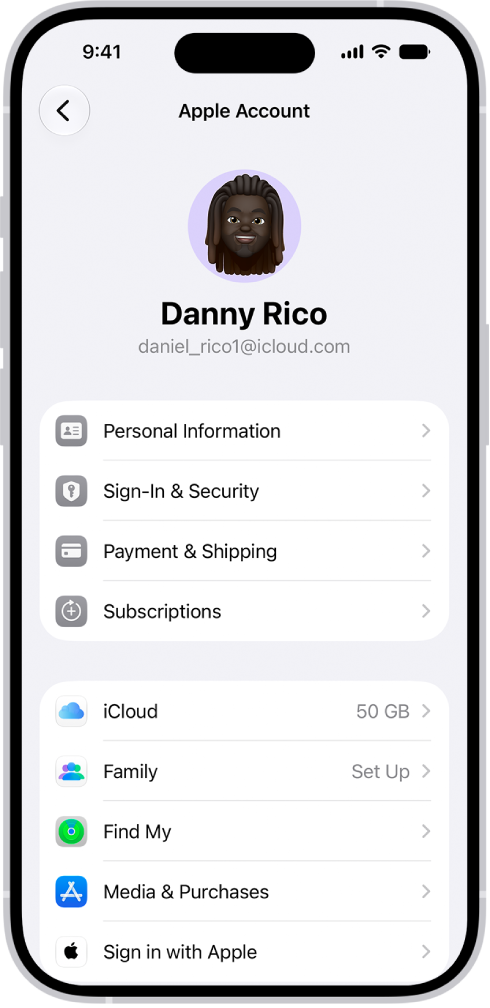
- Tap on iCloud, then Drive.
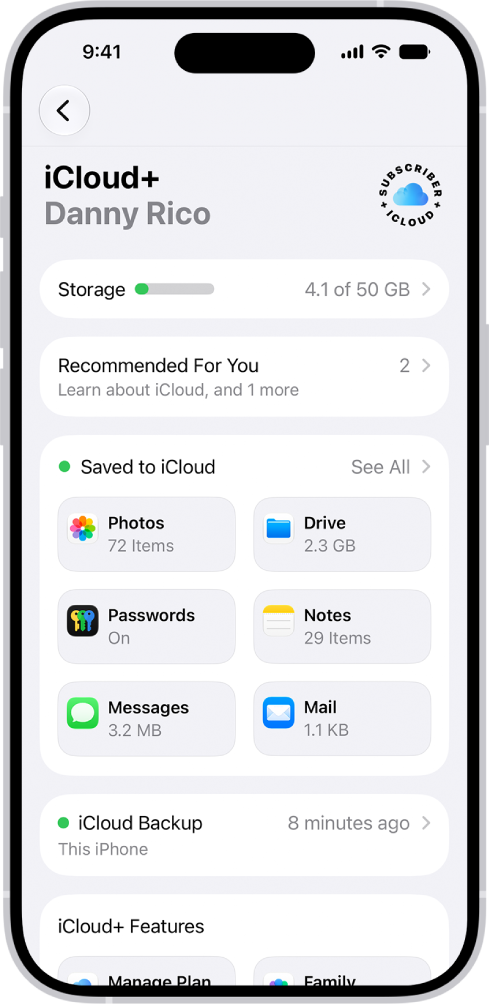
- Tap the switch next to Sync this iPhone to turn it off. Tap Turn Off Syncing iCloud Drive.
- Restart your iPhone 18 Pro. See step 1 for how to restart your iPhone.
- Now, go back to Settings > [your name] > iCloud > Drive and turn on Sync this iPhone.
Turn off iCloud Drive syncing for apps
It seems some users have encountered this iCloud Drive problem due to syncing issues with WhatsApp. You can easily turn off iCloud Drive syncing for any of the apps that are using iCloud Drive.
- Open Settings on your iPhone and tap on your name.
- Tap on iCloud.
- Tap See All next to Saved to iCloud.
- Now you can disable syncing for any of the apps you see listed.
- Restart your iPhone 18 Pro.
- Go back to Settings > [your name] > iCloud, tap See All next to Saved to iCloud and re-enable your apps.