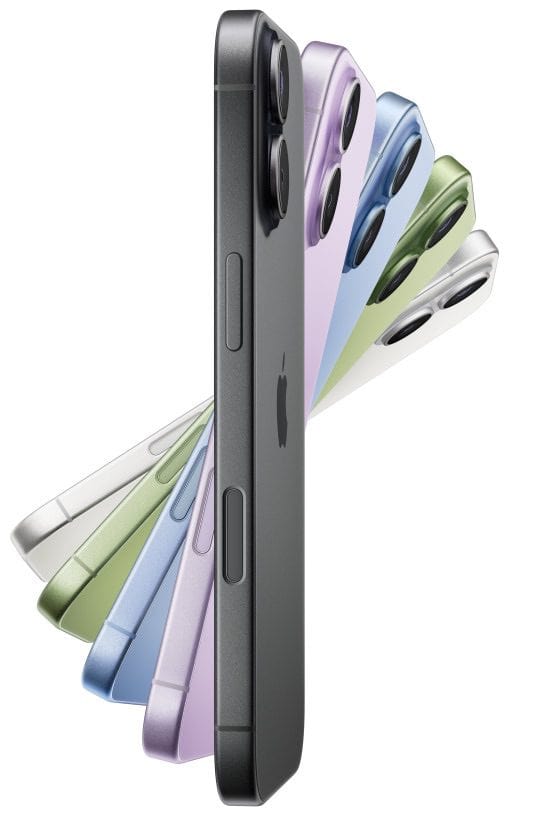
- If your iPhone 17 won’t turn off the usual way, you can force it to restart.
- To force restart an iPhone 17, press and release the Volume Up followed by the Volume Down buttons, then hold the Side button until it restarts.
How to turn off iPhone 17
The quickest way to turn off your iPhone 17 is using the physical buttons. Press and hold the side button and either volume button simultaneously until you see the power off slider appear on screen. Simply drag the slider from left to right, and your iPhone 17 will begin its shutdown process.
If you prefer using the touchscreen, you can also turn off your iPhone 17 through Settings. Navigate to Settings, tap General, scroll down to find Shut Down, then drag the power off slider to complete the process. This method is particularly useful if your physical buttons aren’t working properly.
Another way to shut down your iPhone 17 if your physical buttons aren’t working properly is swipe down from the top right corner of the screen to open the Control Center and press and hold (then release) the power button for a second. Then, you can simply drag the power slider to turn off your iPhone 17.
But what if that doesn’t work, or your iPhone 17 is frozen and won’t respond to screen inputs? That’s when it’s time to force restart your phone.
What to do when your iPhone 17 won’t turn off
You should force restart your iPhone 17 if it won’t turn off. It’s a fail-safe method to ensure you can turn it off if the screen is unresponsive or the phone’s software is misbehaving.
The process to force restart an iPhone 17, iPhone 17 Pro and iPhone 17 Pro Max is the same. Here’s how:
- Quickly press and release the Volume Up button.
- Quickly press and release the Volume Down button.
- Press and hold the Side button (the Sleep button).
- Wait until you see the Apple logo, and then release the button.
Now try turning off your iPhone 17 using any of these methods:
- Simultaneously press and hold the side button and either volume button until the sliders appear, then drag the Power Off slider.
- Go to Settings > General > Shut Down, then drag the slider.
- Swipe down from the top-right of your iPhone and press and hold down on the power button in the top-right of the control center, then drag the slider.
If your iPhone 17 still won’t turn off, use Siri to shut down your device. All you need to do is say, "Hey Siri, turn off my iPhone." Siri should respond with a confirmation, asking, "Just to confirm, you want to power off this device?" Then, saying "yes" shuts down your iPhone 17 right away.
Your iPhone 17 comes with an Always-On display feature enabled by default. If you want to conserve battery without fully shutting down, you can turn this off by going to Settings, Display & Brightness and toggling off the Always On Display option.