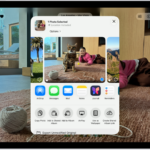
You can use AirDrop to send or receive items on your iPhone 18 Pro or iPhone 18 Pro Max. With AirDrop, you can wirelessly send photos, videos, documents, and more to a nearby iPhone, iPad, or Mac. When you AirDrop a file to another device, there are three steps: It will first say “Waiting…,” then “Sending,” and finally “Sent” once the file is successfully sent. However, sometimes you may notice that your file may never pass the “Waiting” step and never connects to the other device. The receiving device never gets the “accept / decline” message. AirDrop says “Waiting” and then fails. In this article, I explain how you can fix this problem.
In AirDrop, there are two parties: sender and receiver. It is important to understand that this problem may be caused by the sender’s or receiver’s device. Thus, the following steps should be followed on your iPhone 18 Pro and the other device. Before you do anything, ensure that your iPhone 18 Pro and the other device are running the latest version of iOS, iPadOS or macOS.
1. Is AirDrop restricted?
The first thing to check is Screen Time. It may be that AirDrop is turned off.
- Open Settings.
- Tap on Screen Time.
- Tap on Content & Privacy Restrictions.
- Tap on Other Features.
- Ensure that AirDrop is allowed.
2. Off, Contacts Only or Everyone for 10 Minutes
There are three basic settings in AirDrop:
- Receiving Off: You won’t receive AirDrops.
- Contacts Only: Only your contacts can see your device.
- Everyone for 10 Minutes: All nearby Apple devices can see your device in AirDrop for ten minutes.
These settings are available:
- On iPhone / iPad: Go to Settings > General > AirDrop.
- On Mac: Click Control Center in the menu bar. To choose who can send items to you, click and hold AirDrop, or click the button next to it, then click Contacts Only or Everyone.
Review these settings on the receiver’s device:
- Ensure that AirDrop is not set to Receiving Off.
- If the receiver AirDrop setting is “Contacts Only,” you must be in their contacts list and they need to have your Apple Account email address or phone number included in your contact card.
- If your contact is not in the Contacts app of the receiving device, they should set AirDrop to Everyone for 10 minutes. Try selecting Everyone for 10 Minutes. If this fixes the problem, check that the contact details are stored accurately. If the contact details contain any outdated info, update them.
3. Check connections
To establish a proper connection between your iPhone 18 Pro and the other device, ensure that the following are true:
- Your iPhone 18 Pro and the other Apple device are within range. They should not be too far apart. Ensure that they are within 30 feet (10 meters) of each other.
- If your iPhone 18 Pro or the other device is using a VPN, make sure its configuration doesn’t prevent local networking, as that may interfere with some Continuity features.
- If you see this Waiting message when you attempt to send a file to a Mac, check the Firewall options on the Mac:
- Open System Settings.
- Click on Network.
- Click on Firewall.
- Click the Options button.
- Make sure that the “Block all incoming connections” box is not selected.
4. Time Zone
Ensure that the time zone settings on your iPhone 18 Pro and the receiving devices are set correctly. You may want to turn on the Set Time Automatically option so that your device will do that for you. Here is how:
- iPhone or iPad: Go to Settings > General > Date & Time. Turn on Set Time Automatically.
- Mac: Go to the Apple menu > System Settings > General > Date & Time and turn on “Set time zone automatically using your current location.”
5. AirDrop code
With iOS 26.2, iPadOS 26.2, macOS 26.2, or newer, if someone tries to send you an item with AirDrop and they’re not in your contacts, they must use an AirDrop code. Here is how:
- On your iPhone 18 Pro, tap the recipient under People.
- On the receiver’s device, a notification will say that an AirDrop code is needed. Tap Get AirDrop Code.
- Ask the receiver to tell you the code.
- Enter the code on your iPhone 18 Pro.
- The receiver taps Accept. Your file will be sent.
After this, the receiver is added to your Contacts app in the Other Known list. You will be able to AirDrop each other for 30 days without entering another code. If you want to end this sooner, open Contacts, find the person in Other Known and tap Forget This Person.
6. Reset network settings
If your problem persists, try resetting network settings on your device. This does not delete any content like your photos. But this does delete your network settings. For example, your saved Wi-Fi passwords will be wiped. If you want to do this, go to Settings > General > Transfer or Reset iPhone > Reset > Reset Network Settings.