An annoying issue where the iPhone’s camera has trouble focusing on subjects may occur when you are trying to take a photo or video. In this particular problem, the camera view is all blurry because the camera focus keeps changing and trying to adjust itself. This issue may occur on either the front or back cameras or both. If you are struggling with the auto-focus, here is what you can do.
1. Check to see if this is normal or not
If you use the auto-focus feature, your iPhone 18 Pro will try to focus on faces or subjects. The background may look a little blurry and out of focus. This is normal. If you think that the iPhone is focusing on the wrong object and you want the iPhone to focus on something else, you can manually adjust the focus. Here is how:
- Open the Camera.
- Tap the screen where you want the camera to focus. The focus will change.
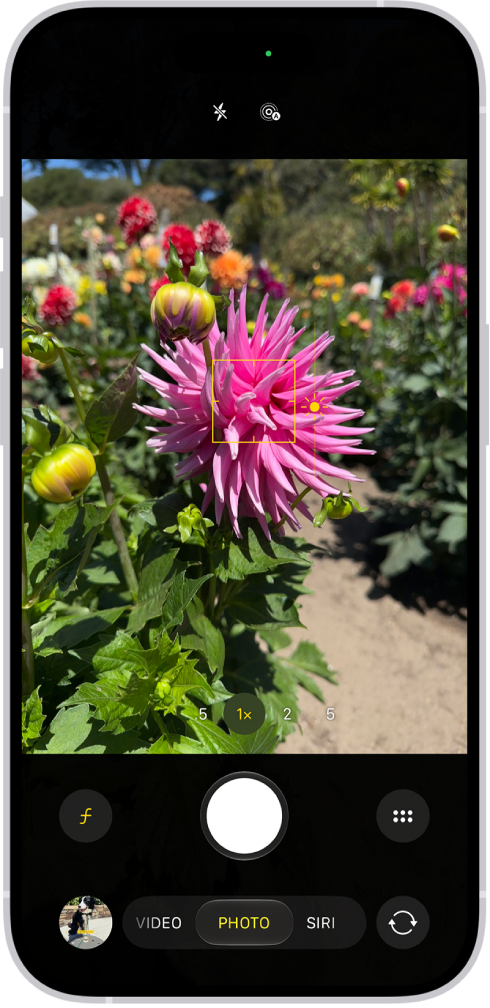
If the whole screen looks out of focus, this is not normal.
2. Update your iPhone 18 Pro
Ensure that you have the latest version of iOS installed on your iPhone 18 Pro. The Camera app will be updated, too, when you update your iPhone. Here is how:
- Open Settings.
- Tap on General.
- Select Software Update.
Your iPhone will check for updates. If there is an update, follow the instructions to install it.
3. Restart your iPhone 18 Pro
After ensuring that you are running the latest software version, restart your iPhone 18 Pro if your issue continues. This may be a temporary software glitch, and a simple restart may fix this glitch. Here is how:
- Turn off: Simultaneously press and hold the side button and either volume button until the sliders appear, then drag the Power Off slider.

- Wait: Wait for your iPhone to fully turn off. This will take a few seconds. Wait about 30 seconds.
- Turn on: Press and hold the Side button until the Apple logo appears.
4. Are your camera lenses clean and not obstructed?
If the camera lenses are not clean, the focus may be affected. The dirt or debris on the lenses may interfere with the focus function.
Get a soft, dry, lint-free cloth and clean the lenses. You also have a front-facing camera. The front-facing camera is located at the top of the screen on your device.
Another issue that may create focus problems is when a case or other accessory covers the edges of the cameras. Sometimes screen covers, or protectors may interfere with the front camera. If the iPhone camera sees part of the case, your device will think that it is part of the view that you want to capture and adjust the focus accordingly. Take off your case. Does your iPhone focus better now? If so, your case is the problem.
Lastly, watch your fingers. This happens to me often. Often my focus does not work properly because my finger is partially blocking the lenses.
5. Adjust your camera settings
By modifying your settings, you may be able to fix your continuous focus problem. iPhones have advanced camera features and different modes, and some of them may seem to produce unintended results, but they are there on purpose. Go to Settings and Camera and check these. Change these settings and experiment.
- Lens Correction: When this is enabled, your device will try to correct any distortion.
- Macro Control (in Preserve Settings): Some users have said that enabling this causes zoom problems.
- Photographic Styles: If you tap Photographic Styles, you can select Use Standard or choose a different style.