






QR (Quick Response) codes are used to graphically represent digital data. They have become a common item in many places. For example, now many restaurants do not give a paper menu, instead, you are supposed to scan a QR code to access the digital version of the menu. iPhones are capable of reading QR codes. Simply open the Camera app and then point the camera at the QR code. Your iPhone 18 Pro will automatically read the code. Tap the link that appears at the bottom of the screen.
The native Camera app provides QR code scanning functionality. This ensures that iPhone users are able to scan QR codes without needing to download an app. Have you experienced your Camera not recognizing the code and showing a link? Many users have said that Camera QR scanning is not working for them. In this article, I explain how you can address this issue. The good news is that the fix is really simple.
Turn on Scan QR Codes
This is supposed to be enabled by default. However, for some reason, this feature is disabled for some users within the Camera section of the Settings app. You will simply turn it on for this feature to work. Here is how:
- Open Settings on your iPhone 18 Pro.
- Tap Camera.
- Turn on Scan QR Codes. If this was already on, turn it off, wait 5 seconds and then turn it on.
Check your camera settings
The following conditions must be met:
- Ensure that the Rear facing camera is used. The Selfie (front camera) will not scan QR codes. Thus ensure that the QR code is facing the rear camera.
- The Camera app has various modes such as Video, Portrait or Pano. Ensure that the Photo mode is selected. You can switch to a different camera mode by swiping left or right.
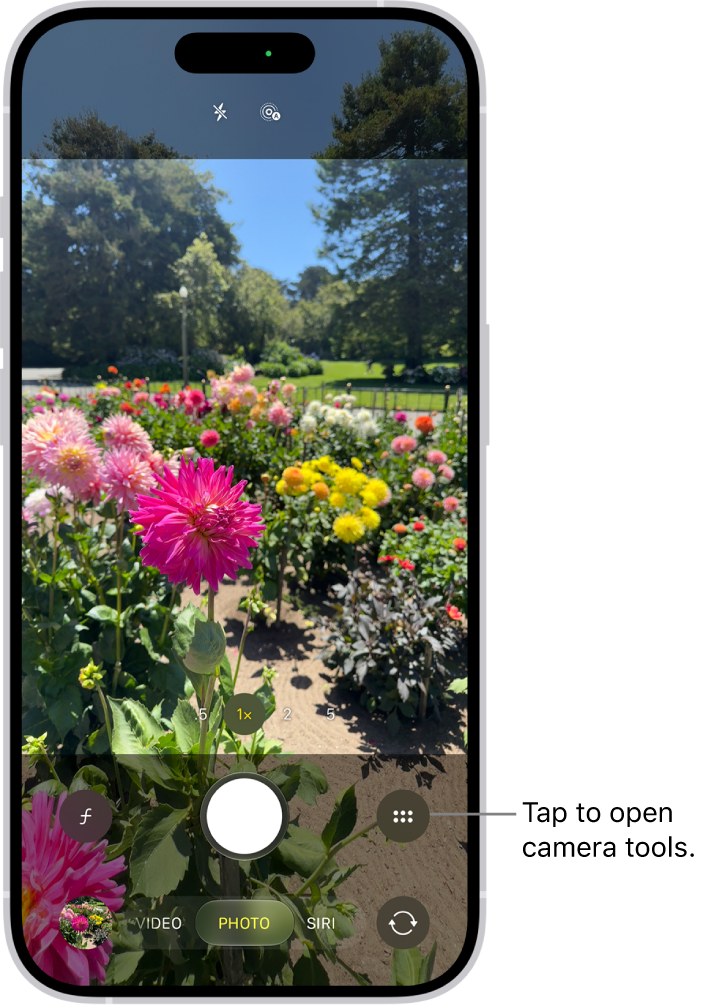
- Your Camera is supposed to read the QR code in either landscape or portrait mode. However, you can still try different orientation modes if you are having issues.
Check that nothing is blocking the camera
Camera may not be able to detect the QR code because something may be blocking the rear camera. As I said above, you will need to use the rear camera. For example, check these:
- There may be debris or dirt preventing the Camera from working properly. Get a soft cloth and gently wipe the camera.
- Do you use a case? Try removing it and then trying again. Some cases may interfere with the camera view.
- Ensure that your finger or hand is not blocking the view.
Update and restart
First, ensure that your iPhone 18 Pro has the latest version of iOS. Go to Settings > General > Software Update to check for updates. If there is an update, tap the Update Now button and then follow the instructions and update your device. After updating, try scanning a QR code again.
After ensuring that your device is up to date, restart your iPhone 18 Pro. After restarting, open Camera and try again.
Restart the Camera app
If the issue continues, restart the camera app. Here is how:
- On your iPhone 18 Pro, open the app switcher:
- Swipe up from the bottom of the screen and stop in the middle. Then find the Camera app and swipe it up.

- Swipe up from the bottom of the screen and stop in the middle. Then find the Camera app and swipe it up.
- After closing the app, reopen the app and then try again.
If everything has failed, you have two options:
- Contact Apple support.
- Use a third-party QR code reader. There are many of them in the App Store.





 code, here is what to do to fix the problem.)