Many users have complained that the flashlight on their iPhone 18 Pro accidentally turns on by itself. This happens while their phone is locked and, often, while it is in their pocket. On the iPhone Lock Screen, there is a flashlight button; the problem seems to be that this button gets accidentally pressed while in someone’s pocket. It is definitely an annoying sort of problem – cluelessly walking around with light beaming through your pants – and there is the secondary problem of battery drain caused by the flashlight being on for long periods of time.
The Flashlight problem, which has been around for a few years, is not the only “by itself” issue that people have had with iPhones. In this article, we will tell you what you can do to prevent your iPhone’s Flashlight from turning on by itself.
Ways to Turn Off Flashlight
First of all, if you find your flashlight on, you can do one of the following to turn it off:
- On the Lock Screen, press the Flashlight button.
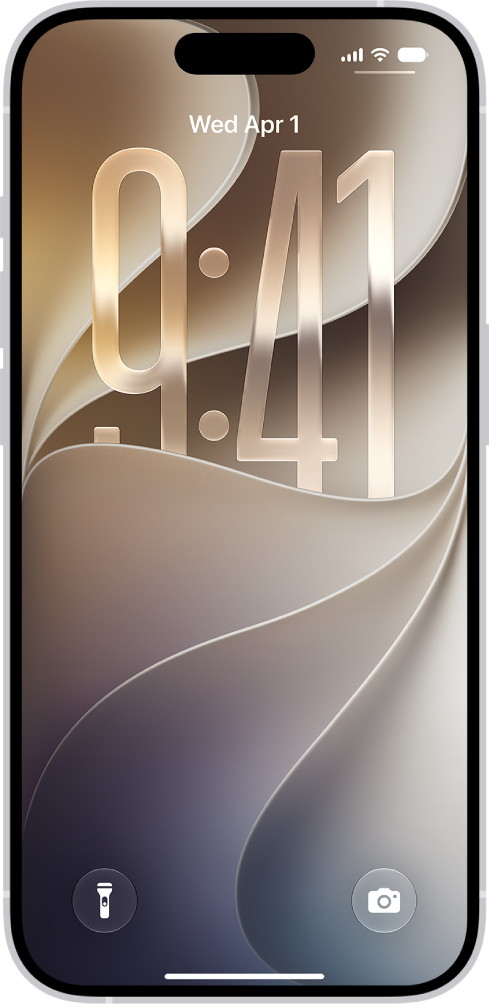
- On the Lock Screen, touch the screen and swipe your finger slightly to the left.
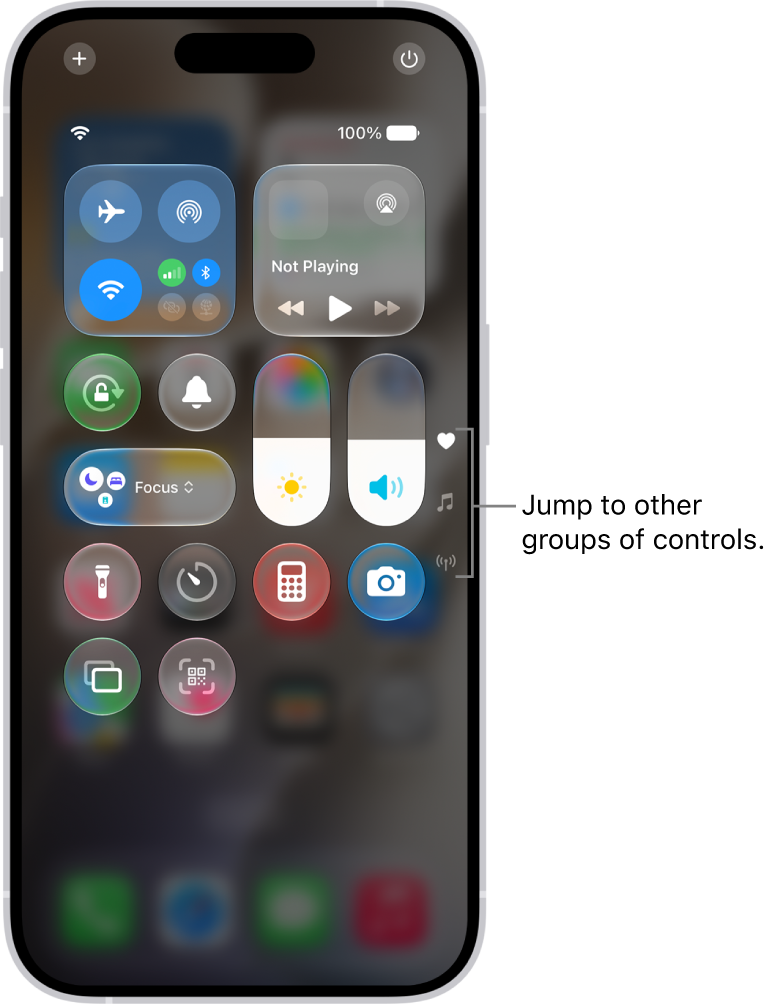
- From any screen, swipe down from the upper-right corner of the screen to open Control Center, then use the Flashlight icon in Control Center to turn off Flashlight.
How to Prevent your Flashlight from Turning On (by itself)
There are a couple of settings you can change which should take care of the problem.
Turn Off Tap to Wake
To turn off Tap to Wake, go to Settings > Accessibility > Touch. Toggle the switch next to Tap to Wake. There is, of course, a downside to turning off Tap to Wake. A lot of people use this feature pretty often; anytime you want to quickly check the time on your phone, especially if you check the time while you are in bed, you just tap the screen. With Tap to Wake turned off, you will need to press the side button to wake your iPhone 18 Pro.
Turn Off Raise to Wake
Another setting you might turn off is Raise to Wake. As the name suggests, Raise to Wake wakes your iPhone when the iPhone 18 Pro is raised to an upright position. You might imagine a pocketed iPhone going through that kind of change in orientation when you go from sitting to standing. To turn off Raise to Wake, go to Settings > Display & Brightness. Toggle Raise to Wake to OFF.