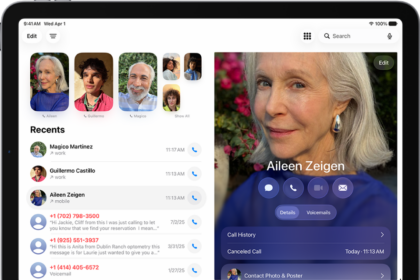
Several iPhone 18 Pro and iPhone 18 Pro Max users have said that their iPhone is not showing the contact names but instead displaying the contact numbers.
You can add contacts to your iPhone. You can store phone numbers, email addresses, and even mailing addresses for the people you know. When this problem occurs, you won’t see your friends’ names when they call or text even if they are added to the iPhone. This may cause you to miss your friends’ calls.
Contacts can be called as electronic cards that contain a person’s contact details.
This problem is very important. Without the contact names, you won’t feel that your iPhone is a complete device. Because you will not see the saved contacts names when you go to your Contacts, Phone or Messages app on your iPhone 18 Pro.
This article explains how you can fix this missing contact names on iPhone 18 Pro problem. Please try these steps:
1. Update
Before you do anything, ensure that your iPhone 18 Pro has the latest version of iOS. You can go to Settings > General > Software Update to check if there is an update. If there is an update, tap the Download and Install button and then follow the onscreen instructions to update your device.
If you want, you may also want to turn on Automatic Updates.
2. Restart the iPhone
Simply restart your iPhone. Here’s how you can do this:
Press and hold the side button and either volume button together until you see the power off slider. Drag the slider. Wait for your iPhone to turn off. Then press and hold the side button until you see the Apple logo.
3. Check Region
Some iPhone 18 Pro users have said that changing the geographic region fixes this problem. You may want to try this. Please follow these steps:
Change region
First change your region to something else. Here is how:
- Tap Settings > General > Language & Region.
- Tap Region and change your region or country. For example, if your current region is the United States, change it to Turkey. A message will appear saying “Applying this setting will restart your iPhone”. Tap Change to Turkey (if you select Turkey). Your screen will go black and it will take a few seconds. This will not change your language.
Force-Restart
After changing the region, force-restart your iPhone 18 Pro:
Press and quickly release the volume up button. Press and quickly release the volume down button. Press and hold the side button. When the Apple logo appears, release the side button.
Change it back
And the last step is to change the region back to the original. Go to Settings > General > Language & Region and change your region back.
Now test if the names or numbers are showing when you get calls or texts.
4. Short Name
The iPhone offers a feature called Short Names. This feature can be used to change (names will appear shortened) how the names of your contacts appear. This is designed to fit more names on your iPhone’s screen. This feature is enabled by default.
Some users have said that turning off Short Name fixes this problem. Here is how you can do this:
- Go to Settings > Apps > Contacts > Short Name.
- Turn off Short Name.
After turning it off, test to see if you can see the names of your contacts now.
If this does not fix your problem, go to Settings > Apps > Contacts > Short Name and enable it, if you want.
If this fixes your problem, again try to re-enable this feature. After reenabling, does this problem occur again? If not, and if you want, keep it enabled.
5. Is it Messages?
Are you only having this problem when using the Messages app? For example, when a contact texts you, you only see the number. If this is the case, try this:
- On your iPhone, go to Settings > Apps > Messages and find the SMS/MMS section.
- Turn off MMS Messaging.
- Restart your device.
- And then go to Settings > Messages and turn on MMS Messaging back again.
6. Check iCloud
Are you using iCloud Contacts? If so, it is possible that you may have turned off iCloud Contacts unintentionally on your iPhone. You can easily check this. Here is how you can check this:
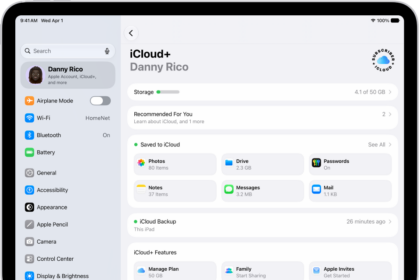
- Settings > [your name] > iCloud.
- Tap See All next to Saved to iCloud, then check to see whether Contacts is turned on.