Many users have experienced a problem where their iPhone 18 Pro or iPhone 18 Pro Max randomly restarts. Does your iPhone reboot itself? Does your device display the Apple logo out of nowhere and you have no idea what is going on? In this article, we will explain some of the reasons your iPhone 18 Pro may be restarting itself. We will also give you some tips on what you can do to fix the problem.
Here are three versions of the problem:
- You are using your iPhone without any problems, maybe you are playing a game or something, but then suddenly your iPhone restarts.
- You cannot use your iPhone 18 Pro because your iPhone keeps rebooting itself over and over. This means that your iPhone may get stuck during start-up.
- Your iPhone reboots itself and you only see the Apple logo or a white, red, black, or blue screen.
How to fix iPhone 18 Pro Keeps Restarting
Please follow each step until your issue is resolved.
1. Back Up
Before you do anything, you may want to back up your iOS device. You can back up your device easily:
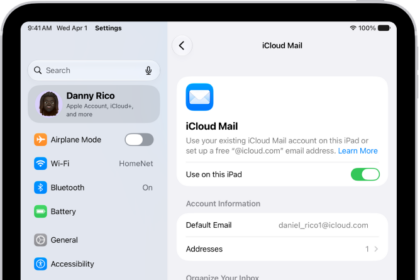
- Go to Settings > [your name] at the top of the list.
- Tap on iCloud, then scroll down and select iCloud Backup.
- Tap Back Up Now.
If you are not using iCloud, you may also back up your device using iTunes (PC) or Finder (Mac) by connecting it to your computer with a USB cable. Switch to the Finder on your Mac, or open the Apple Devices app on your PC. If your PC doesn’t have the Apple Devices app, or your Mac is using macOS Mojave or earlier, open iTunes instead.
2. Update Your Device
Make sure that your iPhone is up to date. If not, you can easily update your device wirelessly. Go to Settings > General > Software Update. Note that you need to connect your device to the Internet via Wi-Fi. Before installing the latest iOS version, again, you may want to back up your device. You can back up your device via iCloud. Go to Settings > [your name] > iCloud > iCloud Backup and tap Back Up Now.
3. Update Your Apps
An app might be the cause of your iPhone 18 Pro restarting problem. Outdated apps can cause issues. By default, your apps will be updated automatically, however, you may have turned off automatic updates. You can check to see if you have any apps that need to be updated.
- Open the App Store.
- Tap the My Account button or your photo at the top of the screen.
- Tap App Updates, then tap Update next to an app to update only that app, or tap Update All.
4. Remove the SIM Card
Skip this step if your iPhone 18 Pro uses eSIM only.
Sometimes a SIM card can cause a problem with your iPhone 18 Pro. You can remove the SIM card, then see if the rebooting problem persists. You can always put the SIM card back in. If your iPhone seems fine when there is no SIM card, but has problems when the SIM card is in place, you may want to contact your cell carrier.
- To pop open the SIM tray, insert a paper clip or a SIM-eject tool into the hole beside the tray. Push in, towards your iPhone, but don’t force it.
- If your iPhone model doesn’t have a SIM tray, it supports eSIM only.
5. Force Restart
Force restart your device. You can do this even if your device looks unresponsive. A force restart won’t delete anything on your device.
- Press and quickly release the volume up button.
- Press and quickly release the volume down button.
- Press and hold the side button until you see the Apple logo (this might take longer than 10 seconds).
If your iPhone doesn’t turn on, charge your iPhone for one hour and then try again.
6. Reset All Settings
Resetting all settings may fix your problem. Note that this does not delete any data or media, but it will erase all your settings like your Wi-Fi passwords, location settings, privacy settings, and Apple Pay cards so doing this may mean doing some work to get your settings back in order after the reset.
- Go to Settings > General > Transfer or Reset iPhone > Reset > Reset All Settings.
7. Recovery Mode
If your device is unusable you can try to update your device using Recovery Mode. You will need to use a computer.
- Ensure your Mac is up to date. On PC, get the latest version of the Apple Devices app.
- Connect your device to your computer with a USB cable.
- Open the Finder on your Mac, or open the Apple Devices app on your PC.
- Keep your device connected, then use the buttons below until the “Connect to computer” screen appears:
- Press and quickly release the Volume Up button.
- Press and quickly release the Volume Down button.
- Press and hold the side button until you see the “Connect to computer” screen.
Apple’s instruction at this point is written for when you have already tried updating with a computer and your iPhone still won’t start up. In that case, choose Restore when the Update or Restore options appear. Restore reinstalls iOS and erases all your data. If you haven’t tried updating yet, try updating first — Apple’s platform guide says choosing Update reinstalls iOS while attempting to preserve user data and settings.
8. Apple Support
If none of these suggestions has helped, you can contact Apple Support.