If your iPhone 18 Pro is showing a red dot, indicating that you have unread messages in Messages, but you don’t – at least, you can’t find the unread message anywhere – you are probably getting annoyed. You may rely on the little red dot badge on the Messages app to let you know that you have a message. That little red dot says, “Pay Attention to me!” So, you definitely want it to go away. You may be asking:
- How do I find the unread messages?
- Is the unread messages count wrong? Do I really have unread messages, or is this some kind of bug?
- How can I clear the “phantom” unread messages?
Red dot badge indicates unread messages
How do I find the unread messages?
So, the problem is you can’t, right? At least not using the normal, reasonable method of just looking through your messages. Once you’ve done a thorough check for those mysterious unread messages, it is time to move on to other methods. But first, make sure you have looked for Unknown Sender messages:
- Open Messages on your iPhone.
- In the conversation list, tap the Filter button, then tap Unknown Senders and look for any unread messages there.
- To see a list of your unread messages, tap the Filter button, then tap Unread.
Do I really have unread messages?
Maybe they are “hidden.” Some theories are that there could be a syncing problem that causes the red dot badge not to update with the true number of unread messages, meaning you actually read them in the past. Regardless of the cause, some iPhone users report this problem.
How can I clear the “phantom” messages?
Alright, we want to get rid of the pesky red dot – at least until we have real messages to read.
The easiest way to “read” all your “unread” messages
The easiest way to read your messages is to have Siri read them to you. If you have hundreds of unread messages, you may want to look into one of the other options below.
- Say, “Hey Siri. Read my messages.” or press the side button to trigger Siri, then say, “Read my messages.” If you have never used Siri, you may need to check that you have it set up. Go to Settings, tap on Siri. Tap Requests and enable either ”Siri” or “Hey Siri”and/or Press Side Button for Siri.
- Answer “No” if you are asked to reply. When all messages have been read, Siri will let you know with something like “Those are all your messages” or “That’s everything.”
Other ways to clear the red dot on the Messages app
If the above method doesn’t work for you, you can try the following to clear the unread messages notification.
Read All messages
- In Messages on iPhone, tap Edit, then tap Select Messages.
- Tap Read All.
Close the Messages app
Swipe up from the bottom of the screen to reveal the App Switcher. Swipe right to find the Messages app, then swipe up on the app.
Restart your iPhone
Simply restart your iPhone to see if this can help. Here is how:
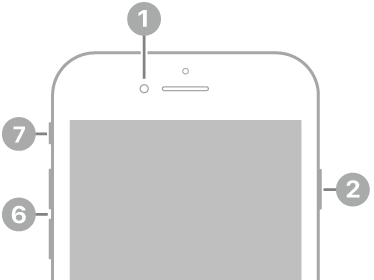
- Press and hold either volume button and the side button together until you see the power off slider.
- Drag the slider, then wait 30 seconds for your device to turn off.
- To turn your device back on, press and hold the side button (on the right side of your iPhone) until you see the Apple logo.
Update your iPhone
Update your iPhone to the latest version of iOS. Go to Settings > General > Software Update to check for updates.
Turn off notifications
Try turning the red dot badge notifications off, and then back on. If you decide you don’t want the red dot, you can leave it off.
- Open Settings on your iPhone, tap Notifications, then tap Messages below Notification Style.
- Toggle the switch next to Badges to turn it off. Toggle it back on, then check your Messages app.
Reset All Settings
Reset All Settings returns settings to factory defaults. Your photos, messages, apps, and documents aren’t deleted.
On your iPhone 18 Pro, go to Settings > General > Transfer or Reset iPhone > Reset > Reset All Settings.