Some users have reported that they are facing an issue of Wi-Fi speed being slow on their iPhone 18 Pro. This is an important problem.
There could be many reasons your iPhone 18 Pro Wi-Fi connection might seem unsatisfactory. It must be very annoying to have slow Wi-Fi speeds when you are paying for a high-speed Internet plan. In this article, I explain how you can fix the slow Wi-Fi problem on your iPhone 18 Pro or iPhone 18 Pro Max. A lot of factors contribute to this problem. Fortunately, there are a few things you can try.
Router
There could be a lot of issues with your router. Your Wi-Fi router affects your Internet speed:
- Is your router placed in a bad spot? Your router signal may be too poor. You may want to position your router in a central, and open, spot to maximize its signal strength. Physical obstructions, such as a metal-reinforced concrete floor, and common sources of interference, such as microwave ovens and cordless phones, can cause poor Wi-Fi performance. You may also consider getting an Internet extender.
- Is your router too old? An old router may not be capable of handling your internet speed.
- Optimize your router settings. Different routers have various settings designed to improve signal strength and speeds. Review your router’s manual to learn more about these settings.
- Ensure that your Wi-Fi connection is password protected.
Try the following tips to boost your Internet speed:
- Restart your router and cable modem by unplugging the devices and then plugging them back in.
- Ensure that you keep your router firmware up to date. Review the manual of the router for more information.
iPhone 18 Pro
If you think that your router is working as expected, and your Wi-Fi is fast on everything except your iPhone 18 Pro, here is what you can do:
Airplane mode
When I experience this problem, I always do this first. This can help you quickly resolve this. Simply turn on Airplane mode on your device (Settings > Airplane Mode), wait five seconds, and then turn it off.
Restart your iPhone 18 Pro
Simply restart your iPhone. Here is how:
Press and hold the side button and either of the volume buttons until you see the Power Off slider. Drag the slider. Wait 30 seconds for your iPhone to turn off. Then press and hold the side button until the Apple logo appears.
Wi-Fi recommendations
iOS is capable of detecting issues with Wi-Fi connections. If iOS detects an issue, a recommendation will be displayed under the name of the Wi-Fi network. You can use this recommendation to fix your problem. Here is how:
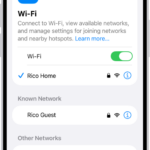
- On your device, go to Settings > Wi-Fi.
- Do you see a warning beneath the name of the network? For example, you might see a warning that your device’s private Wi-Fi address is disabled for a network, that your network is using weak security, or that your network is blocking encrypted DNS traffic.
- If you see it, tap it to see more details. Please note that this can be something you cannot fix. If you administer the Wi-Fi network, update the settings of your Wi-Fi router; if you don’t, bring the warning to the attention of the network administrator.
Update
Make sure that you’ve installed the latest iOS software updates on your iPhone 18 Pro. You can do this wirelessly:
- On your iPhone, go to Settings > General > Software Update.
- This will check for updates, and if there is an update available, tap Download and Install and follow the instructions.
Forget Wi-Fi
You may want to forget your Wi-Fi network and then reconnect. When you forget a Wi-Fi network, your phone will no longer automatically connect to it until you, next time, enter its password and connect again. And if you are using iCloud Keychain, your other devices using iCloud Keychain will not join this network again. Here is how:
- On your iPhone, go to Settings > Wi-Fi.
- Tap Edit, then tap the More Info button next to the wireless network you want to forget.
- Tap Forget This Network.
- A pop-up message will appear to confirm your decision. Tap Forget again.
We recommend that you restart your device. And then:
- Go to Settings > Wi-Fi.
- Tap the name of your Wi-Fi network that you just forgot.
- Enter the Wi-Fi password. And connect again to see if this improves your connection.
Reset network settings
Reset network settings, if you are still having this issue. This may help you fix your problem because your network settings could have become corrupted. When you reset your network settings, your Wi-Fi passwords and other connection settings will be erased. Your apps, content or other data will not be deleted. Here is how:
- On your iPhone, go to Settings > General > Transfer or Reset iPhone > Reset > Reset Network Settings.
- You may need to enter your passcode. Enter it if asked.
- Wi-Fi is turned off and then back on, disconnecting you from any network you’re on.
Networking & Wireless
Make sure that your device has Location Services turned on for Wi-Fi networking, because regulations in each country or region define the Wi-Fi channels and wireless signal strength allowed there. Here is how:
- On your iPhone, go to Settings > Privacy & Security > Location Services. Scroll down and tap System Services, then turn on Networking & Wireless.
Connectivity Assist
Go to Settings > Wi-Fi and scroll down and disable Connectivity Assist.
Force restart your iPhone 18 Pro
- Press and quickly release the volume up button.
- Press and quickly release the volume down button.
- Press and hold the side button until you see the Apple logo (this might take longer than 10 seconds).
Wireless interference
Wireless interference can cause Wi-Fi and Bluetooth devices to disconnect or perform poorly, but you can take steps to reduce or overcome it.
- Bring your iPhone closer to your Wi-Fi router.
- Avoid using your wireless devices near common sources of interference, such as power cables, microwave ovens, fluorescent lights, wireless video cameras, and cordless phones.
- Reduce the number of active devices that use the same wireless frequency band. Both Bluetooth and Wi-Fi devices use the 2.4 GHz band, but many Wi-Fi devices can use the 5 GHz band instead. If your Wi-Fi router supports both bands, it might help to connect more of your Wi-Fi devices to the 5GHz band. Some dual-band routers manage this for you automatically.
- Configure your Wi-Fi router to use a different Wi-Fi channel, or have it scan for the channel with the least interference. Most routers perform this scan automatically on startup or when reset.
- Avoid physical obstructions in the path of your wireless signal.
Still slow Wi-Fi?
If you are still having issues after you’ve tried all of the above tips, there are two things left to do:
- Call your internet provider to ensure that there are no problems on their end. If you are having this issue on all of your devices, this can be the reason. Contact them and explain that you’re getting slower speeds than you should.
- Contact Apple, you may be having a hardware problem. Apple can diagnose and repair it. For hardware repairs, you can mail your product to an Apple Repair Center or take it to an Apple Store if you make a Genius Bar appointment. If your device needs a repair, it may be covered under warranty: Apple’s standard warranty or AppleCare warranty.