Some iPhone 18 Pro and iPhone 18 Pro Max users have said they are unable to connect to Wi-Fi networks. Affected users keep getting “No Internet Connection” error messages when they want to use Internet-dependent apps like Safari, Twitter, FaceBook, etc. Here are some of the characteristics of this problem:
- It seems that the phone may connect at first but then keeps disconnecting itself from Wi-Fi randomly.
- It also seems that the problem does not occur on just one Wi-Fi network, instead, Wi-Fi failure happens on all networks. This rules out the possibility that the problem is the Wi-Fi connection.
- Further, it seems that the problem is with the iPhone 18 Pro and iPhone 18 Pro Max, as other devices can connect to the same Wi-Fi without an issue.
- Both the iPhone 18 Pro and iPhone 18 Pro Max seem to be affected.
- Lastly, it appears that the iPhone 18 Pro Wi-Fi settings do not show any indication that the Internet is not working. It looks like Wi-Fi is connected, but there is no Internet.
- The cellular data connection is not affected.
If you are experiencing this issue, you won’t be able to browse the web, download apps or use any other app or service that requires an Internet connection. Try the following steps, in order, to fix this issue. After each step, check your iPhone to see if it can connect to the Internet over Wi-Fi.
1. Try these Basic Wi-Fi troubleshooting steps first
- Update your iPhone: Ensure that your iPhone 18 Pro is running the latest iOS version. Go to Settings > General > Software Update to check for updates.
- If the Wi-Fi setting is dimmed (grayed out), restart your device.
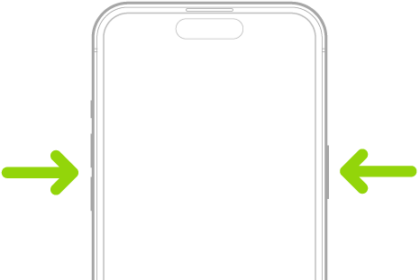
- Restart everything: This includes your iPhone 18 Pro and modem/router. You can restart your iPhone by pressing the side button and one of the up/down volume buttons together until the Power Off slider appears. Then drag the slider. Wait for the iPhone to turn off, and then press and hold the side button again to turn it on. Restart your router and cable modem by unplugging the devices and then plugging them back in.
- Turn off Wi-Fi in Settings: Go to Settings > Wi-Fi and ensure that Wi-Fi is enabled. If it is already enabled, turn off Wi-Fi and then turn it on again.
- Enable Auto-Join: Ensure that Auto-Join is enabled. Go to Settings > Wi-Fi, tap Edit in the corner of the screen to view the networks known to your device, tap the More Info button next to your network, and make sure Auto-Join is turned on.
- Forget the Network: Forget your Wi-Fi network and then reconnect. When you forget your Wi-Fi network, you will need to reenter its password to connect again. Go to Settings > Wi-Fi, tap Edit, tap the More Info button next to the network, then tap Forget This Network and tap Forget to confirm.
- Date, time, and time zone: Check the date, time, and time zone to ensure they are set correctly. Go to Settings > General > Date & Time and turn on Set Time Automatically and Set Time Zone Automatically.
2. Are you using custom DNS?
Are you using custom DNS instead of the default DNS set by your connection? If so, there may be a problem with the DNS servers.
- Go to Settings > Wi-Fi and tap the More Info button next to your network.
- Scroll all the way down and tap Configure DNS under the DNS section.
- Does this setting say “Automatic” or “Manual?” If it says “Manual,” change it to “Automatic.” If this does not make a difference, you can revert back to “Manual” if you want.
3. Are you using VPN?
Sometimes VPNs are known to cause connection problems. Sometimes VPN profiles/configurations may cause issues, even if you are not actively connecting over VPN. To see if VPN is the problem, turn off VPN and then delete the VPN profile from your iPhone 18 Pro. Here is how you can check these:
- Go to Settings > General > VPN & Device Management > VPN. If it says Connected, turn it off. Then tap the (i) info button next to the VPN and tap Delete VPN.
- Go to Settings > General > VPN & Device Management (if no profile is listed, it means there is no profile installed). If a profile’s setting isn’t managed and required by your organization, you can turn it off, change it, or delete it.
If, after turning off VPN and deleting it, you see that Wi-Fi is working, then you have two options:
- Stop using VPN.
- If you do not want to stop using VPN, then you can try to reset your network settings (see the next section). You can also contact the VPN service provider to see if they can help.
4. Reset network settings
If your issue continues, reset your network settings. This will erase all of the network-related settings. You can read more about what exactly occurs when you reset the network settings. For example, your saved Wi-Fi passwords will be gone. If you do not know your Wi-Fi password, you may want to write it down. Thankfully you can see the Wi-Fi passwords on your iPhone 18 Pro. Here is how you can reset the network settings:
- Tap Settings > General > Transfer or Reset iPhone > Reset > Reset Network Settings.
- Follow the onscreen instructions.
5. Other options
If your issue continues, try your Wi-Fi network on other devices. If you can’t get online using your other devices, there might be a service outage. Contact your Internet Service Provider (ISP). If your device can’t connect to any Wi-Fi network, contact Apple.