If your iPhone Air isn’t ringing when you get a call, it can quickly become a frustrating—and even serious—problem. You might miss important calls from family, work, or your doctor without even realizing it. Fortunately, there are several simple steps you can take to fix the issue. Whether your iPhone Air is completely silent, too quiet, or only sometimes rings, this guide will walk you through what to check and how to get your ringer working again.
Let’s start with the basics and work our way through the more advanced fixes.
1. Start with the Obvious: Mute Switch and Volume
It might sound too simple, but it’s worth checking:
- Silent Mode: All iPhone Air models feature an Action Button, which can be customized. Make sure it’s not set to silent mode by going to Settings > Sounds & Haptics > Silent mode.
- Volume: While on the Home Screen, use the volume buttons to turn up the ringer. (The volume buttons only control the ringer volume when you’re on the Home Screen—not while inside apps.)
2. It Rings—But It’s Too Quiet?
If your iPhone Air rings but you can barely hear it:
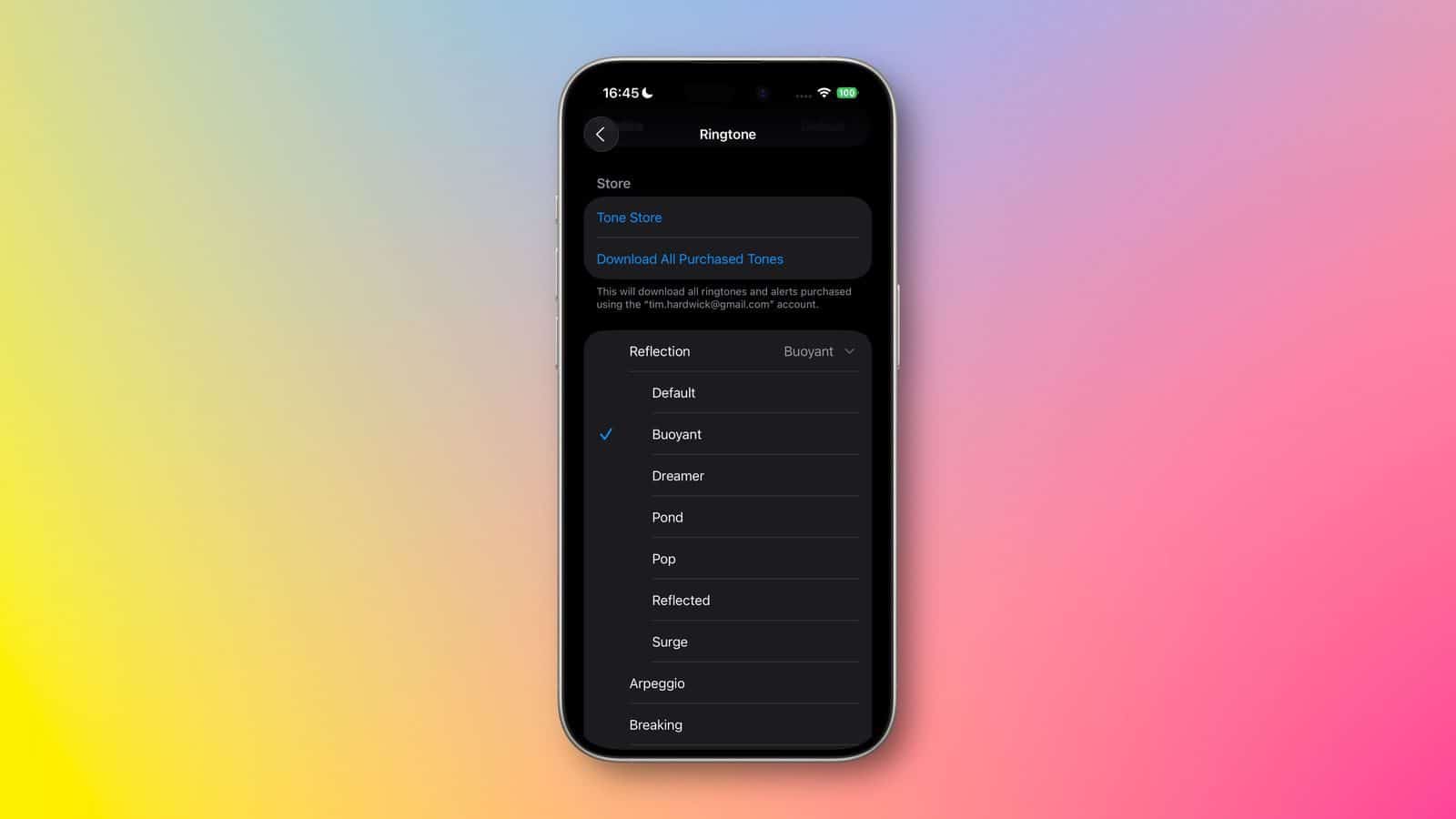
- Test your speaker: Go to Settings > Sounds & Haptics > Ringtone > Classic, then tap Old Phone to play a loud sample. If it works fine, choose a ringtone that’s easier to hear.
- Attention Aware Features: Your iPhone may lower the volume if it notices you’re looking at the screen. Check this by going to Settings > Face ID & Passcode, enter your passcode, and turn off Attention Aware Features if needed.
3. No Ring at All? Check for Missed Calls First
Open the Phone app > Calls. Do you see missed calls?
- If there are no missed calls, the calls may not be reaching your phone at all. This likely means a carrier or network issue. In that case:
- Contact your carrier like Verizon or T Mobile to check for local outages.
- Ask them to verify that Call Forwarding or instant voicemail forwarding isn’t active on your line.
- Some carriers enable features like No Answer Transfer, which forwards missed calls to another number. If you don’t want this, ask your carrier to disable it.
4. If Calls Are Reaching You (But Still No Ring)
If missed calls do show up in the Phone app, that means your phone is receiving them—but something else is preventing it from ringing. Try the following:
Screen Incoming Calls
- Go to Settings > Apps > Phone. If Ask Reason For Calling is selected, any caller who is not in the list of your contacts will be required to provide more information before iPhone rings.
- selecting Never under Screen Unknown Callers section can help avoid missing important calls.
Unknown Callers
- Go to Settings > Apps > Phone. If Unknown Callers is on, any call from a number not in your contacts will be silenced and moved to Unknown Callers list.
- Turning off Unknown Callers setting can fix iPhone Air not ringing issue.
Call Forwarding
- Still in Settings > Apps > Phone, check if Call Forwarding is on.
- Even if it appears to be off, some carriers can override this setting—so it’s worth double-checking with your carrier.
Focus Modes
Swipe into Control Center and turn off the Focus mode if it’s active.
Ringtone Settings
- Go to Settings > Sounds & Haptics and make sure a ringtone is selected. If no sound is assigned, your iPhone Air won’t ring.
Auto-Answer
- Check Settings > Accessibility > Touch > Call Audio Routing, and make sure Auto-Answer Calls is turned off.
Communication Limits (Screen Time)
- Go to Settings > Screen Time > Communication Limits.
- Tap each section and confirm that both are set to Everyone, so your iPhone can ring for all contacts.
5. Final Step: Restart Your iPhone Air
If everything looks right and your iPhone Air still won’t ring, try restarting your device. A simple reboot often clears up temporary glitches.
- Hold the side button and either volume button until the power slider appears.
- Slide to power off, wait a few seconds, then press and hold the side button again to turn it back on.
Still not ringing? If none of the above solutions work, you can try Reset All Settings by going to Settings > General > Transfer or Reset iPhone > Reset > Reset All Settings. This won’t delete your data but will restore system settings to default. If that doesn’t solve the problem, contacting Apple Support might be your best next step.