





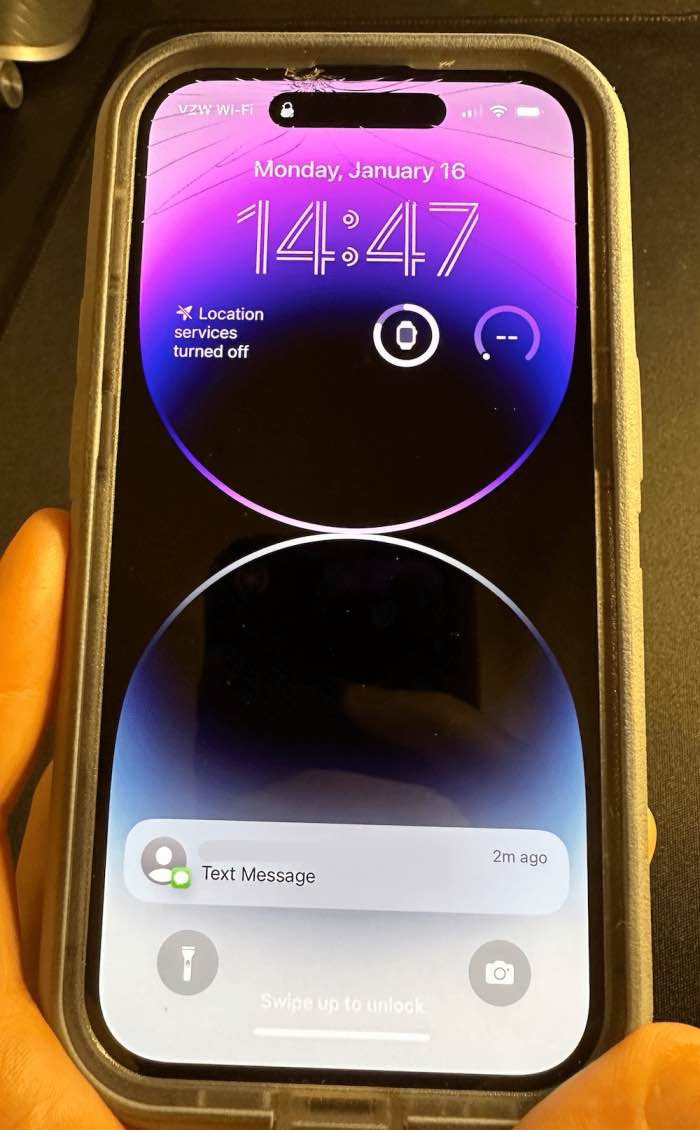
Has your iPhone’s touchscreen stopped working after iOS 26 update? It’s obvious when this happens, you’ll touch the screen and nothing happens, swipes will be ignored, taps don’t do anything, and other touch on the screen doesn’t register any behavior. It’s clearly annoying if the iPhone screen is no longer working and not responding to touch, and it’s not subtle.
Don’t worry — if your iPhone’s touchscreen isn’t working after the iOS 26 update, there are still solutions you can try. Keep reading to find out how to fix it.
Why is my iPhone touch screen not working after iOS 26 update?
Your iPhone touch screen may not be working after updating to iOS 26 due to several reasons. The most common reason is a software bug. Other reasons include rud on the screen, damage to the iPhone touch screen or iPhone itself, or perhaps some other issues as well. Read on to learn more.
If your iPhone is not responding well to touch and the screen seemingly is not working as well as it should with touch input, follow along and you should be able to fix the issue for good. I just experienced this problem on my iPhone, so this is the set of steps I used to troubleshoot the issue, for my specific situation the iPhone just needed to be hard rebooted and some storage freed up for the touch screen to work as expected again.
How to fix iPhone touch screen issue in iOS 26
Try these troubleshooting tips one by one. Hopefully, one of these will resolve the issue. If not, it’s likely you have a hardware problem that may only be fixable by contacting Apple customer service to repair or replace your phone.
Check if It’s a Minor Software Bug
Before investing time in fixing the issue, ensure a minor iOS 26 glitch hasn’t rendered your iPhone unresponsive. To check for a temporary problem, perform a quick force restart.
Press and quickly release the Volume Up button, then press and quickly release the Volume Down button. Then press and hold the Side button until the Apple logo appears.
When your iPhone boots back up, the touch screen should work just fine again if it’s a simple software issue like a bug or a software freeze with iOS or an app.
If force restarting doesn’t fix the issue, keep on reading. Test your touchscreen after each fix to hopefully identify the root cause.
Clean Your Screen, And Your Fingers
The next thing you need to do when your iPhone touch screen is not working is to clean off your screen, and your fingers. If you have a case or a thick third party screen protector on the iPhone, you’ll want to remove those as you troubleshoot this as well.
Give your iPhone screen a good look in bright direct lighting and tilt it around a bit to reveal any obvious gunk, oil, residues, liquids, moistures, dried crust or food, or anything else that may be interfering in the screen. In the sunnier weather, sunscreen is another common thing that can get on a screen and make the iPhone touch screen unresponsive or erroneously responsive. You’ll want to make sure the iPhone screen is clean and clear of anything that can interfere with the ability to detect touch properly. Wiping it down with a soft cotton cloth is often sufficient to remove anything from the iPhone displays touch screen, but you may need to use a slightly damp (and I do mean slightly, never enough moisture to drip) cloth to wipe the screen free.
As for your fingers, just make sure they’re clean and dry. Wash your hands or your fingers if in doubt and if you have a bunch of gunk on them. Unusually dry skin or callouses generally don’t matter and should not cause any issue with the touch screen, though if your hands are wet that may cause issues.
Just make sure the screen is clean, and that your hands are clean and dry.
Disconnect any accessories from the Charging Port
It may sound bizarre, but using a faulty or incompatible accessory with your iPhone can also contribute to touchscreen issues. So, if you have headphones, microphones, or any other accessory connected to your phone, disconnect them and observe whether it resolves the problem.
If your touchscreen starts responding after disconnecting the accessory, it suggests that the accessory is likely faulty or incompatible. Therefore, stop using it and consider replacing it with an approved accessory instead.
Delete and Update / Reinstall the Problematic App
Sometimes an iPhone touch screen is unresponsive in just one particular app. If this is the case, the problem is likely that app and not the iPhone touch screen at all, but since the app is open at the time the app stops responding as it “freezes”. A frozen app will often not respond to any touch screen input at all, but swiping up from the bottom of the screen will often exit the app and go back to the Home Screen in these scenarios.
If your iPhone touch screen stops working while using a specific app, you’ll want to update it first. Open the App Store, tap your profile in the top-right and check to see if an update is available for the app in question, if an update is available, tap the Update button next to the app in question.
If there is still a problem with the touch screen not working in a specific app after you have updated that app, you can also delete the app, and then reinstall the problematic app. Relaunch it again to see if it works as expected. If it still fails, the app could have a bug that needs to be addressed. If the touch screen works with every other app except for the problematic one, that particular app is likely the problem and it’s probably nothing to do with the screen or iPhone at all.
Free up iOS Storage
When an iPhone has zero storage available, the device tend to misbehave, and that can include experiencing an unresponsive touch screen.
Make sure your iPhone has enough storage available. You can check this by going to Settings > General > iPhone Storage. Aim to have at least a 1GB, as iOS really starts underperforming with less space available.
Deleting unused apps is an easy way to recover some storage space.
I have noticed this is particularly true with modern versions of iOS like iOS 26 when an iPhone is totally full and has 0 bytes of storage remaining, in which case many apps become unresponsive as does the touch screen. Sometimes even the buttons along with the touch screen may be unresponsive and not work at all for a while on a totally full iPhone, until whatever software cache clearing mechanisms complete. This is often easily reproducible too; just fill up an iPhone so that it has zero bytes remaining, and then start trying to use apps that rely on a lot of caching like Instagram, X, Facebook, Spotify, etc, once those app caches build up you will likely notice the touch screen becomes unresponsive for short periods of time as iOS struggles to deal with having zero storage available. In such a case, just free up some space, then reboot the iPhone, it should work again.
Help Your iPhone Regulate Its Temperature
Apple recommends using an iPhone within the ambient temperature range of 32ºF to 95ºF (0ºC to 35ºC). If the temperature falls below the minimum threshold or exceeds the maximum, your iPhone may exhibit unusual behavior as it attempts to regulate its temperature. Display issues, including touchscreen problems, can be caused by an overheating iPhone.
Exposing your device to direct sunlight, placing it directly in front of an air cooler, or subjecting it to extreme weather conditions can cause your touchscreen to become unresponsive. If your iPhone feels too hot, allow it to slowly cool down in a colder room, or slowly warm it up in a warmer place if it’s too cold. Your device may start responding once it returns to the ambient temperature range.
Don’t use heat sources like refrigerators or hair dryers to cool down or warm up an iPhone. Sudden temperature changes can cause condensation to form inside your device, which can lead to permanent damage. Let your device naturally cool down or warm up.
Stop Your iPhone From Charging and Avoid Using It When It’s Plugged In
If your iPhone becomes unresponsive to touch while charging, it could be due to using a non-certified, third-party charger. Such chargers might be incompatible with your phone or lack proper grounding, resulting in overheating that can cause touchscreen issues. If that’s the case, replace it with an original Apple or certified charger you can trust. Hopefully, this will resolve the problem.
If you’re already using a certified charger but experiencing this issue, it’s possible that the outlet may not be fully grounded. So, try charging your iPhone with a different outlet.
If your touchscreen becomes unresponsive with a warning message like "Charging On Hold. Charging will resume when the iPhone returns to normal temperature," it’s advisable to temporarily stop using the iPhone, especially if it has been in use for an extended period. Put the device to sleep until the charging process is complete, and then resume regular use.
Also, if you notice this issue while charging in a location with limited airflow, consider relocating your device to a more spacious area with better airflow to prevent overheating problems.
Update your phone
Even if your iPhone screen isn’t working, you can update your device by connecting it to your computer and using Recovery Mode:
- Connect your iPhone to your computer and start iTunes. If you’re on a Mac running MacOS 10.15 or higher, start Finder instead.
- Quickly press and release Volume Up button, quickly press and release Volume Down button, press and hold Side button.
- Once the Recovery Mode screen (which shows a cord and laptop on a black background) appears on your phone, release the side button.
- On your computer, you should see the option to restore or update your iPhone. Choose Update.
iPhone touch screen still not working? Time for more serious measures
If the iPhone touch screen is still not working at all, it’s possible there’s a serious hardware issue and the phone needs to be repaired or replaced.
Before you investigate that drastic option, you might want to perform a factory reset. This will reset the phone back to the state it was in when you first took it out of the box — it’ll wipe out all software updates, installed apps, and your personal data. That’s not a problem if you have your phone set to perform regular cloud backups, but beware that this could result in the permanent loss of any data since the last backup.
Without the ability to use the iPhone’s touchscreen, you’ll need to start the factory reset on a computer:
- Connect your iPhone to your computer.
- Start iTunes (if you are on a Mac running MacOS 10.15 or higher, start Finder instead).
- Quickly press and release Volume Up button, quickly press and release Volume Down button, press and hold Side button.
- On your computer, you should see the option to restore or update your iPhone. Click Restore and follow the directions to perform a factory reset.
Is the iPhone Touch Screen Cracked? Is the iPhone Touch Screen Damaged? Was the iPhone damaged or dropped?
We know your iPhone touchscreen stopped working after iOS 26 update, but if the iPhone touch screen is cracked it can become unresponsive, partially unresponsive, or just not work at all. Likewise if the iPhone is damaged, it may not work at all, or the touch screen may not work reliably.
Water damage can also ruin an iPhone touch screen, or the entire phone as well.
If an iPhone has been dropped, it’s also possible that internal components came loose, which may cause the touch screen to not be working.
If your iPhone has obvious visible damage and the iPhone touch screen is not working, the damage is likely to be the cause. In such a situation, take the iPhone to an authorized Apple repair center or an Apple store and have them give it a look.
iPhone touch screen STILL not working? Contact Professional Help
If all above troubleshooting methods have failed, it’s time to contact Apple support, go to an Apple Store, or visit an Apple authorized repair center. Have them inspect your iPhone touch screen to figure out what’s wrong with it, it may need a repair. It may be a hardware problem that is unseen, or it could be some other issue that you overlooked.
–
Did these troubleshooting tips fix your iPhone touch screen issue in iOS 26? Do you have any tips or tricks to resolving problems with an unresponsive or non-working touch screen after iOS 26 update? Let us know in the comments below.










Half of this advise advises you to navigate though menu’s on the phone…
How do you propose you delete an app or check storage, if you cannot use the touchscreen?