This article explains how you can troubleshoot when the iPhone’s voicemail to text transcription feature stops working. Apple’s voicemail feature is called Visual Voicemail.
One of the essential Visual Voicemail features is the transcription service. Listening to your voicemails may not be the best option for you. For example, you may be in a crowded room. Sometimes, reading is the best option. A lot of users find this feature very useful because it lets you read your voicemails instead of listening. This is done by converting audio voicemail messages into text format. This means that your iPhone will transcribe your voicemail messages.
Sometimes you may notice that your iPhone’s voicemail transcription is not working as expected. Sometimes it may take a lot of time. And sometimes transcription may not show up and you may not see some or all of your voicemails when you want to view a transcribed voice message. Are you having issues seeing the voicemail transcription on your iPhone? This article explains how you can fix it.
There are no settings for this feature. There is no “on/off” setting. Voicemail transcription is supposed to work automatically. You just need to tap on one of your voicemails in the Phone app.
To see your voicemails, open the Phone app on your iPhone, then tap the Voicemail tab. Please also note that Siri is an integral part of this feature.
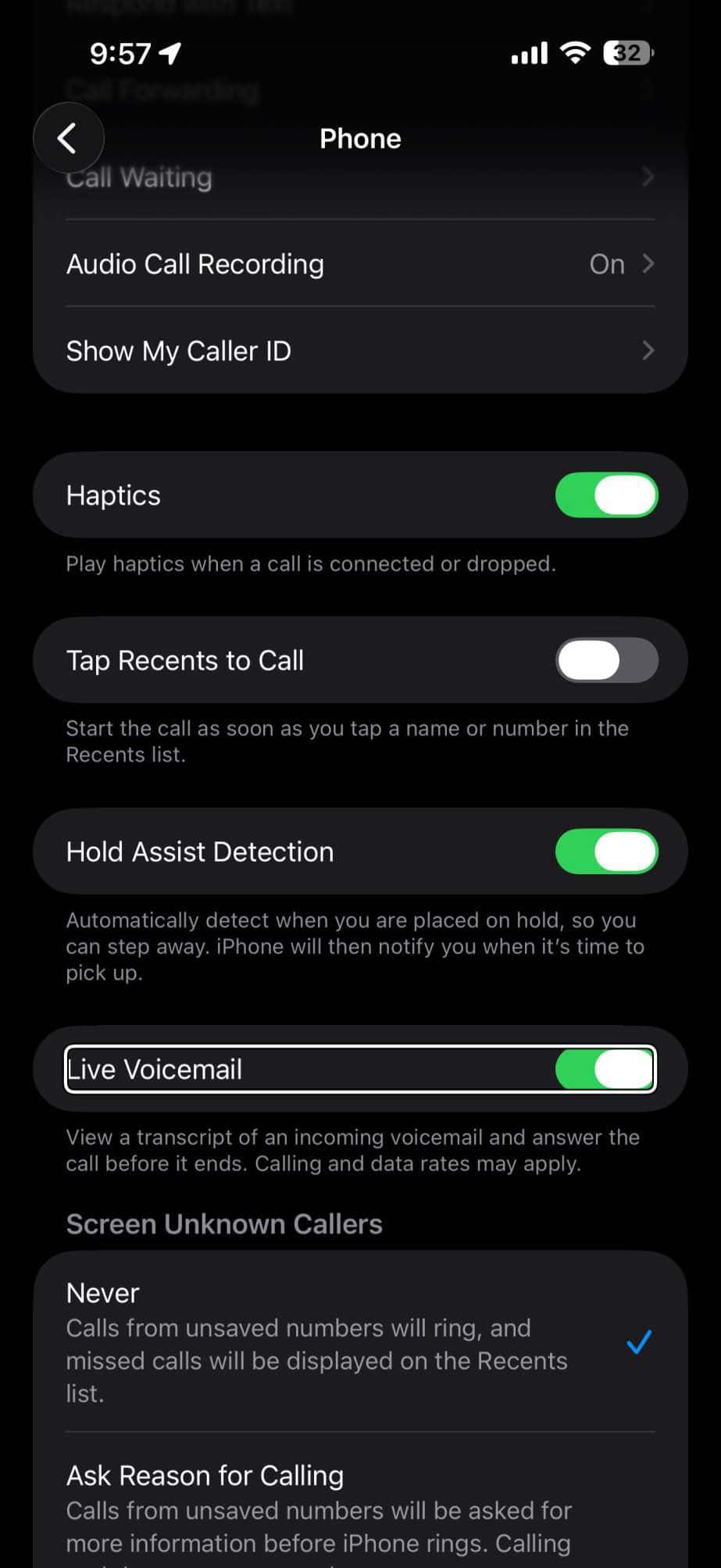
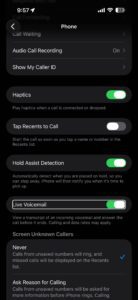
Additionally, starting with iOS 17, Apple introduced Live Voicemail, which provides real-time transcriptions of voicemails as callers leave them. Live Voicemail is turned on by default and can be managed by going to Settings > Apps > Phone > Live Voicemail. If you are having transcription issues, ensuring Live Voicemail is enabled may also help.
How to fix voicemail to text transcription problem on iPhone
Please make sure that you follow these instructions in order. Test between steps to check if your issue is resolved.
Transcription requirements:
- Not all carriers (T-Mobile, AT&T, Verizon, etc.) provide voicemail transcriptions. This feature is provisioned by the carrier. However, most major carriers support this. You can also contact your carrier and ask them if they support this. Also, note that there are no additional fees for this service.
- Voicemail transcription is not available on all iPhone models. iPhone 6s or later models support this. Your phone also needs to have iOS 10 or later installed. You can view your software version by going to Settings > General > About. If you need to update your device, see number 3 below.
- This feature is not available for all languages. Transcription is available in U.S. English or Canadian English. Live Voicemail supports additional English variants (Australia, India, Ireland, New Zealand, Singapore, United Kingdom) and other languages. You can check your language settings by going to Settings > Siri (or Apple Intelligence & Siri) > Language.
How to troubleshoot voicemail transcription on iPhone:
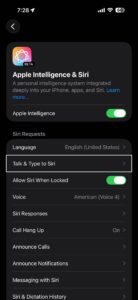
- Check Siri settings. Siri is essential for this feature to work. Make sure that Siri is enabled on your iPhone. To check your settings, go to Settings > Siri (or Apple Intelligence & Siri). If Siri is turned on, then try the following:
- Turn off Siri: Go to Settings > Siri (or Apple Intelligence & Siri) > Talk to Siri (or Talk & Type to Siri) and select Off. Also turn off Press Side Button for Siri (or Press Home for Siri on older models). Then restart your iPhone (see step 4). Then turn Siri back on.
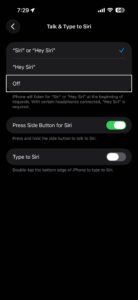
- Turn off Siri: Go to Settings > Siri (or Apple Intelligence & Siri) > Talk to Siri (or Talk & Type to Siri) and select Off. Also turn off Press Side Button for Siri (or Press Home for Siri on older models). Then restart your iPhone (see step 4). Then turn Siri back on.
- Check your internet connection. If your iPhone is not connected to the internet through Wi-Fi and/or a cellular connection, voicemail transcription will not work. Make sure that your iPhone is connected to the internet and then test to see if voicemail transcription starts working. To check your connection, open Safari on your iPhone and visit any website. If the site loads, then your connection is working. If not, you may try the following tips:
- If possible, try a different Wi-Fi network.
- Turn on Airplane Mode and wait 1 minute and then turn it off by going to Settings > Airplane Mode.
- Restart your iPhone. If you do not know how, it is explained below.
- Reset your network settings by going to Settings > General > Transfer or Reset iPhone > Reset > Reset Network Settings. Note that doing so will wipe your network settings such as your Wi-Fi passwords, VPN, and APN settings.
- Update your iOS software. It is important that your device is running the latest version of the iOS software. There are two ways to do this:
- You can update wirelessly. On your iPhone, go to Settings > General, then tap Software Update. Then follow the onscreen instructions, if there is an update available.
- You can also update your iPhone using your computer. Simply connect your iPhone to your computer, then open Finder (on macOS Catalina or later) or iTunes (on Windows or earlier macOS versions) and follow the onscreen instructions.
- Restart your iPhone. Here is how:
- iPhone X or later: Press and hold the volume up (or down) and the side buttons together until you see the power off slider. Then drag the slider. Wait 1 minute. To turn your device back on, press and hold the side button until the Apple logo appears.
- Other iPhone models: Press and hold the side or top button until you see the power off slider. And drag the slider. Wait 1 minute. Then press and hold the side or top button until you see the Apple logo.
- Check for a carrier settings update. There may be a carrier update. You can check this by going to Settings > General > About. A popup will appear if there is an update available. Tap Update.
- Check your Siri language settings. Siri language settings should be set to English (United States) or English (Canada) for Visual Voicemail transcription. If you use a localized English setting, such as UK English, Visual Voicemail transcription may not work (though Live Voicemail does support UK English). Check your settings by going to Settings > Siri (or Apple Intelligence & Siri) > Language.
- Check Live Voicemail settings. If you are running iOS 17 or later, make sure Live Voicemail is enabled. Go to Settings > Apps > Phone > Live Voicemail and ensure the toggle is turned on. Live Voicemail provides real-time transcription as callers leave messages and processes everything on-device.
If you are still having issues, you may want to contact Apple or your carrier. Issues with your carrier or account might cause this problem.