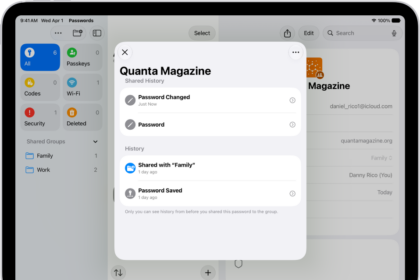
It can be very frustrating when Keychain doesn’t fill your passwords like you expect. Most people have far too many passwords to remember and so rely on a password manager like iCloud Keychain. If your password doesn’t get stored in Keychain, you may have to reset your password, which is pretty inconvenient.
In this article, we will outline some troubleshooting steps to help you solve the issues with your iCloud Keychain when you have one of the following problems:
- Keychain fills in the wrong password.
- Mac or iPhone Keychain isn’t remembering your passwords.
- iCloud Keychain isn’t filling in user names and passwords
- Keychain isn’t syncing your passwords among your devices.
See if a password is saved (correctly) in Keychain
If a password is not filling in correctly, you can check if it is saved in Keychain. Sometimes, you may have an incorrect password saved in Keychain. Other times, websites may use more than one login page address, which can cause issues with Keychain.
See your Keychain passwords on iPhone 18 Pro
- Go to the Passwords app on your iPhone and tap All. The passwords should unlock with Face ID.
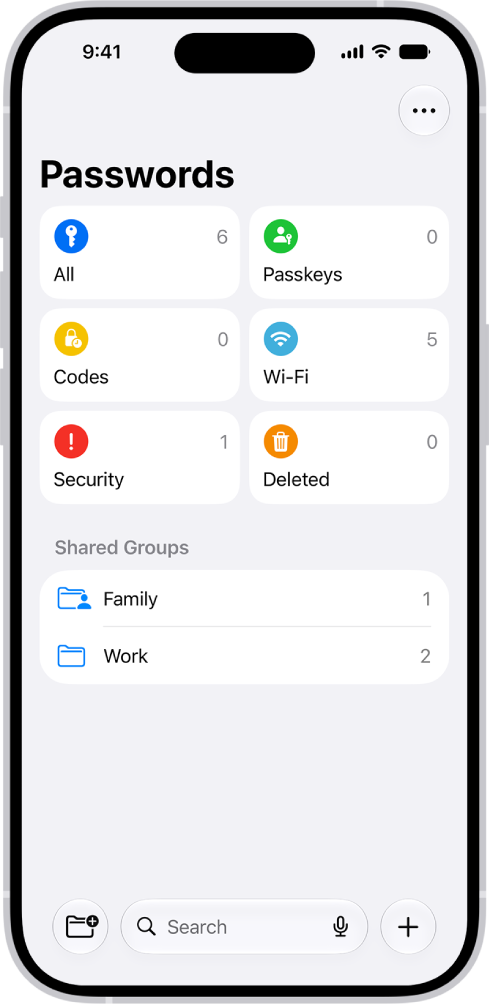
- You can find the website name by scrolling, tapping a letter on the right or using the search field at the top.
- Tap on the website to view the password.
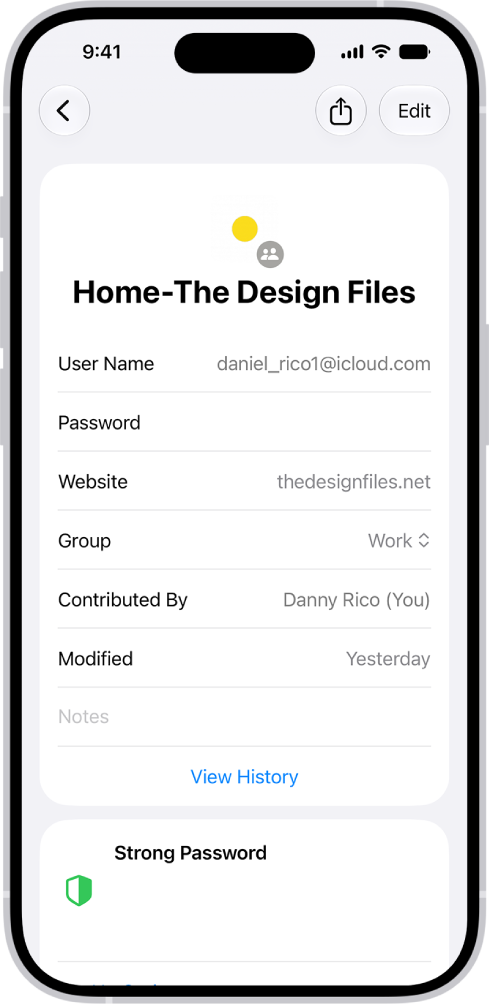
If you don’t see any passwords, check that you have Keychain turned on for your iPhone 18 Pro. Open Settings and tap on your Apple Account name at the top. Select iCloud. Tap See All (next to Saved to iCloud), then tap Passwords & Keychain. Turn on Sync this iPhone, then follow the onscreen instructions.
If the password is incorrect in Keychain
If you looked at one of your passwords and it is incorrect in Keychain, you can change it.
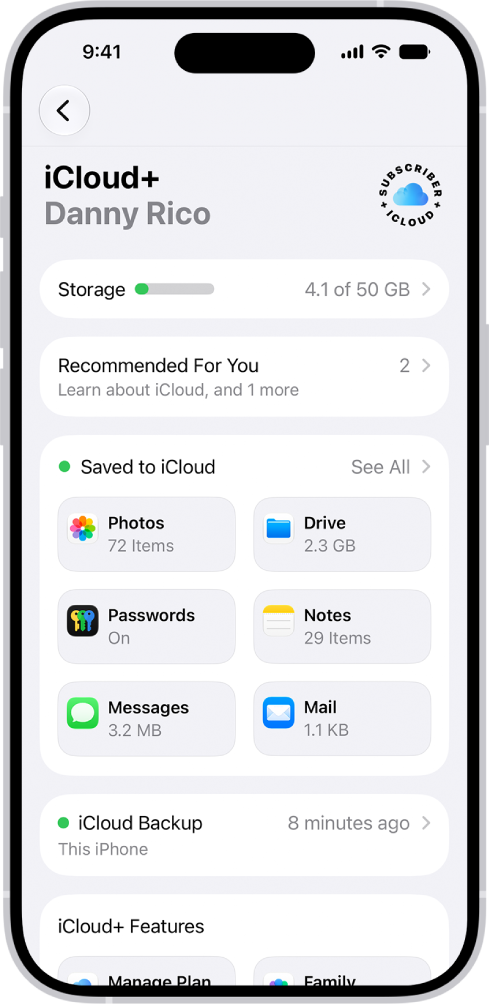
- With Passwords open (see above), find and select the website for the incorrect password.
- Select Edit to change the password in Keychain. Now you can edit the Password field.
What to do if Safari isn’t filling in or saving login names and passwords
Before proceeding, make sure you have the latest iOS updates installed. We’ll show you how to check your settings to make sure everything is set up to have Keychain fill in and save passwords or fill in credit card info.
A couple of things to note:
- Safari doesn’t save user names or passwords when Private Browsing is on. You will see that the search/web address field is dark, and the start page has a Private Browsing message.
- Some websites won’t let Safari save or autofill user names and passwords.
On iPhone 18 Pro
For login names and passwords
- Go to Settings > General > AutoFill & Passwords, then turn on or off AutoFill Passwords and Passkeys.
For credit card info
- Open Settings and tap on Apps > Safari. Select AutoFill, then check that Credit Card is on.