Several users have said that the Live Photos feature is not working as expected. Users have reported these problems:
- Live Photo previews not working, moving.
- Live Photo has no sound.
- Unable to take or share Live Photos.
- Live Photos lose their effects.
If you are having similar problems with Live Photos, this article explains how you can fix them.
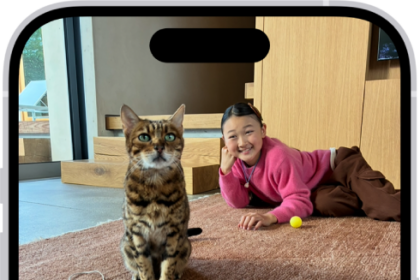
Live Photo is the default camera setting for the iPhone 18 Pro. Live Photos play a few seconds of video and sound. More specifically, a Live Photo is a still photo that animates 1.5 seconds of motion before and after you tap the camera button. Using Live Photos, you can capture photos that combine image, sound, and movement. It is a great feature and many users enjoy it, but it’s also prone to not working as it should.
Is your iPhone 18 Pro updated?
Live Photos may not be working, perhaps because your device needs an iOS update. Here is how:
- Go to Settings > General > Software Update.
- If there is an update available, follow the onscreen instructions to update your iPhone 18 Pro to the latest version of iOS.
Live Photo previews not working?
If this is your problem, it is highly likely that you need to turn off the Reduce Motion feature. Reduce Motion is an accessibility feature, when it is enabled, some of the screen effects will be disabled. And this affects how Live Photos work.
Here is how you can do this:
- Open Settings.
- Tap Accessibility.
- Tap Motion.
- And ensure that Reduce Motion is disabled.
Unable to share a Live Photo?
Some users have said that Live Photos turn into regular, still, photos, meaning Live Photos are losing their Live Photos effects. Users have reported that this issue occurs when they share Live Photos from the Photos app or the Messages app. If you are having issues with sending a Live Photo via the Messages app, this may be because of your settings. Here is how you can fix this:
- Open Settings.
- Tap Apps, then tap Messages.
- Scroll down and find Send Low Quality Photo Previews.
- Turn this feature off. When this feature is enabled, you won’t be able to share Live Photos with Messages. They will be sent as regular photos.
Restart
Simply restart your iPhone 18 Pro and then check again if your Live Photo problem is fixed. Here is how you can restart your device:
- Simultaneously press and hold the side button and either volume button until the sliders appear, then drag the Power Off slider.