Many people have been unable to see music lyrics in Apple Music after the recent iOS update. For these users, they were able to read the lyrics for a particular song before the update, but not since. In this article, we will outline some suggestions that have solved the problem for some users experiencing this issue.
It seems there may be at least a couple of different factors affecting the ability to read lyrics in Apple Music. One has to do with the Increase Contrast setting and Light vs Dark Mode. Another is that lyrics with Explicit Content may not be showing even when the settings allow it.
The problem is described as:
- When trying to view the lyrics, it will seem as though the lyrics page will show, but then the song screen reappears.
- Unable to search for explicit songs – only by going to the artist’s profile.
Or for others:
- Cannot see lyrics in Light Mode.
- Can see lyrics in Dark Mode.
Restart your Phone
This is an easy first thing to try. It may help if there is a problem with your network connection – some users have reported that a network reset has helped fix their problem.
- Press and hold both the side button and either volume button until the slider appears on the screen.

- Drag the slider.
Update your iPhone 18 Pro
This will make sure your iPhone’s software has the latest improvements and bug fixes.
- Go to Settings > General > Software Update.
- If an update is available, tap Update Now then, when prompted, click Agree.
If you Can’t See any Lyrics
If you are unable to view lyrics for any of your songs, it may be because you have increased contrast turned on in Accessibility. What seems to be happening is that, when in Light Mode, the increased contrast makes the background behind the lyrics white, just like the text. With white text on a white background, you can’t read the lyrics. To fix this, try changing to Dark Mode or turning off Increase Contrast.
Change Phone to Dark Mode
Switching your iPhone 18 Pro to Dark Mode fixes the white lyrics on white background problem by changing the background behind the lyrics to black, while the lyrics text remains white.
- Swipe down from the top-right corner of your screen to open Control Center.
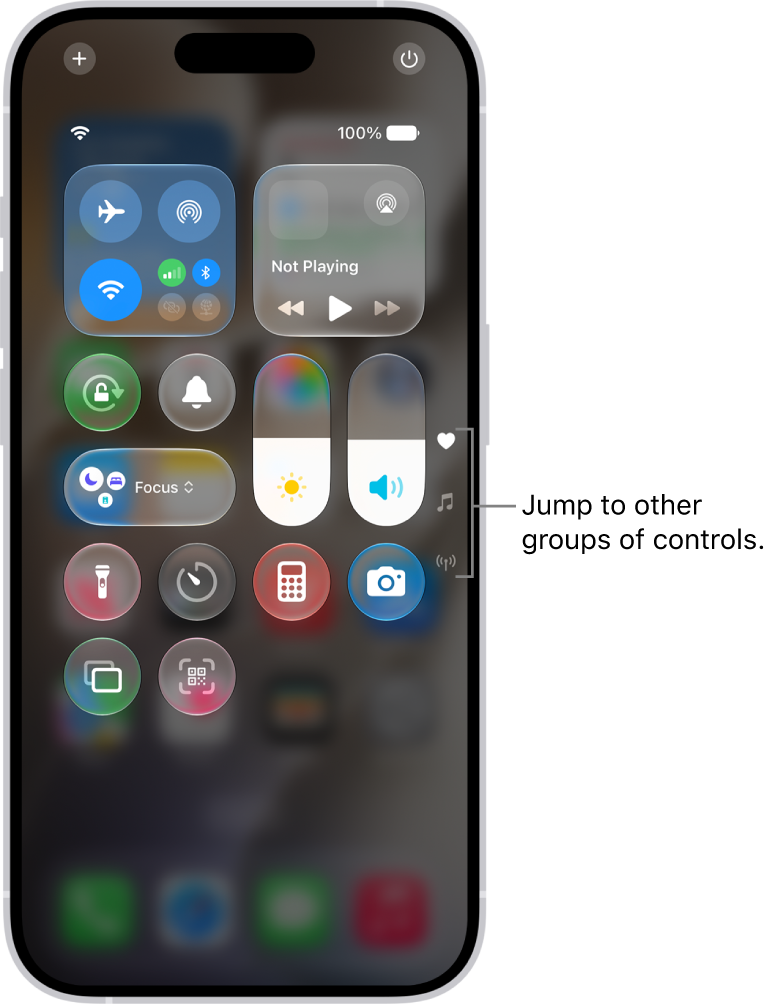
- Press the Brightness control until it opens a screen with more display preferences. Tap the Appearance button to turn on Dark Mode.
Turn off Increase Contrast
If you had previously turned on Increase Contrast, turning it off may fix the problem so that you will be able to again see lyrics when using Light Mode.
- Go to Settings > Accessibility > Display & Text Size.
- Toggle Increase Contrast to OFF.
Check for Content Restrictions
Although users have reported a problem with viewing explicit lyrics despite having no restrictions enabled, you should check your settings to be sure. You will not be able to view explicit lyrics if restrictions have been turned on. To check for this:
- Go to Settings > Screen Time > Content & Privacy Restrictions.
- If Content & Privacy Restrictions are enabled:
- Tap App Store, Media, Web & Games and see if Explicit is allowed for Music or,
- Just toggle the Content & Privacy Restrictions to OFF.
Reset Network Settings
Some have reported success with resetting their network settings. Resetting your network settings can be a pain – it resets Wi-Fi networks and passwords, cellular settings and VPN settings. For that reason, before resetting your network settings, try the simpler steps first.
Airplane Mode
You can toggle Airplane Mode on, and then back off again.
- Open Control Center by swiping down from the top-right corner of your screen.
- Tap the Airplane Mode button. Wait 30 seconds.
- Tap the Airplane Mode button again to turn off.
Forget Network
You will have to re-enter your Wi-Fi password for the network you are forgetting.
- Go to Settings > Wi-Fi.
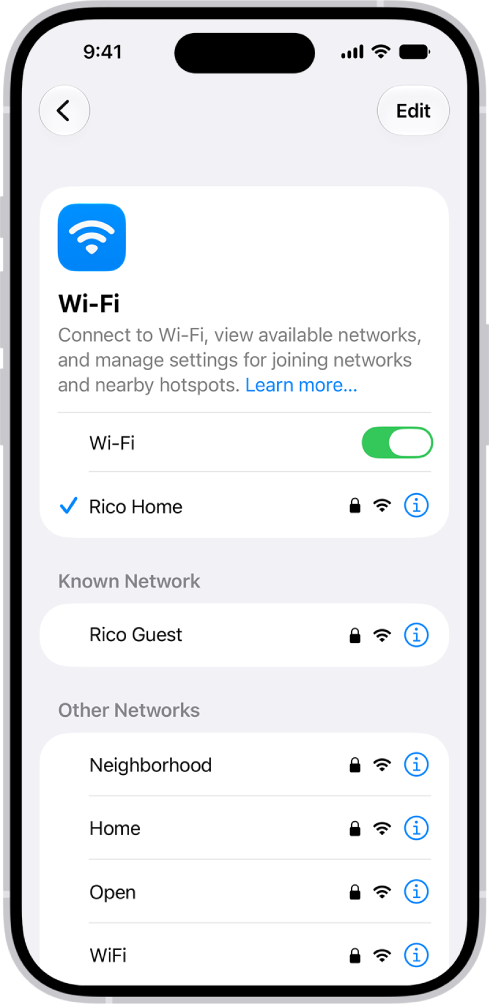
- Tap the info button next to your network.
- Tap Forget This Network. Tap Forget.
Reset Network Settings
- Go to Settings > General > Transfer or Reset iPhone > Reset.
- Tap Reset Network Settings and enter your passcode.
- Tap Reset Network Settings to confirm.
Force Restart
This is also called a hard reset. But do not worry, it does not delete anything. Here is how you can force restart your iPhone 18 Pro:
- Press and quickly release the volume up button. Press and quickly release the volume down button. Press and hold the side button. When the Apple logo appears, release the side button.