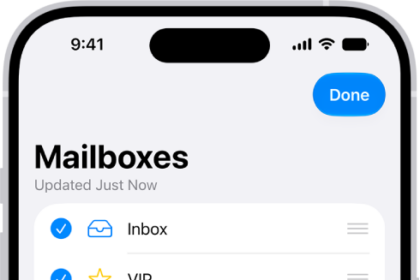
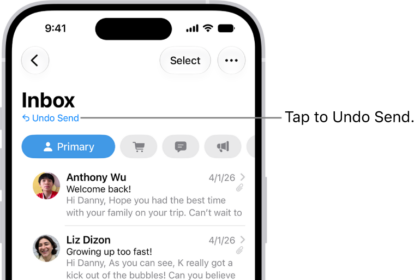
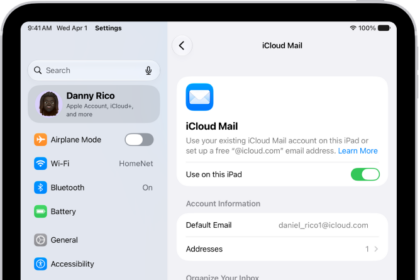
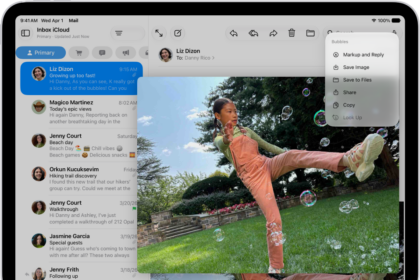
Several iOS users have reported that the Mail app on iPhone 18 Pro displays mysterious “ghost” messages with “no sender”, “no subject” and “this message has no content”. Some users have stated that they started to experience this issue after updating to the latest version of iOS. And it has been reported that these mail messages could not be deleted.
Are you receiving some emails with no senders or no subject text? This article explains how you can troubleshoot this problem. Please try each step until your issue is resolved:
1. Simply restart your iPhone 18 Pro. You can turn off your device by going to Settings > General > Shut Down. And then restart your device.
2. If there is an update, update your iPhone 18 Pro. You can update your device wirelessly by going to Settings > General > Software Update.
3. Restart the Mail app. Here is how:
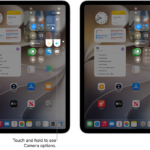
- Force close the app. Swipe up from the bottom of the screen and pause, then swipe up on the Mail app.

- Reopen the Mail app.
4. Turn off and on the email account. Here is how:
- On your iPhone, tap Settings
- Tap Apps, then tap Mail, then tap Mail Accounts
- Tap the email account
- Slide Mail to off
- Now exit Settings
- Open Mail
- Then tap Settings > Apps > Mail > Mail Accounts > and enable Mail.
5. Force restart your iPhone 18 Pro. Here is how:
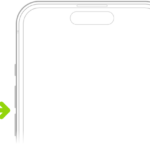
- Press and quickly release the volume up button. Press and quickly release the volume down button. Press and hold the side button. When the Apple logo appears, release the side button.

6. Make sure that the date and time on your iPhone are set correctly. You can check this easily:
- On your iPhone, tap Settings > General > Date & Time.
- Do you see the correct time and date? If not, correct it.
- You may also want to turn on the option to set it automatically by turning Set Time Automatically on.
7. Remove your account and add again. Here is how:
- On your iPhone, tap Settings > Apps > Mail > Mail Accounts.
- Tap the email account that you are having this no subject no content no sender problem
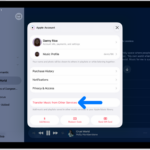
- Tap Delete Account.
- Now we will re-add the account by going to Settings > Apps > Mail > Mail Accounts.
- Tap Add Account, tap “choose from a list,” and then select your email account provider (iCloud, Google, AOL etc)
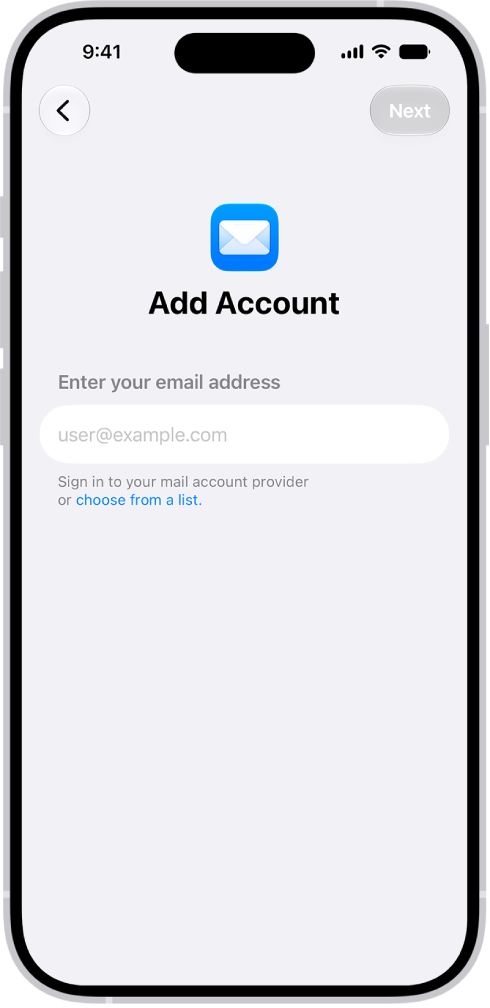
- Add email and password and follow the onscreen instructions.
8. Reset all settings. This will reset all custom settings (sounds, displays, network etc) to default. Here is how:
- On your iPhone, tap Settings
- Tap General, then Transfer or Reset iPhone, and Reset
- Tap Reset All Settings
- You may have to enter your passcode. It may take a few minutes.