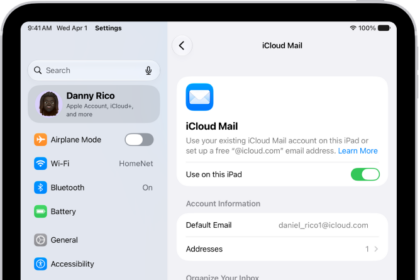
If your Mail app has become frustratingly slow after the recent iOS update, you’re not alone. I’ve personally experienced this issue, and it’s more than just a minor delay—it can take five minutes or longer for emails to actually appear. It’s incredibly annoying, especially when Mail shows unread messages but takes forever to download them.
Here’s what typically happens for me: The app first displays the number of unread emails, then gets stuck on “Downloading xx mails…” with no progress. It lingers on “Connecting” for what feels like an eternity before finally moving to “Checking…,” and only after an unreasonably long wait do emails start showing up. If you rely on Mail for important or time-sensitive messages, this sluggish performance can be a real headache.
So, what’s causing this issue, and more importantly, how can you fix it? Let’s go through some possible solutions.
1. Check for Traffic Blocking on Your Network
One possible cause of slow email downloads is network-level traffic blocking. If you’re using a DNS-based ad blocker like Pi-hole or another firewall that restricts certain connections, it may be interfering with Mail’s ability to fetch messages.
To fix this, make sure the following domains are whitelisted:
- mask-h2.icloud.com
- mask.icloud.com
Even if you’re not using iCloud Private Relay, these domains are still used by Apple’s network services, and blocking them can cause Mail to experience severe delays when downloading messages. Whitelisting them in your network settings can help resolve the issue.
2. Adjust the IMAP Path Prefix
If you’re using an IMAP email account, an incorrect or unresponsive IMAP Path Prefix could be contributing to the slow download issue. Resetting it might help speed things up. Here’s how to do it:
- Open Settings and go to Apps > Mail > Mail Accounts.
- Select your IMAP account, then tap Account Settings > Advanced.
- In the Incoming Settings section, locate the IMAP Path Prefix field.
- If it contains a greyed-out forward slash (/), retype the slash so that it turns white (or black if you’re using a light theme).
- Exit the menu and tap Done to save your changes.
- Close both the Settings and Mail apps, then reopen Mail to check if the issue is resolved.
This small adjustment can sometimes resolve sync issues and improve email download speeds.
3. Disable “Protect Mail Activity” in Mail Privacy Protection
Another potential cause of slow email downloads is the Protect Mail Activity feature in Mail’s Privacy Protection settings. While this feature is designed to enhance privacy by masking your IP address from senders, it can sometimes interfere with email retrieval and slow down downloads.
To turn it off:
- Open Settings and go to Apps > Mail.
- Tap Privacy Protection.
- Locate Protect Mail Activity and toggle it off.
Once disabled, close and reopen the Mail app to see if performance improves.
If this does not resolve the issue, you may want to turn Protect Mail Activity back on. Some email providers and networks may work better with this feature enabled, so it’s worth testing both settings to see which one improves Mail’s performance.
4. Remove and Re-add Your Mail Account
If your Mail app is still slow after trying the previous fixes, removing and re-adding your email account can help reset its connection and improve performance. Follow these steps:
- Open Settings and go to Apps > Mail > Mail Accounts.
- Select the affected email account and tap Delete Account.
- Repeat this process for any other accounts experiencing the issue.
- Restart your iPhone 18 Pro to clear any lingering settings.
- After the restart, go back to Settings > Apps > Mail > Mail Accounts.
- Tap Add Account and follow the prompts to re-add each email account.
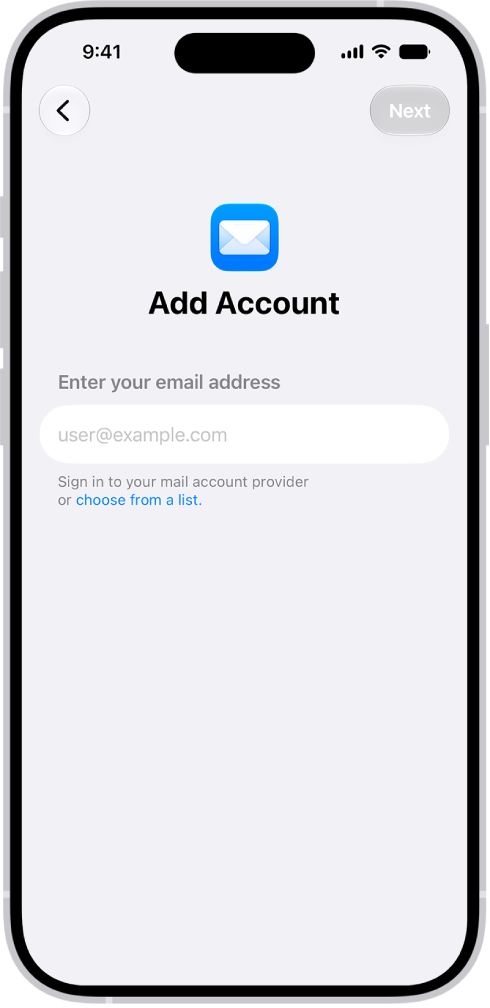
This process refreshes your Mail settings and can resolve syncing or downloading delays. After re-adding your accounts, open Mail and check if emails download faster.
Have you found another fix that worked for you? Let me know in the comments!