The Notes app stores your thoughts, and all of your notes can be kept in sync across your devices. This means that thanks to iCloud, your notes remain current across all your devices, no matter where you are or which Apple device you are using. Some users are complaining that Notes are not syncing and new notes, folders or changes to the old ones do not appear on other devices.
Your notes can include text, images or sketches. Syncing means that iCloud effortlessly transfers your content among devices to ensure you have the most up-to-date version of every note on each device. This is a bidirectional sync. Deleting a note from iCloud on one device will result in its removal from any other device as well. Keep in mind that once notes are deleted from iCloud, they can be recovered within 30 days of deletion.
Syncing allows you to edit, view and share your notes from any of your devices. If syncing stops working, here’s how to ensure iCloud syncs your notes to your iPhone 18 Pro and Mac.
Check your settings
If you’ve got a note on your iPhone 18 Pro that you need to view or edit on your Mac, you can do so if everything is configured correctly. Then, syncing will happen automatically. Let us ensure that your setup is configured correctly.
In order to synchronize your iPhone 18 Pro notes with your Mac and vice versa, ensure that you are signed in using the same Apple Account, have iCloud Notes enabled in Settings on all devices, and store all your notes on iCloud rather than in the “On My iPhone” or “On My Mac” locations. Follow these steps to confirm that everything is configured correctly:
For Mac and iPhone:
- Open Settings on iPhone or System Settings on Mac.
- Click or tap on your name.
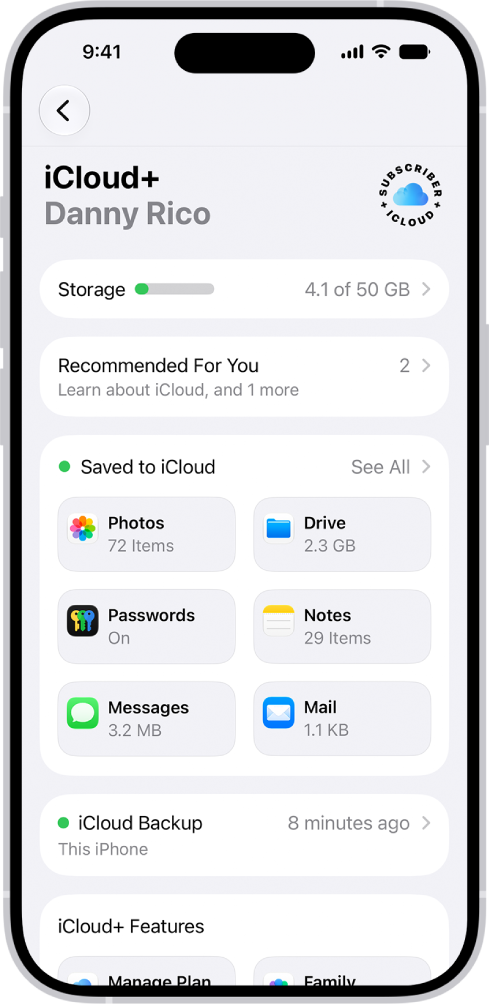
- Then tap or click iCloud, then under Apps Using iCloud, select Show All on Mac, or tap See All (next to Saved to iCloud) on iPhone, and ensure that Notes is on. For example, if you tap or click on Notes, you will see Sync This Mac on your Mac and Sync this iPhone on your iPhone 18 Pro. If this is disabled on a device, your notes will not be synced to that device.
For iPhone:
- Tap Settings.
- Tap Apps, then tap Notes.
- Tap Default Account.
- And ensure that iCloud is selected.
For Mac:
- Open the Notes app.
- From the top menu bar, click Notes and then Settings.
- Ensure that iCloud is selected for the “Default account” option.
For iPhone and Mac:
- Open the Notes app on your iPhone or Mac.
- Then ensure that the notes you want to sync are all in iCloud, not under On My iPhone or On My Mac. You can do this by tapping the back arrow in the upper-left corner of the iPhone screen until you get to the screen that shows all folders. On Mac, select the sidebar button to show the sidebar.
Update your iPhone or Mac
Ensure that your iPhone or Mac has the latest version of iOS or macOS. Since the Notes app is part of the OS, updating your iPhone 18 Pro will ensure that you have the latest version of the Notes app, too.
- iPhone update instructions: Tap Settings > General > Software Update. If there is an update, follow the onscreen instructions.
- Mac update instruction: Click on the Apple logo in the top-left corner of your screen, select System Settings, then General and then Software Update.
Turn Syncing off and then on again
On the device that your notes are not syncing to, turn off iCloud syncing and then turn it on again. This will refresh syncing. Here is how:
- Mac iCloud Notes instruction: Open System Settings and then click your name. Click iCloud and then click Show All under Apps Using iCloud. Click Notes from the list of apps and then toggle off Sync This Mac. Then, wait a few seconds and toggle it on again.
- iPhone iCloud Notes instruction: Tap Settings and then your name. Then, select iCloud. Tap See All (next to Saved to iCloud), then turn off Notes. Wait a few seconds and then turn it on again.