This article explains how you can fix if the option for Personal Hotspot is missing on the iPhone or iPad. Some users are experiencing that they are unable to set up or use Personal Hotspot because they don’t see the option to turn on or turn off the "Allow Others to Join" setting. Some users have said that they started having this problem after updating their device and then the option has suddenly disappeared from Settings.
Please follow the steps below to restore missing Personal Hotspot on your iPhone or iPad. Before you do anything, ensure that your iPhone or iPad has the latest version of iOS or iPadOS.
1. Airplane Mode / Restart
The first step is simple but effective and can restore the missing Personal Hotspot on your iPhone or iPad.
- Turn on Airplane Mode on your iPhone or iPad (Settings > Airplane Mode).
- Turn off your device (Settings > General > Shut Down).
- Turn on your device (press the power button until you see the Apple logo).
- Turn off Airplane Mode (Settings > Airplane Mode).
- Now go to Settings to see if Personal Hotspot is present.
2. Check your carrier
If the Hotspot option is not showing in your iPhone or iPad Settings, it is possible that your carrier does not offer this feature. Or, your carrier may offer this, but the data plan you purchased may not include this. Some cellular carriers may charge extra for this. And lastly, it is possible that you have exceeded your cellular hotspot data limit.
The first thing you should do is to contact your carrier to ensure that your service plan includes hotspot and your account is active.
3. Change your username and Reset your APN settings
Your APN settings may cause this feature not to show up. Please note that this may not apply to you, as you can only do this on your iPhone or iPad if your carrier allows it. There are two things you can do. Again this step only applies to a small number of users.
The first thing is to set a username for Personal Hotspot. Here is how:
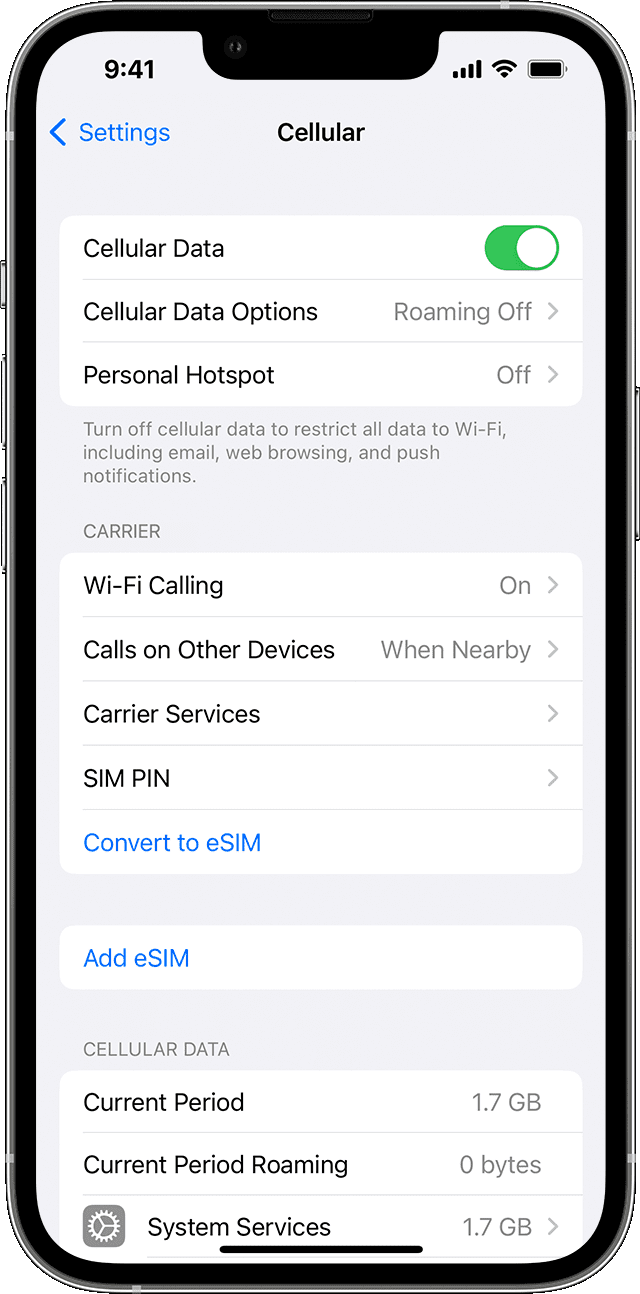
- On your iPhone or iPad go to Settings > Cellular > Cellular Data Network.
- Or alternatively: Settings > Mobile Data > Mobile Data Options > Mobile Data Network.
- Find the Personal Hotspot section and enter a username. It can be anything. You do not need to change anything else.
- Then exit Settings and test again.
If the first thing does not work, then you may want to reset your APN settings to revert to the carrier’s original settings. Here is how:
Depending on your device and your location, go to:
- Settings > Cellular > Cellular Data Network > Reset Settings.
- Settings > Mobile Data > Mobile Data Options > Mobile Data Network > Reset Settings.
Please also contact your carrier to see if your APN settings are correct. Different carriers may require different settings for using the Personal Hotspot feature.
4. Update carrier settings
It is possible that your carrier may have been aware of this issue and released an update to address the missing Personal Hotspot option problem that you may be facing. You should check for a carrier settings update. Here is how:
- Make sure that your iPhone or iPad is connected to Wi-Fi or a cellular network.
- On your device, go to Settings > General > About.
- A popup will appear if there is an update. If there is, simply follow the onscreen instructions.
5. Force restart your device
If your iPhone or iPad personal hotspot is still missing, simply force restart your device to fix this problem. Here is how:
iPhone 8 or later and iPad with Face ID models:
- Press and quickly release the Volume Up button.
- Press and quickly release the Volume Down button.
- Press and hold the Side button until the Apple logo appears.
iPhone 7:
- Press and hold the Side button and the Volume Down button together at the same time for at least 10 seconds, until the Apple logo appears.
All other iPhone and iPad models:
- Press and hold the Home and the Top (or Side) buttons together for at least 10 seconds, until the Apple logo appears.
6. Reset network settings
Some of your network settings may be corrupted and causing this missing Personal Hotspot problem. You can reset your network settings to fix it. Please note that this will erase all of your network settings such as your Wi-Fi passwords. If you want to do this, simply go to:
Settings > General > Transfer or Reset [Device] > Reset > Reset Network Settings
After resetting, you will have to re-enter your Wi-Fi passwords and pair your Bluetooth devices.
So you have tried everything and is Personal Hotspot still missing? Then you may want to contact Apple Support at support.apple.com/contact.
See also: How to Fix iPhone Personal Hotspot Not Working Issue