It’s easy to take a screenshot on your iPhone to keep a copy of something in your photo library for later. You can even screenshot a whole page on an iPhone at once.
If you want to take a screenshot of something like an in-depth recipe, a lengthy email or anything else that doesn’t fit on your iPhone screen, you can take a long screenshot. Instead of filling your library with five separate images, you can use your iPhone to screenshot the entire page (or a large section of it) without using an app to stitch them together after the fact.
Here’s how it’s done.
How to take (and edit) a standard screenshot on iPhone
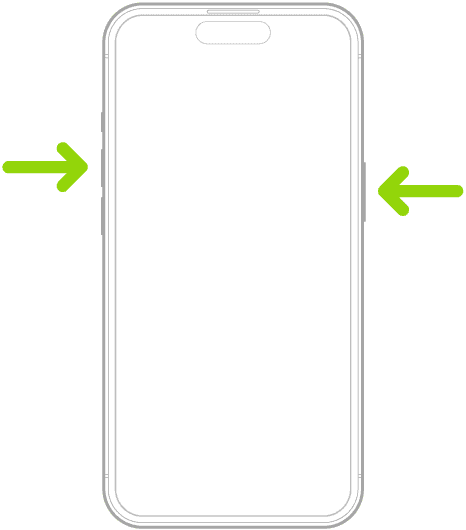
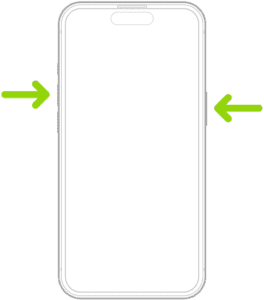
1. To take a screenshot on an iPhone with Face ID, quickly press and release the side button and the volume up button at the same time.
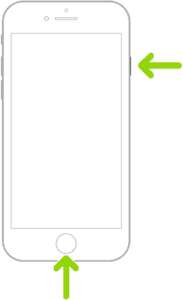
2. To take a screenshot on an iPhone with Touch ID, quickly press and release the power button and the Home button at the same time.
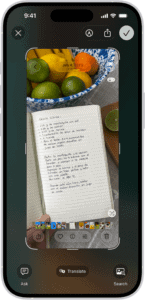
3. After you take a screenshot, do any of the following:
- Crop: Drag the handles to save only the portion you want.
- Annotate: Tap the Markup button, then use the Markup tools.
- Share: Tap the Share button, then choose a sharing option (Messages, AirDrop, Snapchat, WhatsApp, Mail, Discord, Slack, etc).
- Save: Tap the Done button, then choose an option (Save to Photos, Save to Files, Save to Quick Note, etc).
If you choose Save to Photos, the screenshot will be saved to your photo library in the Photos app. You also can chooseCopy and Delete if you just want to paste the screenshot into another app without keeping a copy in your library. - Cancel or delete: Tap the Close button.
Personally, I like saving my screenshots to the Photos app. If you are anything like me, you can go to the Photos app on your iPhone , tap Collections, scroll down to Media Types, then tap Screenshots to view all your screenshots.
Screenshot a whole page on iPhone
You can take a screenshot of content that exceeds the length of your iPhone screen, such as an entire webpage in Safari.
Here’s how to screenshot a whole page on iPhone:
1. To screenshot a whole page on iPhone, first take a regular screenshot:
Open a page in Safari, an individual email in Mail, a PDF in Files or the map of an area in Maps.
On an iPhone with Face ID, you take a screenshot by quickly pressing and releasing the side button and the volume up button at the same time. On an iPhone with Touch ID, you quickly press and release the side button and the Home button at the same time.
2. Tap Full Page, then do any of the following:
- Scroll down: Drag your finger on the preview image on the right to see more of the screen shot.
- Crop: Tap the Crop button, then drag the handles to save only the portion you want.
- Save as an image: Tap the Done button, then tap Save to Photos.
- Save a PDF: Tap the Done button, tap Save PDF to Files, then choose a location.
- Cancel or delete: Tap the Close button.