Many iPhone users have had a mysterious problem: Their iPhone’s Silent mode seems to randomly turn itself on or off. This can be a big problem when you miss texts and phone calls. Problems with an iPhone muting itself can happen on any model iPhone. In this article, we will discuss the most likely cause of this problem, as well as some other reasons your phone could be muting itself.
Silent Mode
Press and hold the Action button to turn Silent mode on. Press and hold the Action button again to turn Silent mode off.
Other Possible Causes
If your iPhone’s problem with randomly muting itself is not caused by Silent mode, you should look for software causes.
Back Tap
Some users like this feature which allows you to trigger an action by tapping the back of your iPhone 18 Pro. One of the actions you can turn on using Back Tap is Mute. To check your Back Tap settings:
- Go to Settings > Accessibility > Touch. Scroll down and select Back Tap.
- If you see Mute next to Double Tap or Triple Tap, tap on the one that says Mute.
- Tap on None at the top of the list to turn off the Back Tap feature.
Do Not Disturb
When Do Not Disturb is on, your calls, alerts and notifications are silenced while your iPhone 18 Pro is locked.
Turn Do Not Disturb On or Off
There are two ways to access Do Not Disturb on your iPhone 18 Pro.
- Open the Control Center by swiping down from the upper-right corner of your iPhone 18 Pro screen. Look at the button with the moon on it. If it is highlighted, your Do Not Disturb is on. Touch the moon button, then tap Do Not Disturb to turn it off.
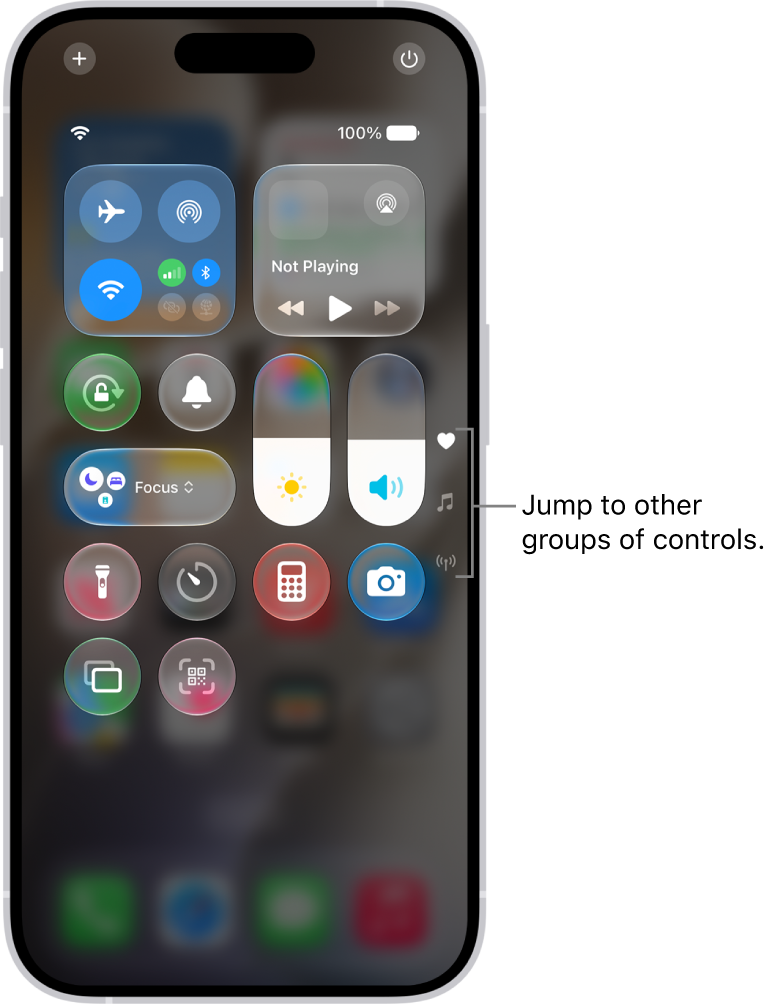
- Go to Settings > Focus > Do Not Disturb. Check the toggle next to Do Not Disturb.
Do Not Disturb Schedule
From the menu Settings > Focus > Do Not Disturb, you can view the Do Not Disturb schedule, if you have one set up. From here you can adjust the Do Not Disturb settings as necessary so you aren’t missing important calls.
Silence Unknown Callers
Silence Unknown Callers will block calls from numbers that aren’t in your contacts (if you have texted with them, or they have shared their number via email, the call will go through). To check your Silence Unknown Callers settings:
- Go to Settings > Apps > Phone and scroll down to Screen Unknown Callers section.
- If Silence is selected, choose Never.