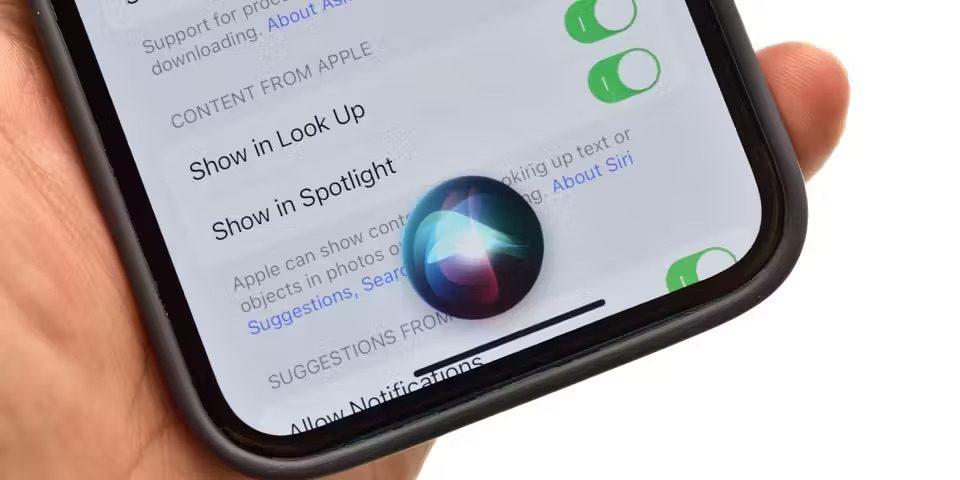
Many iPhone users like the convenience of using Siri. Siri can help you do a variety of things with just a spoken command. A couple of my favorite uses for “Hey Siri” are:
- “Hey Siri, set a timer for 15 minutes.” This is especially useful when you need to time something you are cooking.
- “Hey Siri, add Milk to the grocery list.” There is no need to stop what you are doing and write it down.
However, I think the best uses for “Hey Siri” are while driving. Most cars are CarPlay compatible now, and if you haven’t yet used CarPlay, you are really missing out; you can make phone calls, dictate and send messages and get directions — all hands-free.
- “Hey Siri, send a message to Dave.”
- “Hey Siri, get directions to Home.”
Siri’s voice recognition is pretty good, but you have to set it up and properly train it; otherwise, Siri may not even respond when you say, “Hey Siri.” In this article, we will tell you how you can set up or retrain Siri on your iPhone.
What to do if ‘Hey Siri’ isn’t working on your iPhone
Check Siri settings
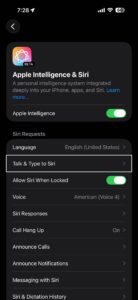
You can access your iPhone’s Siri settings by going to Settings > Apple Intelligence & Siri (or Siri, depending on your model). If Siri isn’t responding to you, check that the following are turned on:
- Listen for “Siri” or “Hey Siri”
- Allow Siri When Locked
Turn on ‘Always Listen’ in Accessibility
If you want Siri to respond to you whenever your phone is nearby, there is a setting in Accessibility for you to turn on. If you don’t turn this on, Siri will not respond unless your iPhone is face-up and uncovered. You can also choose to keep this setting turned off if you like the option of turning off “Hey Siri” just by turning your iPhone face-down.
- Open Settings and tap on Accessibility.
- Tap on Siri.
- Toggle the switch next to “Always Listen for ‘Siri’.”
- If you like, you can also select Always under “Spoken Responses” so that Siri will respond even when Silent Mode is on.
How to set up or retrain ‘Hey Siri’ on iPhone
First of all, if your Siri was working fine but just hasn’t been responding to you lately, you might try restarting your iPhone. Go to Settings and tap on General, then scroll down and tap on Shutdown. To turn on your phone, press the side or top button until the Apple logo appears.
To retrain Siri voice recognition on your iPhone:
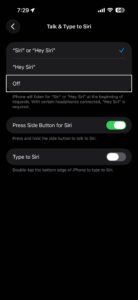
- Go to Settings and tap on Apple Intelligence & Siri (or Siri, depending on your model). Then tap Talk & Type to Siri.
- Choose Off under “Talk & Type to Siri,” then choose “Siri” or “Hey Siri”.
- You will see the Siri setup screen. Tap on Continue.

- Using a normal speaking voice, say aloud each of the commands shown on the screen.
- Tap Done when the setup is complete.
See also: A Beginner’s Guide to Setting Up and Using Siri on your iPhone