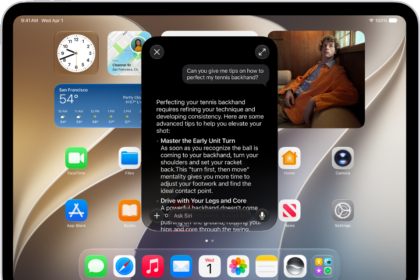
This article explains what to do if you’re having issues launching apps using Siri on your iPhone 18 Pro. Siri lets you open applications by just saying simple commands. First activate Siri by pressing and holding the side button then say something like these commands:
- Launch Facebook or
- Open Messages
- Launch (app name)
This will launch the app you asked for. If you have a lot of apps installed on your iPhone 18 Pro, this feature makes it much easier to launch apps because there’s no need to search and you can quickly and easily launch apps.
However sometimes, Siri may not be able to launch apps. For instance, Siri may say “it doesn’t look like you have an app named ‘FaceBook’. If you’d like, I can help you look for it on the App Store.” or “you don’t seem to have an app named FaceBook” when you ask Siri to open the Facebook app, even if the Facebook app is installed on your device.
What to do if Siri won’t open apps
1-Go to Settings > Siri, scroll down, then tap Turn Off Siri. Wait a few seconds, and turn on Siri.
2-Restart your iPhone 18 Pro.
3-Turn on Airplane Mode briefly and then turn back off by going to Settings > Airplane Mode.
4-Update the iOS software if there is an update by going to Settings > General > Software Update.
5-Tap Settings > General > Keyboard > and turn off “Enable Dictation” and then turn on (it is originally disabled, make sure you enable this).
6-Reset your network settings by going to Settings > General > Transfer or Reset iPhone > Reset and “Reset Network Settings”. Note that this action will reset your stored Wi-Fi passwords etc.
7-Force restart your device. Press and quickly release the volume up button. Press and quickly release the volume down button. Press and hold the side button. When the Apple logo appears, release the side button.