Sometimes, you may run into an issue where you can’t change the date or time zone on your device. Users see an error message saying, “The time zone cannot be set manually due to device restrictions” in the Date & Time settings of the device. This issue may become apparent (and important) when you have traveled to a different location in a different time zone, and your iPhone time has not automatically adjusted to show the correct time where you are currently. This issue happens to me too often as my travels involve different time zones.
If you see the wrong time on your iPhone 18 Pro, and you go to Settings > General > Date & Time > Time Zone and see the error message and are unable to change it, here is what you can do.
Why can’t you change the time zone?
There can be several factors causing this. Location Services may be disabled, and your iPhone 18 Pro may not be able to determine your location. Furthermore, setting the date and time automatically may not be available everywhere and with every carrier. For example, some carriers don’t allow users to change the time zone. Lastly, changing time zones may be locked with Screen Time. If this is the case, the Set Time Automatically option will be dimmed or grayed out. In this article, we will cover how to fix these time zone errors.
How to fix ‘time zone cannot be set manually due to device restrictions’
1. Update and restart
- The first step is to ensure that your iPhone 18 Pro has the latest version of iOS. Go to Settings > General > Software Update to check for updates. Update it by following the onscreen instructions if there is an update.
- After ensuring your device is up to date, restart your iPhone 18 Pro.
2. Check Location Services
Ensure that your location services are enabled and working. There are two settings to check:
- Go to Settings > Privacy & Security > Location Services and ensure Location Services is toggled on.
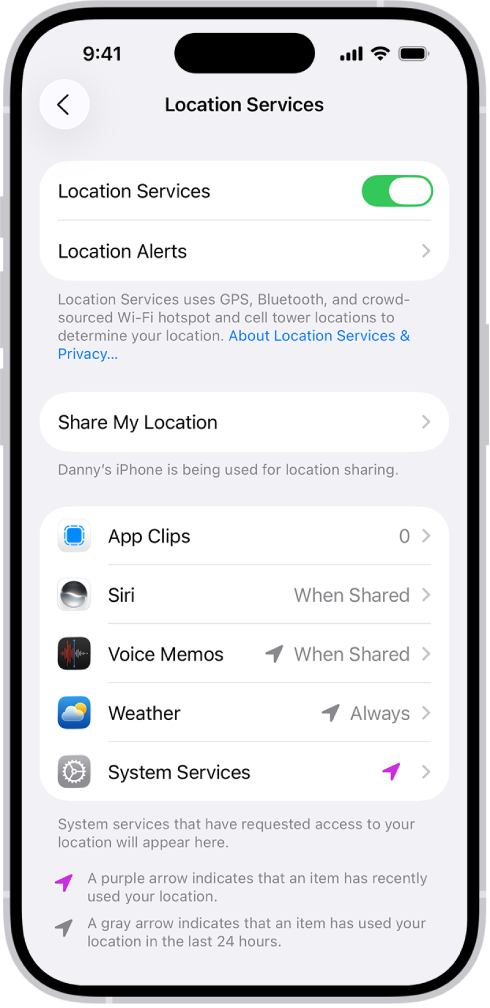
- Then, again, go to Settings > Privacy & Security > Location Services and scroll all the way down and tap System Services. Ensure that Setting Time Zone is allowed to use Location Services.
3. Check Screen Time and other restrictions
If Screen Time, aka restrictions or parental control, is enabled, you will be prevented from manually adjusting the time zone. Furthermore, if your device includes a profile with restrictions (like if you are using a device that is owned by your school or employer), this setting may not be available. Here is how you check these:
- If you have enabled Screen Time with a password, iOS will prevent you from changing the time zone option so that time limits cannot be bypassed by changing the time zone. Go to Settings > Screen Time. This will say “Change Screen Time Passcode” if you have enabled it. Turn it off, and then try again. To turn it off, tap Change Screen Time Passcode, select Turn Off Screen Time Passcode, then enter your current passcode.
- Go to Settings > General > VPN & Device Management to see if there is a profile installed. If there is, you need to contact your school or work.
4. Ask your carrier
As I stated above, one of the possible reasons for the time zone error is the carrier itself. For most carriers, this is not a problem; however, some carriers do not allow you to disable “Set Time Automatically” on your phone. If your issue still exists after trying the steps above, I recommend contacting your carrier. You can call them or use other methods of communication. Most carriers offer live chat, email, and other avenues to support their subscribers.