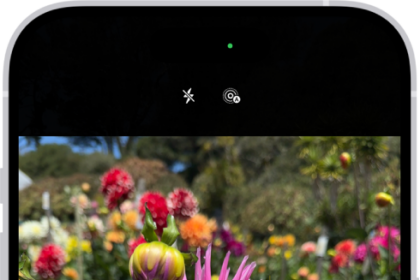
I recently experienced the photos or selfies I was taking with my iPhone 18 Pro looked poor. This was surprising because all iPhone models have amazing cameras that allow users to take photos or videos like professionals. Especially with the photos I took in low light, the camera showed a good image, but as soon as I hit the Shutter button, the iPhone took a bright photo automatically. However, the end result was an over-exposed and over-saturated photo instead of an enhanced version. It appears that this is a feature to improve the photo quality with some unintended consequences. In this article, I explain what you can do to take photos without auto-enhance.
What is auto-enhance and is it possible to disable it?
Your photos will be automatically enhanced by software. Apple calls this process Deep Fusion, and it was introduced with the iPhone 11. Deep Fusion is a neural image processing system and is supposed to work in the background automatically to improve your photos. Deep Fusion is especially designed to produce better-quality images in low light.
Some users have said that, shortly after taking a photo, Deep Fusion automatically changes the photo. Users have said the enhanced photo is different in color, is sharper, and has higher contrast than the original. Users have said that the photos do not look natural, and some said that they wish to stop using Deep Fusion.
Additionally, you should note that your iPhone 18 Pro will also use a feature called Smart HDR when your iPhone decides it would be effective. Smart HDR is somewhat similar to Deep Fusion. Your iPhone will use Smart HDR instead of Deep Fusion in well-lit environments with the standard lens, while Deep Fusion is activated in low-light environments.
The bad news is that there is no setting to turn off auto-enhancement or Deep Fusion with a button. Deep Fusion is invisible to users. This is because the feature is built into the iPhone’s Neural engine inside Apple’s processor. The good news is that Deep Fusion only works when certain conditions are met. In the next section, I explain what you can do.
Optimize your settings to adjust auto-enhance
So what can you do if you do not want Deep Fusion to enhance your photos? There are some settings under which Deep Fusion will not work. You can try taking photos while these settings or features are being used. You can try these to test whether they are for you or not. Here is what they are:
- Deep Fusion will not work with Burst photos. The Burst mode takes multiple photos in a short time. Use Burst photos and then pick one of the Burst photos to keep.
- Turn on ProRAW. On your iPhone 18 Pro, go to Settings > Camera > Formats and turn on ProRAW & Resolution Control. Then when taking photos, tap the RAW button to enable it so that the photos you take are RAW.
- Sometimes Night mode is the culprit, not Deep Fusion or Auto Enhancement if you are taking photos in dark places. Take another photo with Night mode off to see if that is what you want. Night mode is automatically activated when your iPhone 18 Pro detects low-light conditions. Tap the Night Mode button to turn it off in the Camera app. When the Night Mode is yellow, it means it is on. Tap to turn it off and take your photo.
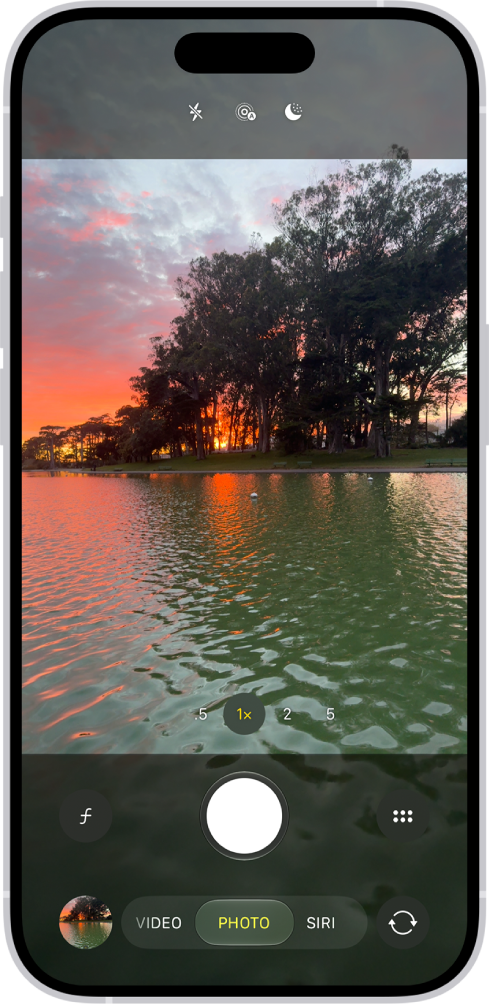
- You may try taking a Live Photo and then opening the Live photo and changing the key photo. To do this, ensure that Live Photo is active when taking photos. And then, find your photo and open it. Tap Edit and the Live Photo button to select the key photo.

- If nothing has worked for you, you can leave feedback for Apple. You can try using one of many third-party camera apps available on the App Store to take your photos instead of the built-in Camera app.