Several iPhone 18 Pro and iPhone 18 Pro Max users have said they see an error message saying “An update is required to use cellular data on this iPhone”. Users have further said that their device says “No Service” and they are unable to connect to a cellular network. This article explains how you can troubleshoot this problem.
It appears that users see this message when they go to Settings > Cellular. Thus users are unable to change their Cellular settings. Please follow the steps below until you have fixed this problem:
Before you continue, please make sure that your iPhone 18 Pro is connected to Wi-Fi. Go to Settings > Wi-Fi and check that you are connected to a network.
Toggle Airplane Mode on and off again
Switching Airplane Mode on and then off again may fix the problem. Go to Settings and turn on Airplane Mode. Wait at least 15 seconds. And then turn it off.
Restart your iPhone 18 Pro
If toggling Airplane Mode does not work, the next tip you should do is to restart your iPhone. Here is how you can do this:
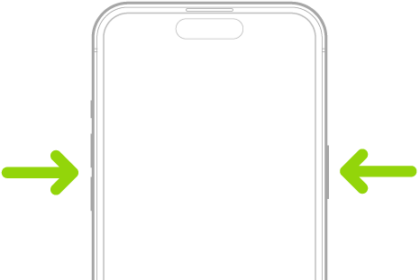
- Go to Settings > General > Shut Down. Drag the power-off slider, then wait 30 seconds for your iPhone to turn off. You can also press and hold the side button and either of the volume buttons together until you see the power-off slider.
- To turn it back on, press and hold the side button until you see the Apple logo.
After restarting your iPhone, check to see if you still see the “update required” error message.
Update your iPhone
Please ensure that you are running the latest version of the iOS software. You can easily find out whether there is an iOS update by using the Settings app. Simply go to Settings > General > Software Update. If there is an update, you will see it. Tap Download and Install and follow the onscreen instructions to update your iPhone.
Carrier settings update
Check for a carrier settings update. Your carrier may have released updates that fix this cellular data problem. Here is how:
- Make sure that you connect your device to Wi-Fi.
- Open the Settings app.
- Tap General.
- Tap About.
- Follow the onscreen instructions to install your carrier update.
If your carrier releases a mandatory update, you will see an OK button instead of an Update button.
Remove the SIM and put it back
Remove your SIM card and put it back. Note that this step only applies to an iPhone 18 Pro with a physical SIM. iPhone 18 Pro and iPhone 18 Pro Max models purchased in the United States, United States Virgin Islands, Canada, Mexico, Japan, Guam, United Arab Emirates, Saudi Arabia, Bahrain, Kuwait, Qatar, and Oman can only be activated with an eSIM and do not have a SIM tray. Here is how:
- Turn off your iPhone.
- To pop open the SIM tray, insert a paper clip or a SIM-eject tool into the hole beside the tray. Push in, towards your iPhone, but don’t force it.
- Remove the SIM card.
- Then reinsert the SIM card again.
- Turn on your iPhone.
Reset network settings
If your iPhone 18 Pro still cannot use cellular data, you may want to reset your network settings. Please note that doing so will erase all of your network settings, for example, your Wi-Fi settings (your passwords, etc) will be deleted. On your iPhone, go to Settings > General > Transfer or Reset iPhone > Reset > Reset Network Settings and follow the onscreen instructions.
Contact your carrier
There may be an issue with your cellular carrier. There may be local outages. Or there may be issues with your account. Simply contact your carrier. Here are the customer support pages for major cellular providers: