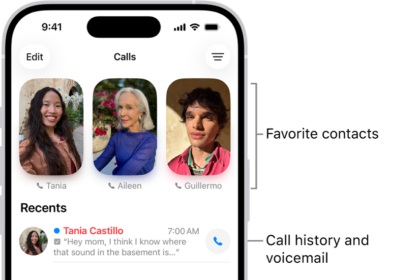
You may notice that the Voicemail icon in the Phone app has disappeared from your iPhone 18 Pro when you want to check your voicemail. If you cannot see the Voicemail icon in the Phone app, you won’t be able to check your voicemail. Whether there is a Voicemail tab at all depends on which Phone app layout you are using. In the Classic layout it sits at the bottom-right of the screen, next to the Keypad icon along with Contacts, Recents and Favorites. In the Unified layout there is no separate Voicemail tab: your favorite contacts, recent calls, and voicemails are combined and displayed in the Calls tab. Step 8 below shows how to switch layouts. If you have unheard messages, you will see a red badge on the Voicemail icon. If you are missing your Voicemail icon, you won’t be able to use Visual Voicemail. In this article, I explain how you can troubleshoot the issue of a missing Voicemail icon.
Troubleshooting steps
Try the following steps:
- Restart the Phone app. From the Home Screen, swipe up from the bottom of the screen and pause in the middle of the screen. Swipe right or left to find the app that you want to close. Swipe up on the app’s preview to close the app.
- Restart your iPhone. Press and hold either volume button and the side button until the power-off slider appears. Drag the slider, then wait 30 seconds for your device to turn off. To turn your device back on, press and hold the side button (on the right side of your iPhone) until you see the Apple logo.
- If your device is accessing the Internet over Wi-Fi, turn off Wi-Fi (Settings > Wi-Fi) to force your iPhone to use the cellular network.
- Ensure that your iPhone is updated to the latest version of iOS. Go to Settings > General > Software Update.
- Check to see if there is a carrier update. On your iPhone, go to Settings > General > About. If an update is available, you’ll see an option to update your carrier settings. Follow the onscreen instructions to install your carrier update.
- Call your number from your iPhone. You should be able to check your messages. You may be asked to enter your voicemail password. If you do not know it, you can change it by going to Settings > Apps > Phone > Change Voicemail Password, then entering the new password. Listen to your messages, then restart your iPhone. The Voicemail icon may appear now.
- If you do not see the badge indicating the number of unheard messages, ensure that Badges is enabled in Settings > Notifications > Phone.
- In the Unified layout, the Calls tab shows your favorite contacts and a chronological list of calls and voicemails. Open the Phone app. Tap the Calls tab (in the Unified layout) or the Recents tab (in the Classic layout) at the bottom of your screen. Tap the Filter button in the upper-right corner. Tap Classic or Unified at the top of the menu.
Contact your carrier
If you are still having this issue, you may want to contact your carrier (AT&T, T-Mobile, Cricket, etc.). They may be able to reset and do some housekeeping to fix the issue at their end. They may also have suggestions for you to try.
Reset network settings
If the issue persists, reset your network settings. This will remove all of your network-related settings, including your Wi-Fi passwords, etc. Go to Settings > General > Transfer or Reset iPhone > Reset > Reset Network Settings and then follow the onscreen instructions. Your iPhone will restart. Then open the Phone app to see if the icon is there.