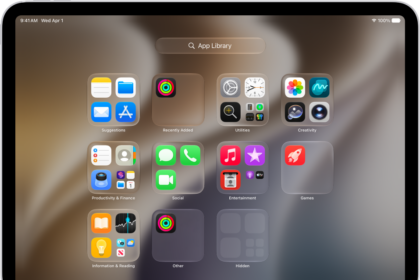
You can customize your Home screen wallpaper to create a blur effect so that the app icons stand out and you can see them more easily. Using the blur effect is especially useful if your wallpaper is interfering with the visibility of the Home screen app icons. For example, I had a nature photo as my Home screen wallpaper. The photo was very colorful, and it had dark and light parts. The variations in color were making it really difficult to see some app icons. The only bad thing about using blur is that the blur effect will be automatically applied, and sometimes, the whole photo or the whole screen may be covered with a blurry effect.
You can turn on blur for the Home screen wallpaper. However, this feature may not work even when it is on. There are some variations to this problem; sometimes the blur does not work at all, and sometimes the Home screen won’t blur if it is not paired with the Lock screen wallpaper. This article describes steps to fix this problem.
What to do if the Home screen won’t blur
Step 1: Un-blur the Home screen
- Open the Wallpaper settings by going to Settings > Wallpaper. This will open your current wallpaper setting. Tap the Home screen icon to customize.
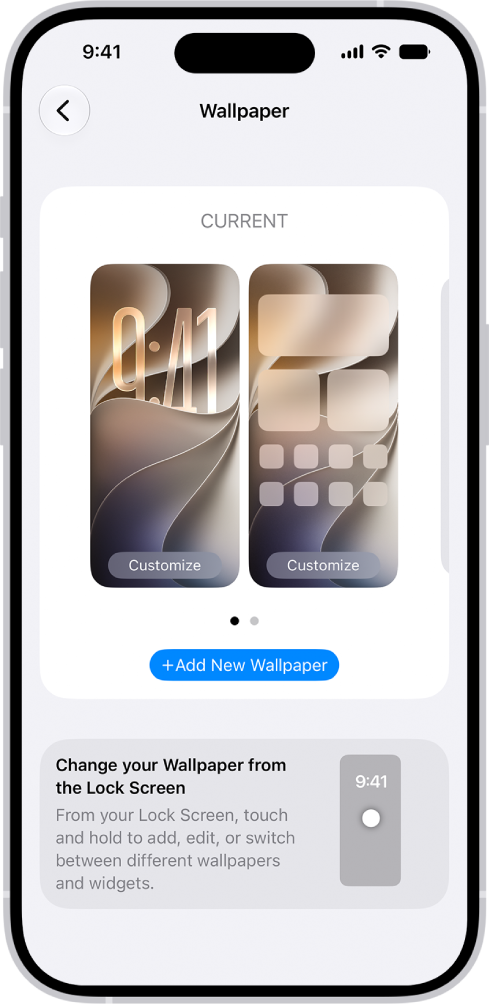
- Tap Blur to turn it off, and then tap Done and exit Settings.
Step 2: Restart
Now restart your iPhone 18 Pro by following these steps:
- Simultaneously press and hold the side button and either volume button until the sliders appear, then drag the Power Off slider.

Step 3: Blur again
Open wallpaper settings again to customize your Home screen wallpaper. And then tap Blur to enable it.
After completing these three steps, check if the blur effect is working or not.