Is your iPad slow after the latest iPadOS 26 update? Does your iPad take longer than expected to respond? Trying to get work done on your slow iPad can be annoying and frustrating, but it doesn’t have to be that way. A lot of factors contribute to iPad slowness. As you continue to use your iPad, its speed may begin to decrease over time.
Below are steps for iPad users that can help speed up the iPad. It’s very common for iPads to run slow after updating iPadOS. Following the tips below will also help older iPad models that run slowly.
Reboot
If you have not rebooted your iPad after updating to iPadOS 26, just reboot it. Restarting your iPad often fixes less serious issues that are slowing down your iPad’s speed. In fact, restart your iPad occasionally.
Here is how you can turn off and on your iPad:
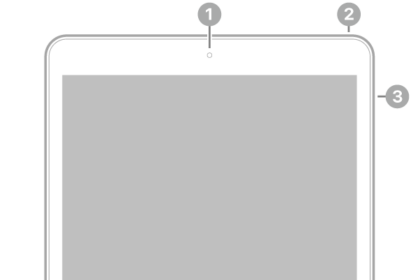
- If your iPad has the Home button: Press and hold the top button until you see the red power off slider. Drag the slider and wait about a minute. Then press and hold the top button until the Apple logo appears.
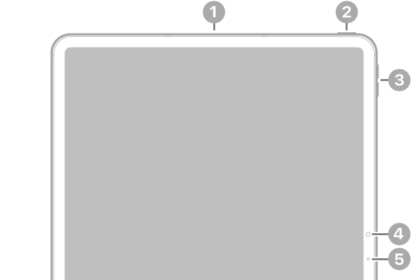
- Other iPad models (Face ID iPads): Press and hold the top and volume up (or down) buttons together until the power off slider appears. Then slide the slider. Wait for about a minute and then press and hold the top button until you see the Apple logo.
Update your iPad
We understand your iPad started running slowly after updating to the latest iPadOS 26 software. However, one of the best ways to get the most out of your iPad is to make sure you have the latest version of iPadOS installed. You can update your iPad easily by going to Settings > General > Software Update.
You should regularly check for updates. You can also have your iPad update automatically. To do that, go to Settings > General > Software Update, then tap Automatic Updates.
Update your apps
Outdated apps may not be optimized to run on the latest iPadOS 26. This may slow down your iPad. Here is how you can fix this:
- Open the App Store app, and tap your profile icon and scroll down and tap Update All.
- You can also turn on Automatic Downloads which will update your apps automatically. Go to Settings > App Store and turn on App Updates to enable automatic updates.
Check the storage on your iPad
The latest iPadOS 26 update may have taken a substantial amount of storage space on your iPad. Additionally, as you continue to use your iPad, you also accumulate photos, files, and apps, this means your storage eventually fills up. This could potentially slow down your iPad. For optimal performance, you should have at least 15 percent free space on your iPad.
On your device, go to Settings > General > iPad Storage. You will see a list of personalized recommendations. You can follow these recommendations to free space.
Uninstall unused apps
If you are like most people, you probably download and install apps and only use once. Most of these apps you’ll never use and some of them may run in the background without you knowing, slowing your iPad down in the process by sucking out memory and resources. It is best to remove them. You can always reinstall them later if you want them again.
Tweak settings
If your iPad is suddenly slow after updating to iPadOS 26, you may want to adjust some settings:
- Disable Background App Activity. Reducing background activity will increase your device’s performance. Go to Settings > General > Background App Refresh and turn off Background App Refresh.
- Use Reduce Screen Motion. Go to Settings > Accessibility > Motion and turn on Reduce Motion.
- Delete your browsing history. If Safari browsing history accumulates enough data, it can slow your iPad down. Clearing it occasionally will help you. Go to Settings > Apps > Safari > Clear History and Website Data.
- Do not turn on Low Power Mode (Settings > Battery) when you do not need it.
- Check your battery health. If your iPad is extremely slow, it may be time for changing the battery. To see your battery info, go to Settings > Battery.
- Poor Wi-Fi connection may slow your iPad down. If you are having trouble connecting your iPad to a Wi-Fi network, you may try:
- Make sure that your iPad is not too far from your router.
- Restart everything: Your modem and router. To do that unplug them and wait about one minute and then replug them in. Also please ensure that your Wi-Fi router is running the latest firmware.
- You may want to reset network settings. Please note that this will erase all of your saved network settings such as your Wi-Fi passwords etc. Go to Settings > General > Transfer or Reset iPad > Reset > Reset Network Settings.
- Try connecting a different Wi-Fi network. Does that impact the performance?
Also note that if you want to make Apple aware of your iPad issues, you can leave feedback on Apple’s feedback page.