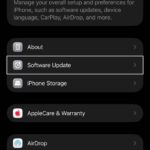
If you installed iOS 27 Beta or iPadOS 27 Beta through Apple’s Developer Program, you may decide you want to downgrade because of usability or stability issues. Keep reading to learn how it’s done.
Apple’s beta versions of its major software updates can be buggy, especially the early releases. While that isn’t necessarily the case for the latest iOS 27 beta, you may still find apps not working properly, poor battery life, device crashes, and features that don’t do what they’re supposed to. Fortunately, you can restore your iPhone or iPad to the previous version of iOS.
If you made an archived backup before you installed the iOS 27 beta, you can remove the beta and restore the backup. If you don’t have an archived backup that was created before installing the beta, you can still downgrade, but you’ll need to set up your device as new or restore from an older compatible backup. Only an archived backup made before installing the beta can be restored after downgrading.
Also, bear in mind that if you’ve installed watchOS 27 beta on your Apple Watch, you won’t be able to use it with your iPhone once you’ve gone back to iOS 26. And downgrading an Apple Watch to a previous version of watchOS can’t be done manually — if you want to remove watchOS 27 beta, you’ll have to send your watch in to Apple.
How to Downgrade From iOS 27 Beta or iPadOS 27 Beta
- Launch Finder on your Mac. On Windows, open the Apple Devices app (or iTunes if you’re using an older setup).
- Connect your iPhone or iPad to your computer using a Lightning or USB-C cable.
- Put the iPhone into Recovery Mode. There are several ways to do this but the method Apple suggests in its support document is this: for iPhones from iPhone 8 onwards (which is what applies here since iOS 27 doesn’t run on iPhones earlier than iPhone 11), press and quickly release the volume up button, press and quickly release the volume down button and then press and hold the side button until you see the Connect to computer screen.
- You’ll be offered an option to update or restore the iPhone. Choose Restore and the iPhone will be wiped and restored to the latest iOS, currently iOS 26.6.
- Once it’s done, you can set up your iPhone from scratch, signing in and choosing an iCloud backup to install.
The iOS 27 public beta will still be there if you change your mind.