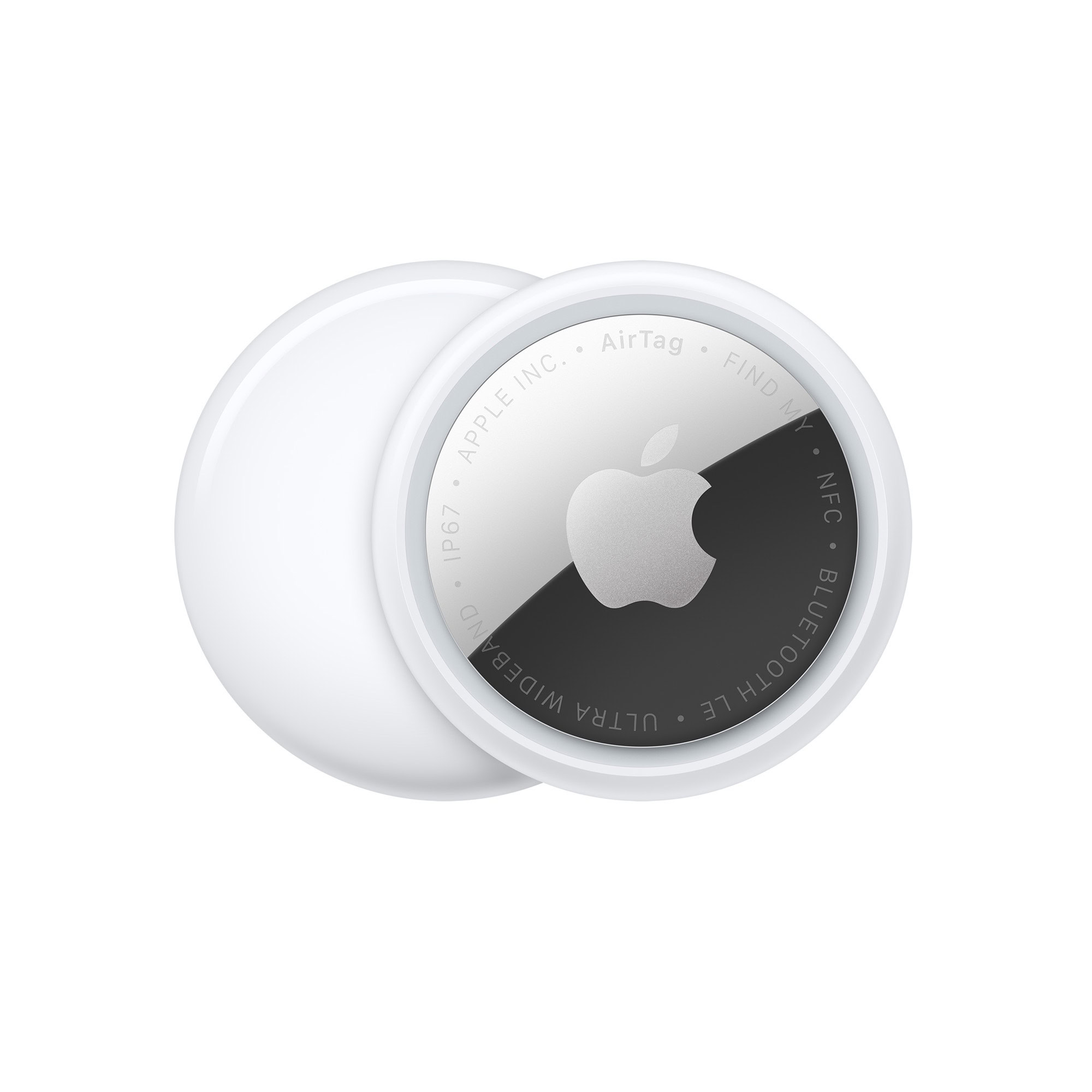
Pairing an AirTag is remarkably simple. Here’s how.
Set up an AirTag
- Unwrap the plastic around the AirTag and then pull the connected strip that’s part of it, preventing the battery from touching the internal contacts. The AirTag makes a “tweetle” sound (something like “tuh TWEE tuh WEE dull”).
- Hold a 2nd-generation AirTag close to an iPhone or iPad with iOS 26.2.1/iPadOS 26.2.1 or later installed; a first-generation AirTag can be held near an iPhone or iPad with iOS 14.5/iPadOS 14.5 or later. The device recognizes an unpaired AirTag using NFC.
- This prompts the phone to display a connection dialog. Tap Connect.
- You can then name it and assign an emoji, from a preset list or a custom one.
- Once the AirTag is paired, Apple warns you about its appropriate use and potential legal consequences. Tap Agree.
- Apple provides a summary of details about the item and actions you can take.
- Tap View in Find My App, or Done, to finish. Third-party items show a slightly different list here.
Before you ask: No, there’s no way to pair a 2nd-generation AirTag with a device that isn’t running those minimum versions of iOS 26/iPadOS 26.
Change the name or emoji of an AirTag
- Go to the Find My app
 on your iPhone.
 - Tap Items
 , tap the AirTag whose name or emoji you want to change, then tap
  .
. - Tap “Change Name and Emoji.”
- Choose a name from the list or choose Custom Name to type a name and select an emoji.
- Tap
 .
.
View more details about an AirTag
After you add an AirTag to your Apple Account, you can view more details about it in the Find My app.
- Go to the Find My app on your iPhone.
- Tap Items , tap the AirTag you want to see more details about, then tap .
- Tap the address of the AirTag to see the model, serial number, and the firmware version.
If the battery level is low, a message appears below the location of the AirTag. You can also see a low battery indicator next to the name of the AirTag in the Items list.
If the AirTag isn’t automatically recognized, tap the plus button in the upper-right corner of the People, Devices, or Items list at the bottom of the screen and tap Add AirTag.
The warning about being linked to your Apple Account is pertinent, as Apple doesn’t consider illegal use of an AirTag as something that it preserves user privacy over. See how Apple and Google detect an unwanted AirTag.
The limit is 32 items
Apple limits you to having access to 32 items in Find My, which includes both the ones you’ve paired and items shared by others. However, that limit is lower than it appears because earbud versions of AirPods count as two or more items. The AirPods and AirPods Pro 1 count as two; AirPods Pro 2 and later count as three. (It still seems unlikely most people will surpass 32.) While AirPods and Beats hardware show up in the Devices tab, they’re items at heart; see how to find a lost iPhone, Mac or AirPods.