You can use Find My to locate your Apple devices. You can also use it to share your location with others. However, sometimes Find My may not work properly, and you may sometimes see a notification saying No Location Found when you attempt to locate your device or a friend’s. If this problem occurs, you may not be able to:
- See your device on a map.
- “Play a sound” or “display a message.”
- Lock or erase remotely.
- Use location based notifications.
You can access Find My by using the Find My app on your device or by signing in to iCloud.com/find using a web browser.
Sometimes, it may be crucial to be able to find your device. For example, you may have lost your device, and you want to locate it. Or, your iPhone 18 Pro may have been stolen, and you want to erase it. To do any of these, you will need to fix this problem first. There can be several reasons why no location can be found. For example, if the device is turned off or not connected to the Internet, iCloud may not be able to find the location. Try the steps given here to fix the issue and get your Find My working again.
If you see a ‘No location found’ alert in Find My, check your settings
Is Find My correctly configured? Check these settings and ensure that your and your friend’s (if you are trying to locate your friend’s device) settings are correct:
- Ensure that Location Services are enabled. If this option is already turned on, turn it off and back on again.
- iPhone: Settings > Privacy & Security > Location Services.
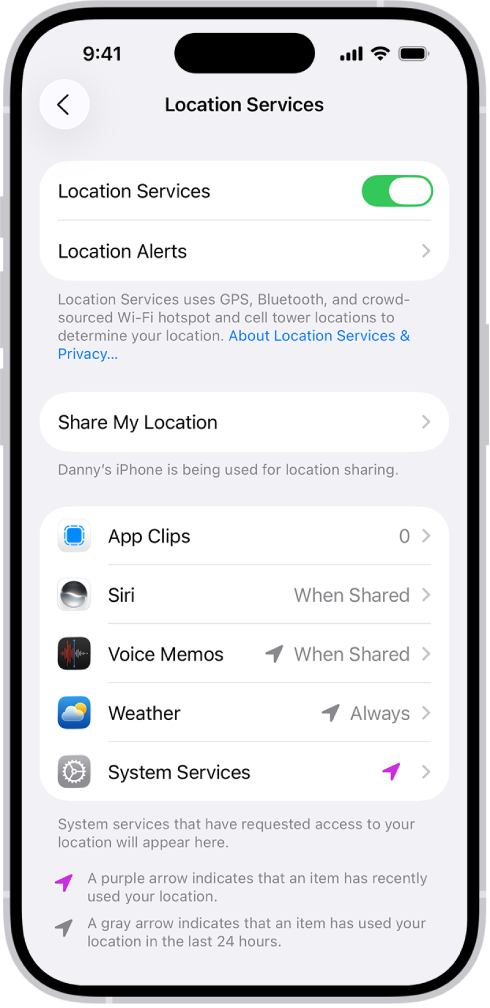
- iPhone: Settings > Privacy & Security > Location Services.
- Ensure that Find My is enabled in Location Services. Again go to Location Services, locate Find My and set it to While Using the App.
- Ensure that Share My Location is enabled. If it is already turned on, turn it off and wait a few seconds and then turn it on again.
- iPhone: On your iPhone, go to Settings > [your name] > Find My. Tap Find My iPhone, then turn on Find My iPhone. Then open the Find My app, tap Me, then turn on Share My Location.
- Ensure that the device has the correct date and time:
- iPhone: Settings > General > Date & Time.
- Ensure that the device is turned on and connected to the Internet over cellular or Wi-Fi.
- If you are accessing the Internet over cellular on your iPhone 18 Pro, make sure that Use Cellular Data is on for Find My. Go to Settings and select Cellular or Mobile Data, then turn on Find My.
- Ensure that Find My iPhone and Share My Location is enabled in System Services. On your iPhone 18 Pro, go to Settings > Privacy & Security > Location Services. Scroll down and tap System Services and ensure that Find My iPhone and Share My Location are turned on.
A lot of users discovered that “Share My Location” had turned itself off after updating iOS. Once it was re-enabled, Find My immediately started working again for the entire family group.
Then go to: Settings > Privacy & Security > Location Services > Find My
Enable:
- While Using the App
- Precise Location (turn on the button)
Check Apple’s System Status to check Find My status
You may see the ‘No location found’ message because Find My may be down and not running. It is really easy to figure out if this is the case. Follow these steps:
- Go to the Apple System Status website: https://www.apple.com/support/systemstatus/.
- Locate Find My.
- If Find My is down, you will see a notice. If it is up and running, you will see a green dot. If it is having issues, the problem is on Apple’s end. This is rare, but it happens. There is nothing for you to do; You can only wait for Apple to fix it.
Update your iPhone 18 Pro
Ensure that your device has the newest version of its operating system. There may be a widespread bug affecting some users in Location Services. An update may have been released already. This will ensure that your device is up to date:
- iPhone: Go to Settings > General > Software Update.
Install any available updates.
Restart the iPhone 18 Pro (soft reset)
A simple (force) restart can refresh location services and Apple Account syncing:
- Press and release Volume Up
- Press and release Volume Down
- Hold the Side button until the Apple logo appears

Check Date & Time
Find My may stop syncing properly if the system time is incorrect. Go to: Settings > General > Date & Time.
Enable:
- Set Time Automatically
Wrong date and time may cause this issue.
Disable VPN Apps Temporarily
Some VPN apps may interfere with Apple’s location services. Even if the VPN is not actively connected, it can still affect Find My in some cases. I recommend deleting it fully.
Try disconnecting or temporarily removing the VPN and then test Find My again.
Reset Location and Privacy
If your issue is still continuing after trying the steps above, you may consider restoring your Location and Privacy settings to their defaults. Here is how:
- On your iPhone, go to Settings > General > Transfer or Reset iPhone > Reset > Reset Location & Privacy and follow the onscreen instructions.