One of the most useful safety nets on Apple Watch is Notify When Left Behind (aka Separation Alerts). In theory, it should buzz your wrist if you walk away without your iPhone 18 Pro or iPhone 18 Pro Max. The little red phone icon shows up, but for many people, the actual haptic alert never happens. I should also note that a lot of users disable this feature because they find it annoying.
This issue has been frustrating Apple Watch owners for years. If you’re expecting your watch to vibrate when your iPhone 18 Pro gets left behind but it stays silent, here’s what you should know.
Check These First
Before going deeper, make sure you’ve set up the feature correctly:
- On your Apple Watch: Open the Find My app > Tap your iPhone > Scroll to Notify When Left Behind > Turn it on.
- On your iPhone 18 Pro: Go to the Find My app > Devices > Select your iPhone > Enable Notify When Left Behind.
If those are already on, but you’re still not getting alerts, move on to the troubleshooting steps.
Troubleshooting Steps
- Turn off “Trusted Locations”: If you excluded your home, the alert won’t trigger there. Try deleting the exception by following these steps:
- On iPhone:
- Open the Find My app.
- Tap Devices.
- Select your iPhone (or the device you want alerts for).
- Tap Notify When Left Behind.
- Under Notify Me, Except At you’ll see your trusted/safe locations (like Home).
- Swipe left on the location > tap Delete.
- Or, tap New Location to add a new location.
- On Apple Watch:
- Open the Find My app.
- Tap your iPhone.
- Scroll to Notify When Left Behind.
- If a trusted location is set, remove or edit it here.
- On iPhone:
- Check vibration settings: On your iPhone 18 Pro, go to Settings > Accessibility > Touch > Vibration and Settings > Sounds & Haptics > Haptics then make sure it’s set to “Always Play.” Then, on your Watch, tap Settings > Sounds & Haptics > Haptics > set to “Prominent.”
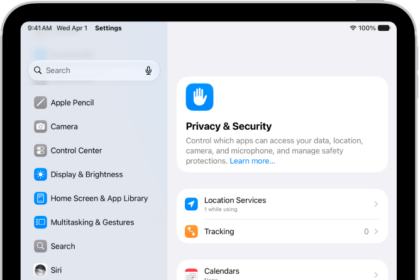
- Verify Find My notifications: On iPhone, tap Settings > Notifications > Find My > Allow Notifications, enable Time Sensitive Notifications, and make sure alerts (Lock Screen, Banner, etc.) are turned on.
- Enable Share My Location: Go to Settings > Privacy & Security > Location Services > Find My and make sure it is set to While Using the App. Furthermore, on your iPhone, open Settings, then tap your Apple Account (your name at the top), go to Find My > Share My Location and make sure Share My Location is turned on.
- Re-pair your Watch: Several users reported success after unpairing and setting up their Watch again (without restoring from backup). You may want to try this.