Does your iPhone 18 Pro or iPhone 18 Pro Max fail to connect to your hidden Wi-Fi connection automatically? Several users have reported that their iPhone does not remember hidden Wi-Fi connections, meaning it is not able to automatically re-connect to a hidden Wi-Fi, forcing users to re-enter their passwords and network names.
Some users have further stated that this issue started after updating to the latest iOS version.
Hidden networks will not show up in the list of wireless networks displayed in the Wi-Fi settings on your iPhone because they do not broadcast their network IDs (SSID). To connect to a hidden Wi-Fi network, you’ll need to know the following:
- The exact name of the network (SSID)
- Security type (WEP, WPA, WPA2, etc); and
- The Wi-Fi password.
Hiding the network name doesn’t conceal the network from detection or secure it against unauthorized access. When you join a hidden network once, your iPhone will save your login information, and use this to automatically connect to the Internet so that you do not have to enter your information. Once you configure your hidden connection and when you are in your hidden network’s range, your iPhone will automatically connect.
Your iPhone won’t automatically rejoin a known network if Auto-Join is turned off for it. To check, go to Settings > Wi-Fi, tap Edit in the corner of the screen to view the networks known to your device, tap the More Info button next to your hidden network, and make sure Auto-Join is turned on.
If your iPhone 18 Pro decides not to remember your Hidden network name and password, and if you do not know how to fix; here is how you can troubleshoot:
1. Restart your iPhone
The first thing you should do if your iPhone 18 Pro won’t auto-join hidden Wi-Fi networks is to restart your device. Press and hold either volume button and the side button until the power-off slider appears. Drag the slider, then wait 30 seconds for your iPhone to turn off. To turn your iPhone back on, press and hold the side button (on the right side of your iPhone) until you see the Apple logo.
You can also restart your iPhone by going to Settings > General > Shut Down, then dragging the slider.
After restarting, Wi-Fi credentials become available only after you unlock your iPhone. Your iPhone can then automatically join a known wireless network, including your hidden network.
2. Update your router’s firmware
The problem could be your router. You may want to update your router’s firmware. To change your router’s settings, update its firmware, or change the Wi-Fi password, use the configuration webpage or app provided by the router’s manufacturer. Consult the router’s documentation or its manufacturer for details.
3. Disable and then enable Wi-Fi
Still you can’t connect? Go to Settings > Wi-Fi, then turn off Wi-Fi and wait a few seconds, then turn Wi-Fi back on.
4. Turn on/off Airplane Mode
On your iPhone, go to Settings > Airplane Mode and turn it on. Then turn off.
5. Restart your router
Restart your router and cable modem by unplugging the devices and then plugging them back in.
6. Turn on Location Services for Wi-Fi networking
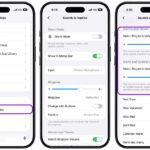
Tap Settings > Privacy & Security > Location Services > System Services, then turn on Networking & Wireless.
7. Force restart
You may force restart your iPhone 18 Pro. To do this:
- Press and quickly release the volume up button.
- Press and quickly release the volume down button.
- Press and hold the side button until you see the Apple logo (this might take longer than 10 seconds).
8. Reset network settings
If the issue persists, reset network settings. To do this Settings > General > Transfer or Reset iPhone > Reset > Reset Network Settings. This resets all Wi-Fi networks and passwords, cellular settings, and VPN and APN settings. Reset network settings only if other solutions fail.
In this article, I explained the steps to fix this problem of your iPhone 18 Pro not auto-connecting to hidden Wi-Fi networks. If you have questions, please leave comments.
If you are still having issues, you may want to contact Apple.