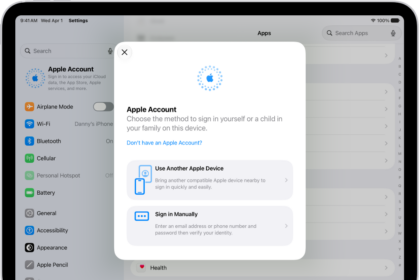
Some users have said that they are unable to sign into their devices using their Apple Accounts and get an error message saying “Verification Failed – This Apple Account is not active” with an OK button under it. Here are some of the characteristics of the problem:
- This problem may occur when you are trying to sign in or sign out of iCloud on iPhone 18 Pro.
- This includes web services also. For example, if you are using the iforgot.apple.com online service to reset your password, you may run into this issue.
- When you try to use the App Store, you won’t be able to download apps.
- You may also get a very similar error message saying, “This person is not active.” This is again the same problem. The steps below can be used for this error too.
Until you fix this, you won’t be able to access Apple services that require a valid, verified Apple Account. In this article, I explain what you can do to get your Apple Account working again.
Check if you can manage your Apple Account on the web
This will help us rule out if the root of the problem is your device or not. Apple offers a web-based service where you can manage your Apple Account. If you can log in there, this may indicate that the problem is not your Apple Account but something else. Follow these steps:
- Open a web browser. Go to account.apple.com.
- Click Sign In.
- Enter your Apple Account and password.
- Can you sign in? If so, after signing in, review your information to see if everything is accurate.
- If you are unable to sign in, move to the next step.
Restart your iPhone 18 Pro
Restart the device which is giving you this problem. Restarting is simple but could fix your problem; this may be a temporary software-related issue, and restarting may fix it. After restarting your iPhone 18 Pro, try to sign in to your device again.
Check System Status
There may be no problem on your end. It is possible that Apple services are having issues. You can easily check Apple System Status. Follow these steps:
- Open a web browser and visit https://www.apple.com/support/systemstatus/.
- You will see all of the services run by Apple.
- Find Apple Account.
- If you see a green dot next to Apple Account, then there is no problem. If Apple’s Apple Account servers are not running, you will see a notification. This notification will include what the problem is and possibly an estimated time for it to be fixed.
- If Apple Account servers are down, there is nothing for you to do. Just wait for Apple to address it.
- You can periodically check this System Status page to learn when the issue has been fixed. Then you can try to sign in or out using your Apple Account.
Contact Apple Support
If you are still having this issue, now contact Apple Support. It is possible that your Apple Account has been deactivated by Apple. If this is the case, only Apple can fix your Apple Account problem. Here is how you can get Apple Account support. Follow these steps:
- Open a web browser and visit: https://getsupport.apple.com.
- Click Choose a Product.
- Under Apps & Services, click Apple Account.
- Under What’s going on?, select Other Apple Account Topics.
- Scroll down, and you will see a text field under Or, tell us in your own words.
- In the field, type this Apple Account is not active.
- You will see the results. Select the first one saying “If your Apple Account is locked, not active, or disabled”.
- This screen will say See your support options. Click Continue.
- The next screen will show the best support option that is available to you. For me, it is showing the Call option.
- Click Call, and then enter your details, name, email and phone number for Apple to contact you. You can schedule a call in the near future or ask to be called as soon as possible, usually within minutes depending on your availability.
- When Apple calls, explain your issue. Only Apple can help you.