Facebook-f Twitter
GeeksChalk Logo GeeksChalk Logo
Notification
  • Home
  • iPhone
  • iPad
  • Mac
  • Apple Watch
  • Pages
    • About Us
    • Contact Us
    • Advertise With Us
  • 🤩 Trending:
  • 100 new iOS 26 features for iPhone
  • 10 Best iOS 26 Tips & Tricks
  • iPhone 16: Everything We Know
  • iPhone 16 Pro: Everything We Know

GeeksChalk is the leading source for all things iPhone, Mac, iPad, Apple Watch, Vision Pro, and more

GeeksChalkGeeksChalk
  • Home
  • iPhone
  • iPad
  • Mac
  • Apple Watch
Search

Popular Post

iPhone 15 Pro in black titanium, white titanium, blue titanium, and natural titanium finishes.
iPhone

Apple CarPlay GPS Not Working, Showing Wrong Location: Fix

iPhone 14 Pro and iPhone 14 Pro Max are shown in gold.
iPhone

How to Fix iPhone not sending text messages to Android

Connect an iPhone to car Bluetooth
Troubleshooting

How to fix Bluetooth not working on iPhone after iOS 26 update

iPhone outline with an Apple logo
iPhone

Need to restore an iPhone backup? Here’s how

Follow US
Copyright Ā© 2026 www.GeeksChalk.com
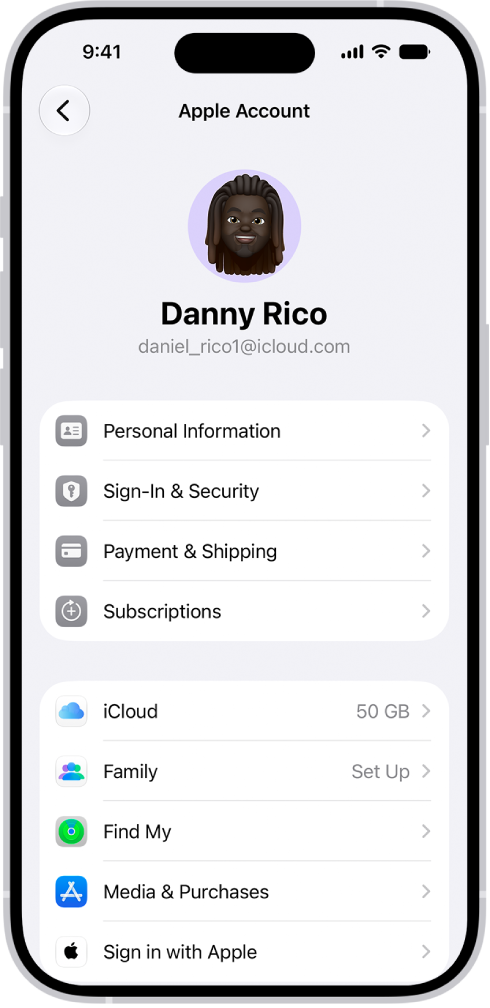
The Apple Account Settings shown with a list of options including personal information, subscriptions, Find My, and more.
GeeksChalk > iPhone > How to keep your Apple Account secure on iPhone

How to keep your Apple Account secure on iPhone

You can keep your Apple Account secure on iPhone with two-factor authentication, Account Recovery Contacts, Legacy Contacts, and a recovery key.

Last updated: October 19, 2026 1:25 pm
By Kevin Shaw - Editor
Share
2 Min Read

On iPhone, your Apple Account is the account you use to access Apple services like the App Store, Apple Music, iCloud, iMessage, and FaceTime. It includes the email address and password you use to sign in, as well as the contact, payment, and security details you use across Apple services.

Apple employs industry-standard practices to safeguard your Apple Account. But there’s plenty you can do, too, from using two-factor authentication to adding Account Recovery Contacts and Legacy Contacts.

Here’s how to keep your Apple Account secure on iPhone.

Best practices for maximizing the security of your Apple Account

  • Don’t let others use your Apple Account, even family members.

    To share purchases, subscriptions, a family calendar, and more without sharing Apple Accounts, set up Family Sharing.

  • Use two-factor authentication. If you created your Apple Account on a device with iOS 13.4, iPadOS 13.4, macOS 10.15.4, or later, your account automatically uses two-factor authentication. If you previously created an Apple Account without two-factor authentication, turn on two-factor authentication now.
  • Never provide your password, security questions, verification codes, recovery key, or any other account security details to anyone else. Apple will never ask you for this information.
  • When accessing your Apple Account page in Safari or another web browser, look for the Lock icon in the address field to verify that your session is encrypted and secure.
  • When using a public computer, always sign out when your session is complete to prevent other people from accessing your account.
  • Avoid phishing scams. Don’t click links in suspicious email or text messages, and never provide personal information on any website you aren’t certain is legitimate.
  • Don’t use your password with other online accounts.
  • To help protect your information in case your iPhone is stolen, turn on Stolen Device Protection. Stolen Device Protection adds a layer of security when your iPhone is away from familiar locations, such as home or work.
  • If one of your devices is lost or stolen, turn on Lost Mode as soon as possible for that device. (You can do this on a friend’s device and don’t need to use your own.)

Add Account Recovery Contacts

Choose one or more people you trust as Account Recovery Contacts, and they can help you regain access to your account and reset your Apple Account password if you forget your password or get locked out.

Go to Settings > [your name] > Sign-In & Security > Recovery Contacts, tap Add Recovery Contact, then follow the onscreen instructions.

For more information, go to Settings > [your name] > Sign-In & Security, then tap “Learn more” below Add Recovery Contact.

Add Legacy Contacts

With the Digital Legacy program, you can designate people as Legacy Contacts who can access your Apple Account in the event of your death.

Go to Settings > [your name] > Sign-In & Security > Legacy Contact, tap Add Legacy Contact, then follow the onscreen instructions.

Generate a recovery key for your account

You can generate a recovery key for additional control over your account security. It can help you regain access to your Apple Account or reset your account password. A recovery key is a randomly generated 28-character code, and you should keep it in a safe place. To reset your account password, you can either enter your recovery key or use another device that’s already signed in to your Apple Account.

To ensure you have access to your account, you are personally responsible for maintaining access to the recovery key and your trusted devices.

TAGGED:Apple Account
ByKevin Shaw
Editor
Follow:
Kevin Shaw is a seasoned tech journalist based in Los Angeles with a penchant for all things Apple. He started writing about Apple products in 2007 and it's been a love affair ever since. He has spent over a decade testing and writing about iPhones, iPads, Macs, and other Apple products. In his spare time, he likes nothing more than catching up with the latest news and sports podcasts on the beach.
Leave a Comment Leave a Comment

Leave a Reply Cancel reply

Your email address will not be published. Required fields are marked *

Recent News Flash

The Phone app, with Favorite contacts on the left side of the screen. Below the Favorites is a list of recent calls and voicemail. The contact information appears on the right side of the screen, with the Keypad button in the top right of the screen.

How to view and delete your call history on iPad

A Settings screen showing Accessibility options such as VoiceOver, Live Recognition, and Audio Descriptions.

How to keep the screen off when you use VoiceOver on iPad

The Maps app showing a map of an area. The search field is in the top left, with results from a search query listed below.

How to explore airports or malls in Maps on iPad

The iPad Home Screen with several app icons, including the Settings app icon, which you can tap to change your iPad sound volume, screen brightness, and more.

How to change the name of your iPad

Trending Now

A collection of Apple products, including Apple Vision Pro, MacBook, iPad, iPhone 17 Pro, and Apple Watch, all displaying various Siri AI interfaces.

How to Turn On the New Siri on iPhone, iPad, and Mac

The buttons for Clean Up, Extend, and Reframe are displayed below a photo.

How to clean up, extend, and reframe photos on iPhone

An email attachment is selected with possible actions listed.

How to download email attachments in Mail on iPad

Explore More

Recommended For You

A news story in the News app. In the tabs across the bottom, Today is selected.

How to clear your reading history in News on iPhone

An open photo with thumbnails of other photos across the bottom of the screen. At the top left is a Back button to go back to browsing.

How to view photos and videos on iPhone

The Control Center, showing options for audio and video effects.

How to use video conferencing features on iPhone

An iPhone showing Siri proofreading and giving feedback on text.

How to use Apple Intelligence to communicate with ease on iPhone

GeeksChalk Logo GeeksChalk Logo
  • Home
  • Contact Us
  • Advertise
  • Our Staff
  • Editorial Guidelines
  • Terms
  • Privacy
  • Accessibility
  • Copyright
  • About Us
  • Fact Checking Policy
  • Correction Policy
  • Ethics Policy
  • Ownership Policy
Copyright Ā© 2026 www.GeeksChalk.com
Welcome Back!

Sign in to your account

Username or Email Address
Password

Lost your password?